
This guide will help you with how to Upload Custom Worlds or game modes in your Wurm Unlimited Server
Start hosting your Wurm Unlimited world today with AA Game Hosting
Uploading a custom world or game mode to your Wurm Unlimited server is one of the best ways to personalize your gameplay experience. Whether you’re importing a handcrafted map, switching to a community‑made gamemode, or restoring a world you previously generated, Wurm Unlimited gives you full control over the files that define your server’s terrain and ruleset. Because these worlds and game modes rely on specific directory structures and configuration files, the upload process requires placing the correct files in the right locations and ensuring your server is configured to load them on startup. This guide walks you through the complete process, from preparing your custom world or game mode files to uploading them through your control panel or FTP, to selecting the correct settings so your server boots directly into your custom environment. By the end, your server will be running your chosen world or gamemode exactly as intended.
Uploading and Loading Custom Worlds/Gamemodes in Wurm Unlimited
You’ll need to locate the game mode folder, such as creative or adventure, inside your Wurm Unlimited installation directory.
Then upload these files via FTP or the Game Panel’s File Manager to the main/root directory.
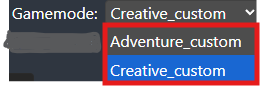
After that, select the appropriate game mode in the Commandline Manager, then hit Apply.
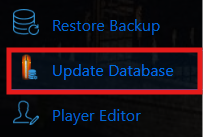
Click Update Database to apply the changes on your server.
Did the above information not work for you?
Please click here to contact our support via a ticket.
