
This guide will help you enable or Disable Mods in your Wurm Unlimited Server
Start hosting your Wurm Unlimited world today with AA Game Hosting
Managing which mods are active on your Wurm Unlimited server is essential for keeping your gameplay experience stable, customized, and easy to maintain. Whether you’re testing new features, troubleshooting issues, or adjusting your server’s balance, the Wurm Modloader makes it simple to enable or disable mods through straightforward configuration changes. Each mod includes a small control file that determines whether it loads on startup, giving you full control without needing to remove or reinstall anything. This guide explains how mod activation works, how to toggle mods on or off using their configuration files, and how to verify that your changes take effect when the server starts. By the end, you’ll have a clear, reliable workflow for managing mod states and keeping your Wurm Unlimited server running exactly the way you want.
Turning Mods On or Off in Your Wurm Unlimited Server
1. Log in to your Game Control Panel and navigate to your service.
2. Before making any modifications, stop the server from running by clicking the Stop button.

3. Navigate to the File Manager Tab to continue.
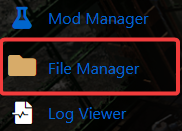
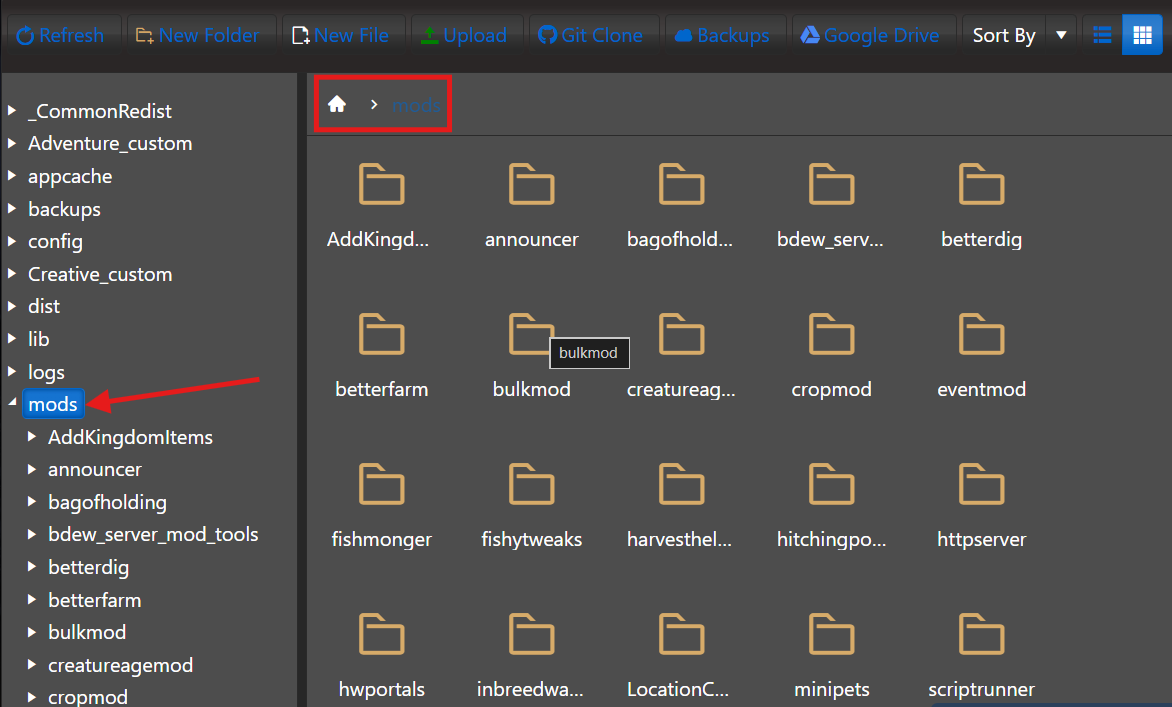
4. In the File Manager, proceed to the /mods directory in your Wurm Unlimited server files.
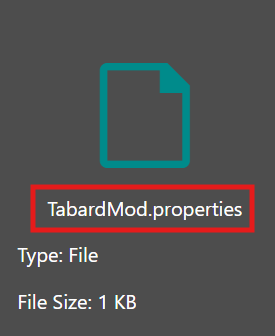
5. You can disable a mod by renaming its .properties file to .disabled. You can enable a mod by renaming its .disabled file back to .properties.
6. Start your server.

Did the above information not work for you?
Please click here to contact our support via a ticket.
