This guide will help you fix a Wurm Unlimited Server That Won’t start
Start hosting your Wurm Unlimited world today with AA Game Hosting
A Wurm Unlimited server failing to start is one of the most common issues administrators encounter, and it can happen for a wide range of reasons, from incorrect configuration values to missing files, corrupted databases, mod conflicts, or command line argument errors. While the problem can seem frustrating at first, most startup failures can be diagnosed and resolved quickly once you know where to look. This guide walks you through the most frequent causes of Wurm Unlimited server startup issues and provides clear, actionable steps to identify and fix them. Whether you’re running a fresh installation, updating an existing world, or managing a heavily modded server, this troubleshooting overview will help you pinpoint the issue and get your server running again with confidence.
Troubleshooting: Wurm Unlimited Server Won’t Start
There are several possible reasons why your Wurm Unlimited server may fail to start. The most common cause is an out‑of‑sync or improperly updated database, followed closely by issues with incorrect configuration variables. Follow the steps below to diagnose and resolve the problem.
1. Log in to your Game Control Panel and navigate to your service.
2. Before making any modifications, stop the server from running by clicking the Stop button.

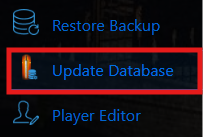
3. Navigate to the Update Database Tab to continue.
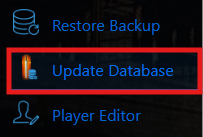
This step makes sure all necessary server variables are configured as intended.
If this doesn’t resolve the issue, one of your server variables is likely set incorrectly.
1. Log in to your Game Control Panel and navigate to your service.
2. Before making any modifications, stop the server from running by clicking the Stop button.
3. Navigate to the Configuration Files Tab to continue.
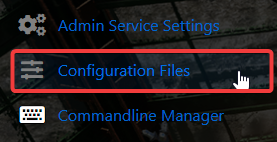
4. Next, find server.txt in the list and press Config Editor to open it.

5. Here you can easily configure all of your core server options. Make sure to read the description beneath each setting so you understand how it affects your server.
All skill options must end with .0, If the decimal is removed, the server will fail to start.
6. After editing the file, click the Save button to apply the changes to your server before continuing.

7. Once you’ve saved your changes, go back to the main control panel screen and click Update Database.