

This guide will help you with how to Install Mods in The Isle Server
Launch Your Isle Server Today with AA Game Hosting
Modding your The Isle server opens the door to deeper customization, new gameplay features, and a more engaging experience for your community. Whether you’re adding quality‑of‑life improvements, enhancing server management tools, or introducing entirely new mechanics, mods allow you to tailor your server far beyond the default settings. With the right setup, installing and managing mods becomes a smooth, reliable process that keeps your server stable while giving players something fresh to enjoy. This guide walks you through the full mod installation workflow, from preparing your server environment to uploading files, enabling dependencies, and verifying everything loads correctly. By following these steps, you’ll be able to confidently install, update, and maintain mods that elevate your server’s gameplay and keep your community coming back.
Installing Mods for The Isle Server
1. Log in to your Game Control Panel and navigate to your service.
2. Before making any modifications, stop the server from running by clicking the Stop button.

3. Navigate to the Files Manager Tab to continue.
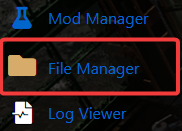
4. Navigate through the File Manager to TheIsle\Saved\Config\WindowsServer\GameUserSettings.ini.
5. Add the following text to the file, then edit the settings as required.
6. Add the following text to the file, then edit the settings as required.
7. Open the Commandline Manager, click Activate on the “Modded Server” preset, then copy and paste your Mod IDs into the field.
8. Verify the changes by viewing the Web Console in your Game Panel. It should look something like this:
Did the above information not work for you?
Please click here to contact our support via a ticket.
