
 This guide will help you How to Edit Your World Settings in Windrose Server
Experience Windrose Hosting — Order from AA Game Hosting!
Editing your world settings in Windrose Server is one of the most powerful ways to shape the experience your players will have. Whether you're fine‑tuning gameplay rules, adjusting environmental behavior, or customizing how your world evolves, these settings give you direct control over the heart of your server. Understanding how to navigate and modify them ensures your world behaves exactly the way you envision, stable, immersive, and uniquely yours. In this guide, you’ll learn how to access, adjust, and optimize the key configuration options that define your Windrose world. From basic parameters to advanced customization, each step will help you build a server environment that matches your creative goals and enhances the player experience.
Editing World Settings in Windrose Server
1. Log in to your Game Panel to begin the setup.
2. Go to the File Manager Files section to continue.

3. Navigate to the WorldDescription.json file located at: <Home>/R5/Saved/SaveProfiles/Default/RocksDB/0.10.0/World/<WorldID>/.
This version keeps the technical accuracy while making the instructions easier to follow. If you want, I can also help you create a full step‑by‑step section on locating world files or editing JSON safely.

4. Right‑click the file and choose Edit, or simply double‑click it to begin editing.
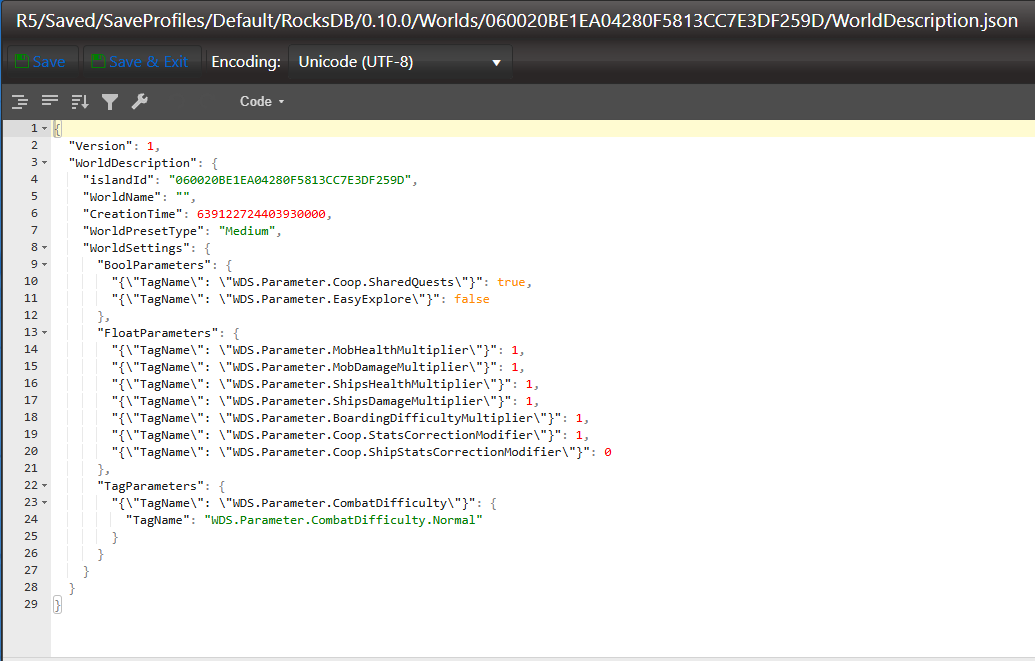
Edit the values in the config as you desire.
5. Click Save in the top‑right corner of the window when you’re finished editing. You can now start the server, and your new world settings will be applied automatically.
If you encountered issues during the process,
Please click here to send a ticket to our team.