

This quickstart will help you jumpstart your adventure on your Mount&Blade Warband Server.
Click here to order your Mount & Blade: Warband server with AA Game Hosting today!
Mount & Blade: Warband is a sandbox medieval RPG that gives you total freedom to forge your own path as a mercenary, merchant, warlord, or king. This quickstart guide helps new players get oriented fast so they can survive early battles, build a strong foundation, and start shaping the world of Calradia on their own terms. Warband can feel overwhelming at first because it drops you into a dynamic world with minimal hand‑holding. This guide breaks down the essentials: choosing an effective character build, surviving the dangerous early game, assembling your first warband, earning money efficiently, and understanding how the political map works. Whether you want to become a feared vassal, a wealthy trader, or an independent king, the quickstart guide gives you the momentum you need to get there.
Connecting to your Mount & Blade Warband Server
1. Log in to your Game Panel.
2. Copy the Connection Info or Query Info IP/Port listed.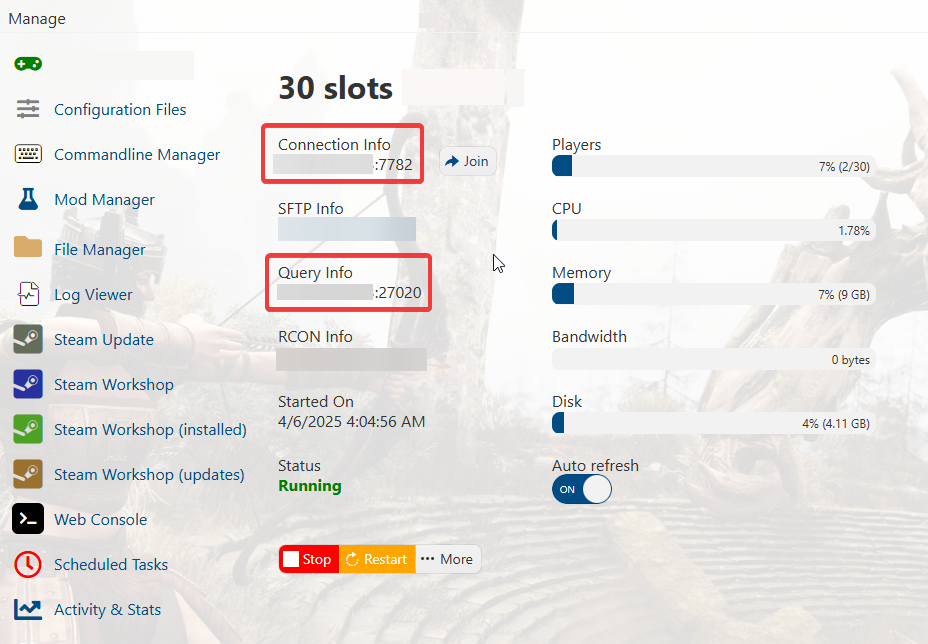
3. Open Steam. Click the View tab, then click Game Servers.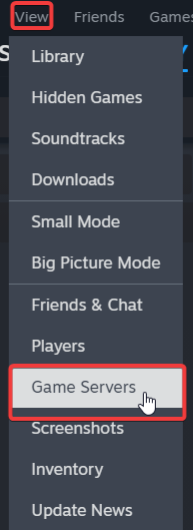
4. Click on the Favourites tab, then click the + sign and Add Server.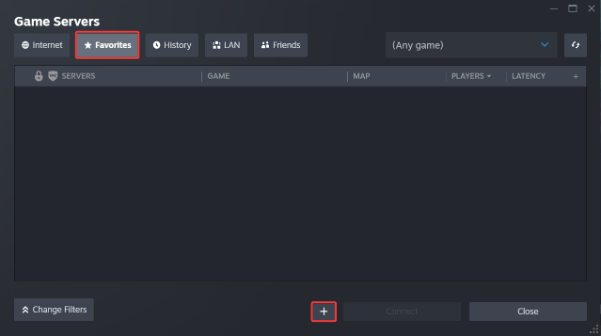
5. Paste in your server's Connection Info or Query Info IP/Port.
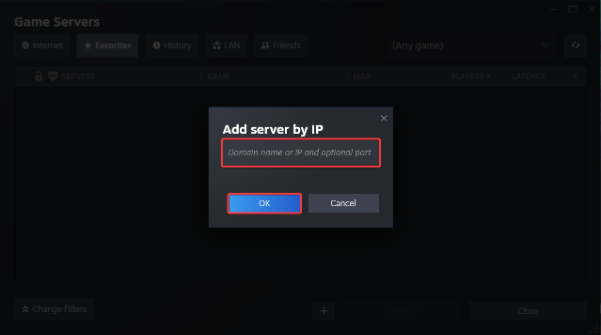
6. Click Connect.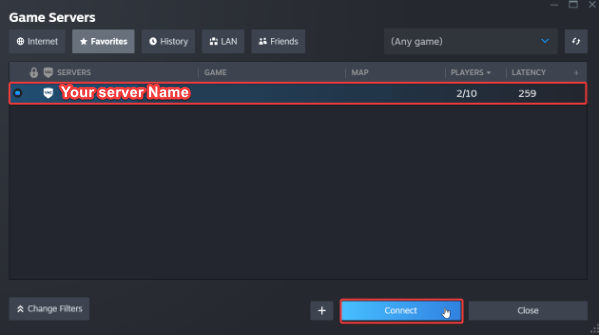
7. You can also use the Connection Info to connect directly
via the games In-Game server browser or Launcher.
To edit server settings, follow these steps:
1. Log in to your Game Panel.
2. Open the Configuration Files and Commandline Manager.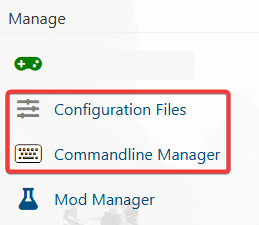
3. For the Configuration Files, select the “Config Editor” Button.
A pop-up will appear with settings you can easily change, such as Server Name and Password.
You can also use “Text Editor” to change the configuration contents directly.
4. For the Commandline Manager, select what commandline you want activated.
There is usually a default line and a modded line for our Control Panels.
Press Modify on the one you want and edit the available settings like Server Name and Password.
There are also options to edit the mods and configs to load on the Command Line.
Once you have finished editing, hit apply at the bottom when done.

If you encountered issues during the process,
Please click here to send a ticket to our team.
