

This guide will help you learn how to Assign Admin Rights to Players in the Valheim Server
Click here to order your Valheim server with AA Game Hosting today!
Running a Valheim server comes with its own set of responsibilities, and sometimes you need a trusted player to help manage the world you’ve built. Whether you’re hosting a small group of friends or maintaining a large community, assigning admin rights ensures you can moderate gameplay, troubleshoot issues, and keep everything running smoothly. In this guide, you’ll learn exactly how to quickly, safely, and without any guesswork grant admin privileges to players on your Valheim server. By the end, you’ll have full control over who can access powerful server commands and how to manage them effectively.
Setting Admin Permissions for Players on a Valheim Server
1. First of all, we need to note the Steam ID of the player you want to set as admin. To do that, go to the Steam desktop application and select your Steam username in the top-right corner of the screen. Select ''Account details''. Your Steam ID can be found below your Steam username. Take note of this string of numbers for later.
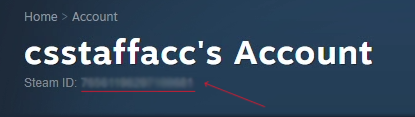
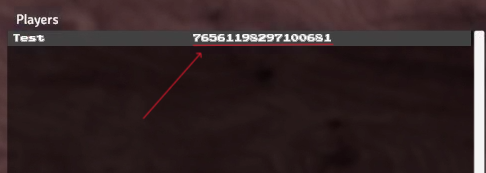
You may also see your Steam ID by joining your Valheim server. Press the F2 key on your keyboard. Under the Players box, you will find the ID in front of the player's name.
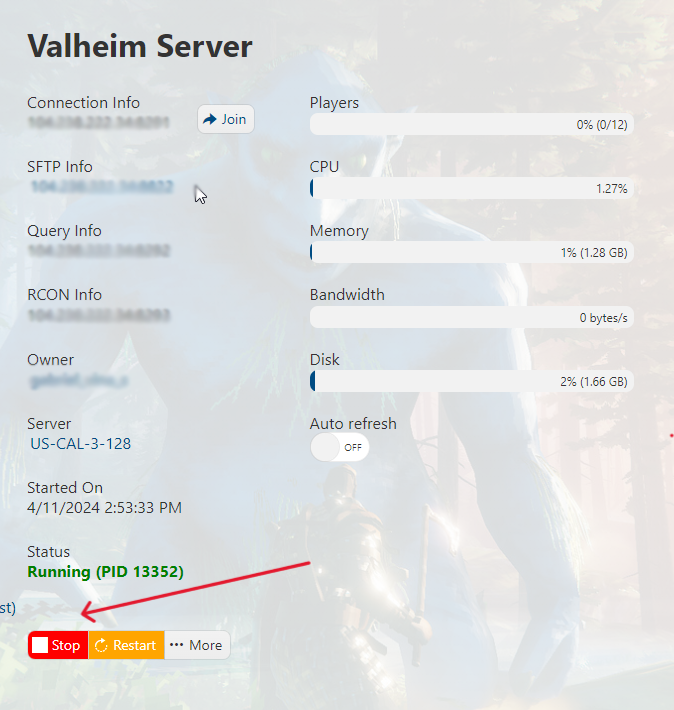
2. Log in and access your Game Panel and navigate to your Valheim server. Make sure it's not running. If it is, press the "Stop" button.
3. Go to the "Configuration Files" section

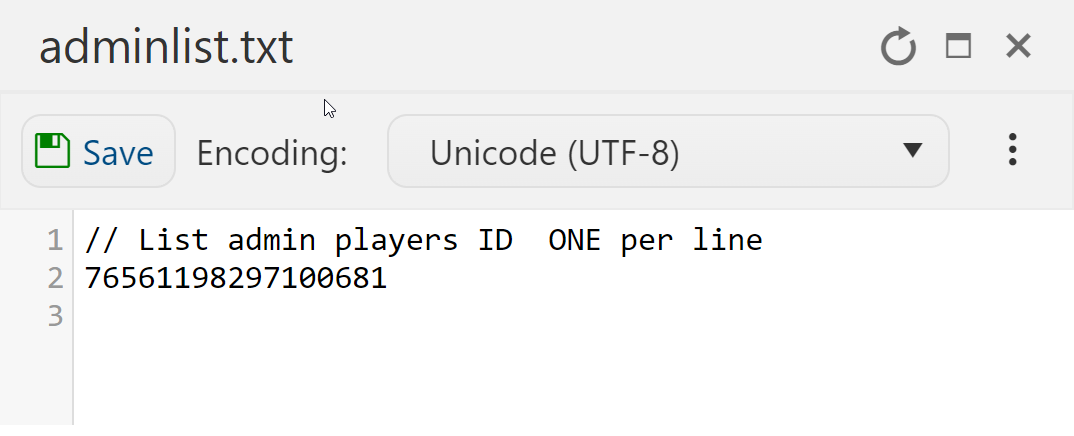
4. Edit the adminlist.txt file via the Text Editor. Add the Steam ID that we noted to the text file. Each Admin is one per line, press "Save & Exit".
4. Head back to your Game Panel and press "Start" to start your server.
5. Once a player is given admin access, they will still need to enable their console through their own game in Steam. Here are the steps:
a. Navigate to your Steam game library.
b. Locate and right-click Valheim.
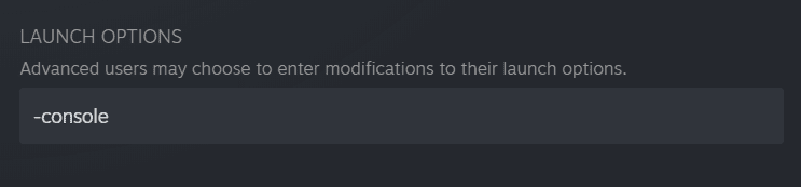
c. Go to properties. Under the General tab, locate the Launch Options section.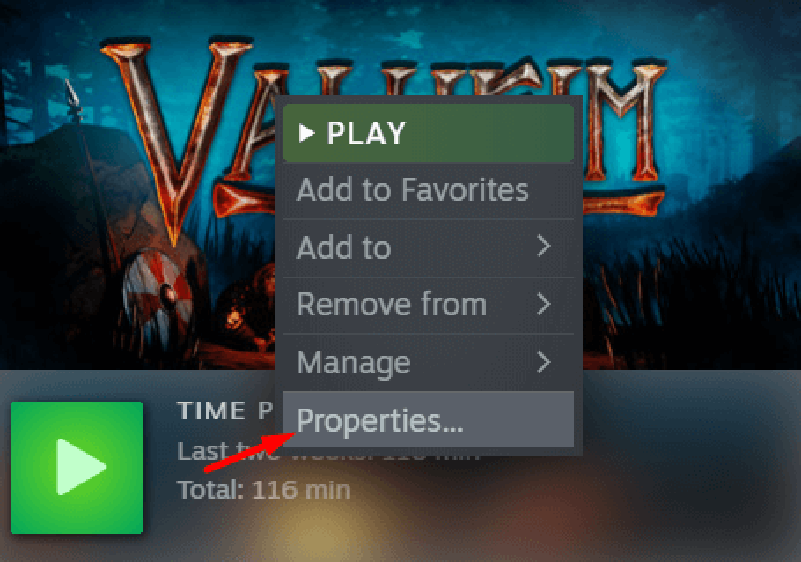
d. Enter -console, hyphen included.
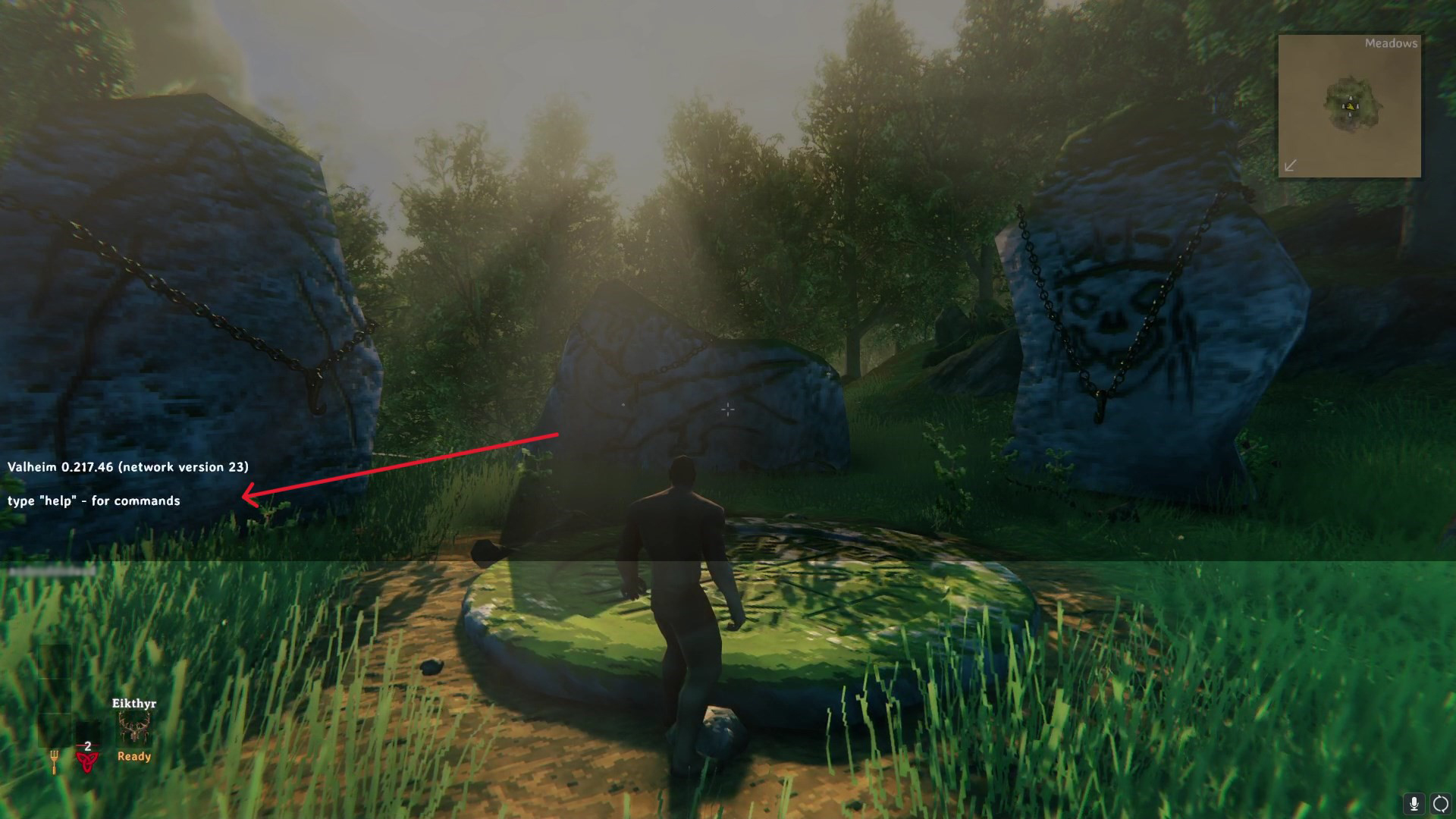
6. Start Valheim and connect to your game (follow this guide if you're unsure how to). Once you are in-game, press F5 to open the console and type help for all the admin commands.
If you encountered issues during the process,
Please click here to send a ticket to our team.