

This guide will help you import existing player data onto your Hytale Server.
Click here to order your Hytale server with AA Game Hosting today!
Transferring a save or world to your Hytale server is the key to preserving the builds, progress, and player history that make your gameplay meaningful. Whether you’re moving from a local single‑player world, migrating from another host, or restoring a backup, bringing an existing save online ensures that your server loads the exact world state you want, terrain, structures, player inventories, and all. This process helps you avoid starting from scratch and gives your community a seamless continuation of their adventure. A smooth transfer depends on understanding where Hytale stores world data, which files matter most, and how your server reads them once uploaded. The workflow typically involves preparing your world folder, placing it correctly within your server’s file structure, and verifying that the server recognizes and loads it on startup. Along the way, it’s helpful to know how Hytale organizes universes, worlds, and player data so you can troubleshoot issues like missing worlds or corrupted saves.
Uploading a Save to Your Hytale Server
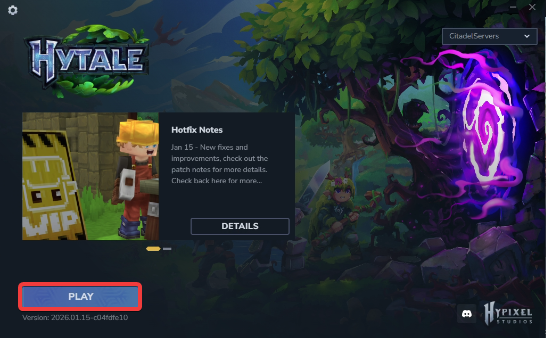
1. Launch the game.
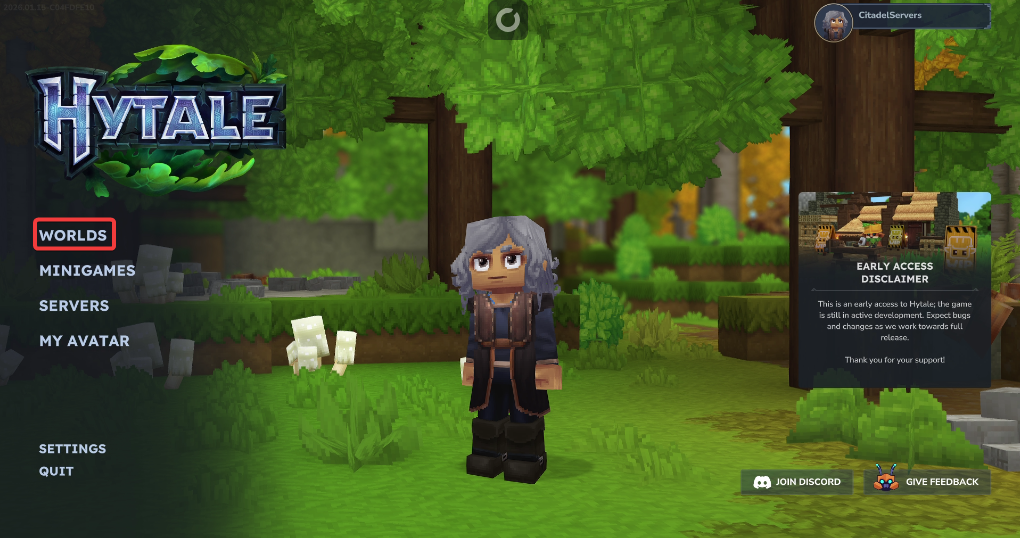
2. Open the World Menu to view and manage all available worlds on your server.
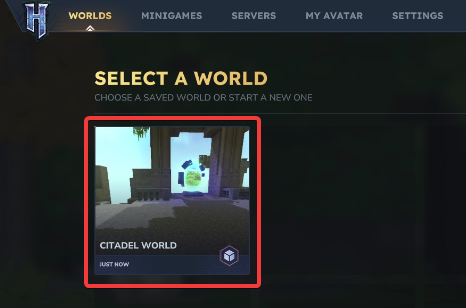
3. Right‑click the world you want to manage to open its action menu.
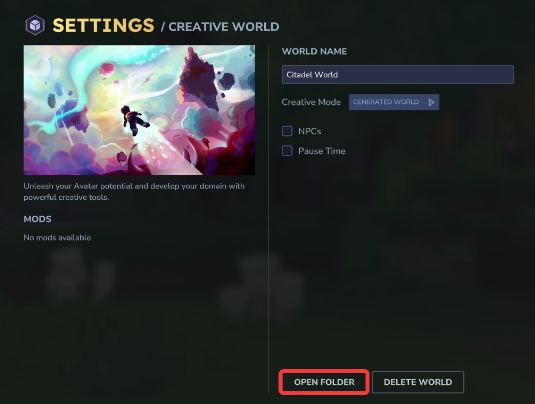
4. Click the Open Folder button to view the world’s files directly in your system.
5. Open the Universe folder in your server files to access all world directories and player data.
6. Log in to your Game Control Panel and navigate to your service.
7. Before making any modifications, stop the server from running by clicking the Stop button.

8. Navigate to the File Manager Tab.
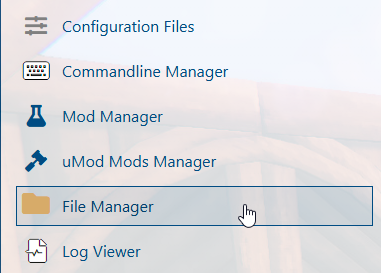
9. In the File Manager tab, locate the universe folder to access your server’s world data.
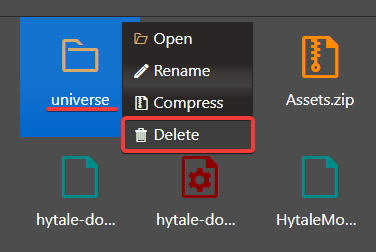
10. Transfer the universe folder for your chosen world into your server files to complete the upload.
When uploading, we highly recommend using FTP tools such as FileZilla. We have a detailed guide on how to use it here.
Did the above information not work for you?
Please click here to contact our support via a ticket.
