

This guide will help you how to connect on your Hytale Server.
Click here to order your Hytale server with AA Game Hosting today!
Running your own Hytale server opens the door to endless creativity, collaboration, and community building. Whether you’re hosting a private world for friends or managing a large-scale multiplayer hub, knowing how to connect properly is the first step toward unlocking the full potential of Hytale’s sandbox experience. Connecting to a server isn’t just about typing in an IP address it’s about ensuring your game client and server are configured correctly, that authentication is secure, and that players can join seamlessly without technical hiccups. This process allows you to dive straight into gameplay, explore custom worlds, and interact with others in a stable environment. In this guide, we’ll walk through the essentials of connecting to your Hytale server, from locating your server details to entering them in the game client. By the end, you’ll be ready to join your world and start building, battling, and adventuring with your community.
Connecting to your Hytale Server
1. Log in to your Game Control Panel and navigate to your service.
2. Before making any modifications, stop the server from running by clicking the Stop button.

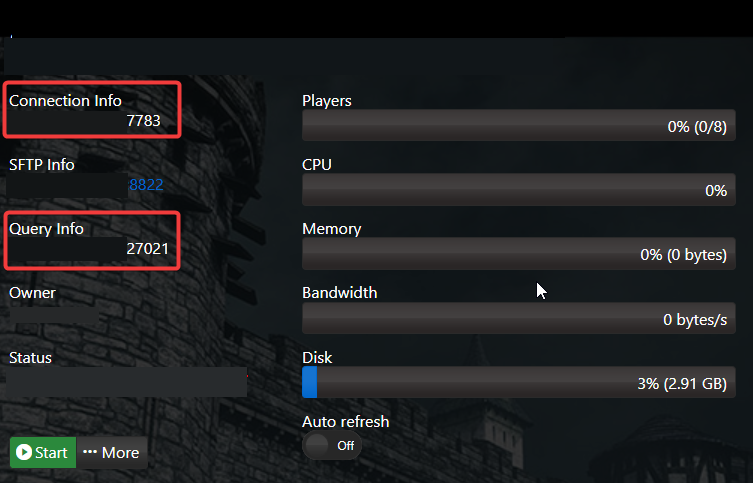
3. Copy the Connection Info/Query Port listed.
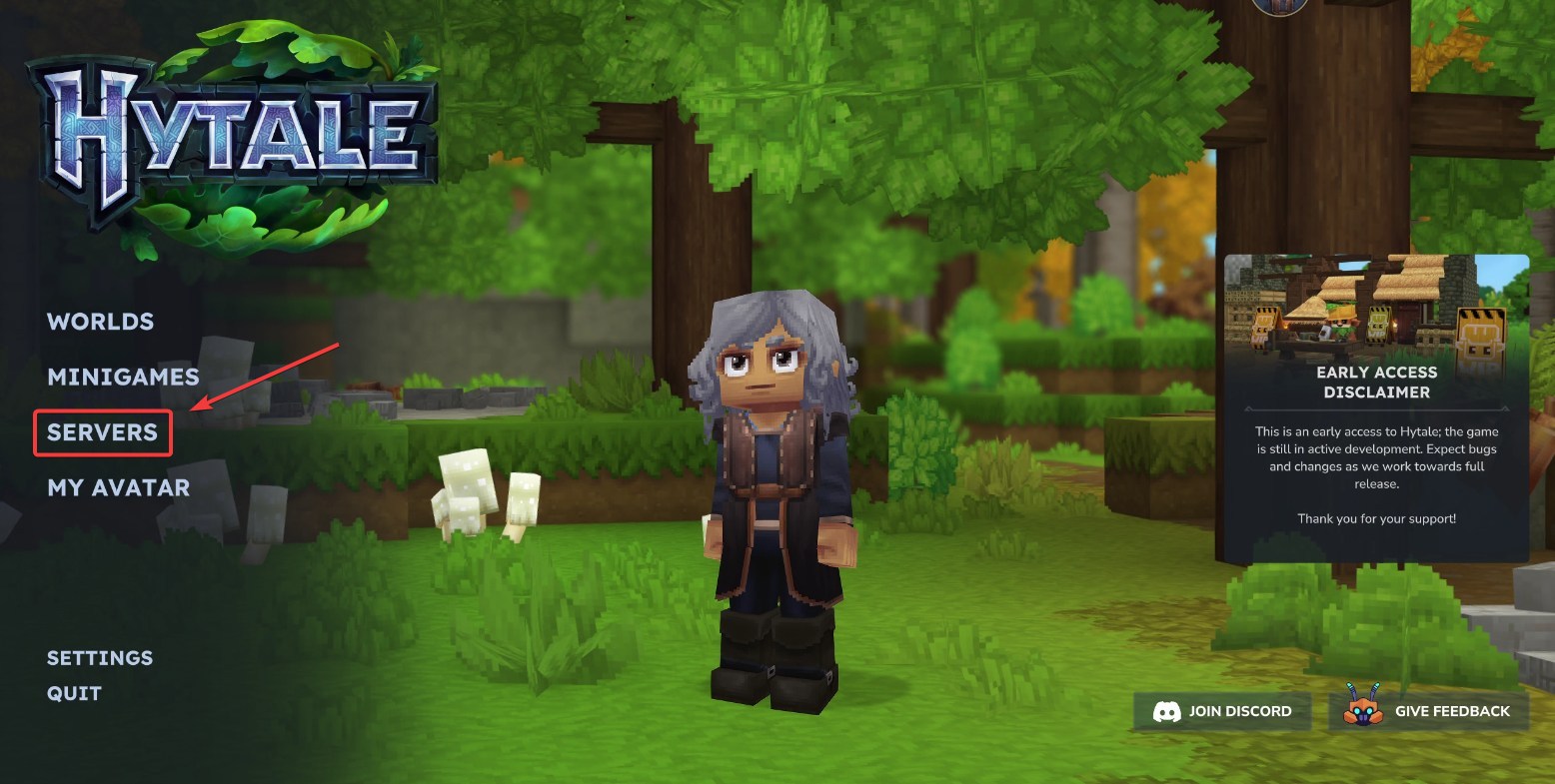
4. Open Hytale game client and click on Servers.
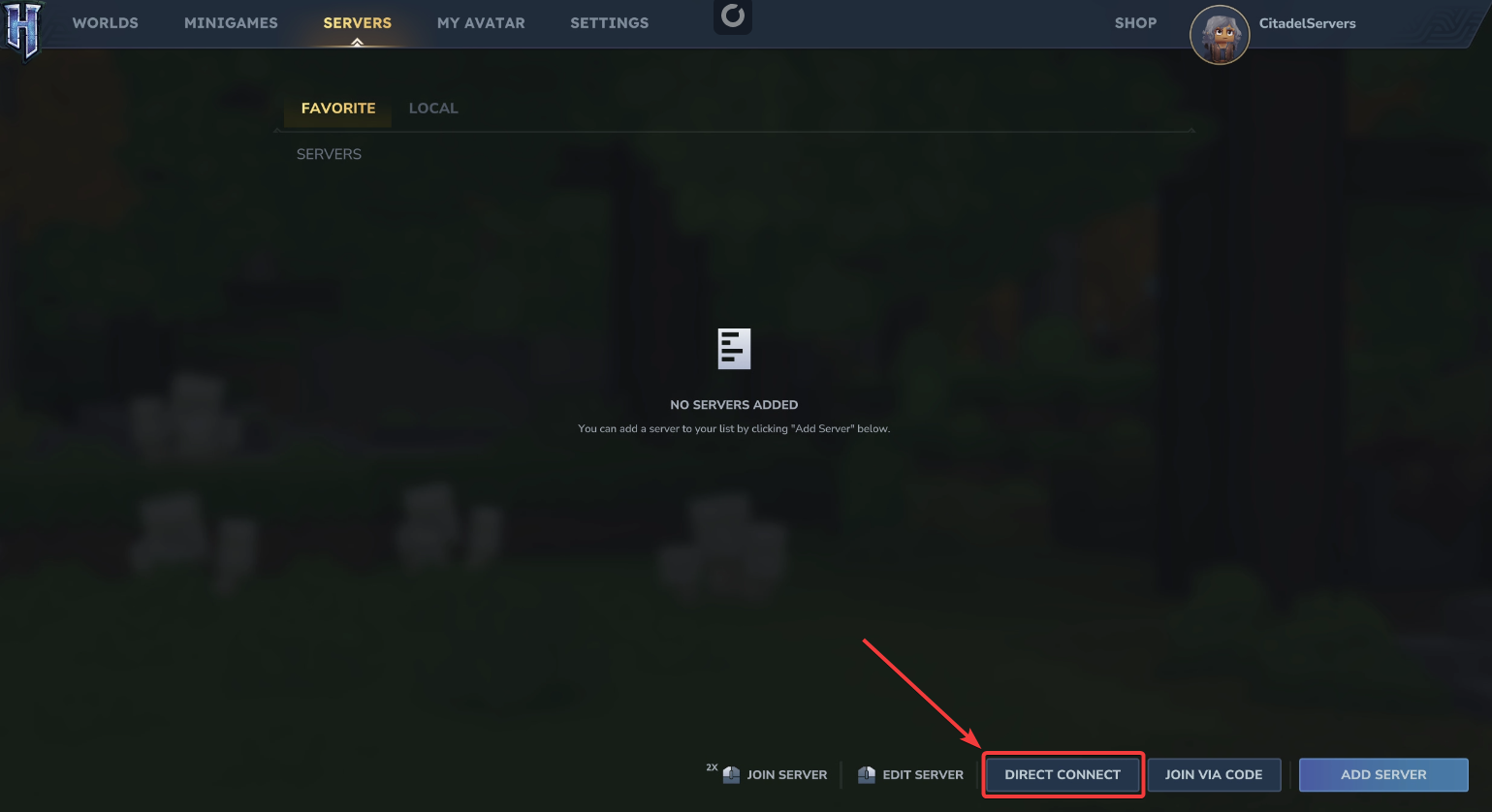
5. Click on the Direct Connect and enter the Connection Info on your Hytale Server.
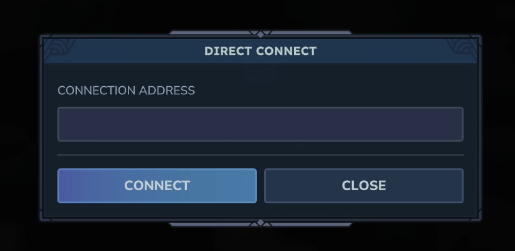
6. Click Connect to Connect to your Hytale Server.
Did the above information not work for you?
Please click here to contact our support via a ticket.
