

This guide will help you How to Grant Admin Permissions on your Hytale Server.
Click here to order your Hytale server with AA Game Hosting today!
Granting admin permissions on your Hytale server is an essential step in building a secure, well‑managed community. Admins play a key role in keeping the server running smoothly. They can moderate players, manage settings, execute powerful commands, and help maintain order when you’re not online. Setting up these permissions correctly ensures that trusted individuals have the tools they need, while keeping sensitive controls out of the wrong hands. In this guide, you’ll learn exactly how to assign admin privileges using Hytale’s permission system. We’ll walk through the process step by step, explain how permissions work, and show you the safest way to elevate users to admin status. By the end, you’ll have a clear and reliable method for managing your server’s leadership structure.
Adding Admin Users on Your Hytale Server
1. Log in to your Game Control Panel and navigate to your service.
2. Navigate to the Web-Console Tab.
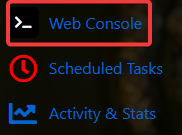
3. In the Web‑Console tab, run the following command to apply the admin permission.
op add <player>
Replace <player> with the exact username of the player you want to grant admin access to.

How to Revoke Admin Privileges in Hytale
If you need to remove admin access from a player, you can use the following command:
op remove <player>
After receiving admin permissions, a player gains access to powerful commands and management tools, enabling them to oversee and maintain your Hytale server efficiently and effectively.
Did the above information not work for you?
Please click here to contact our support via a ticket.
