

This guide will help you import existing player data onto your Hytale Server.
Click here to order your Hytale server with AA Game Hosting today!
Importing existing player data into your Hytale server is an essential step when you’re migrating from another host, restoring a backup, or preparing a world that players have already invested time in. Player data contains everything that makes each player’s experience unique: inventory, stats, progression, permissions, and sometimes even custom attributes, so bringing it over correctly ensures a smooth transition without lost progress or corrupted profiles. This guide walks you through the process of locating, preparing, and transferring player data into your Hytale server environment. You’ll learn where player files are stored, how to verify compatibility with your server setup, and the safest way to import them so your community can pick up right where they left off. Whether you’re managing a small private server or a large multiplayer world, understanding this workflow helps maintain continuity and keeps your players’ experience intact.
(NOTE: This guide focuses solely on uploading player data to a server. For instructions on uploading worlds, please refer to our separate guide.)
Importing Existing Player Data on your Hytale Server
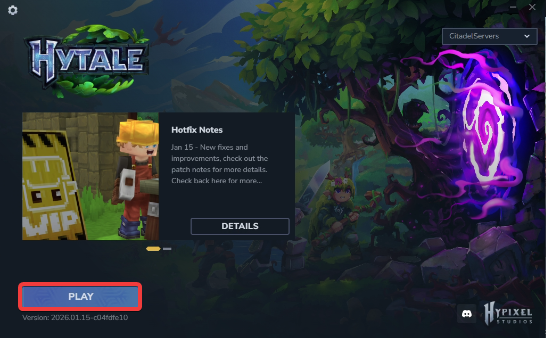
1. Launch the game.
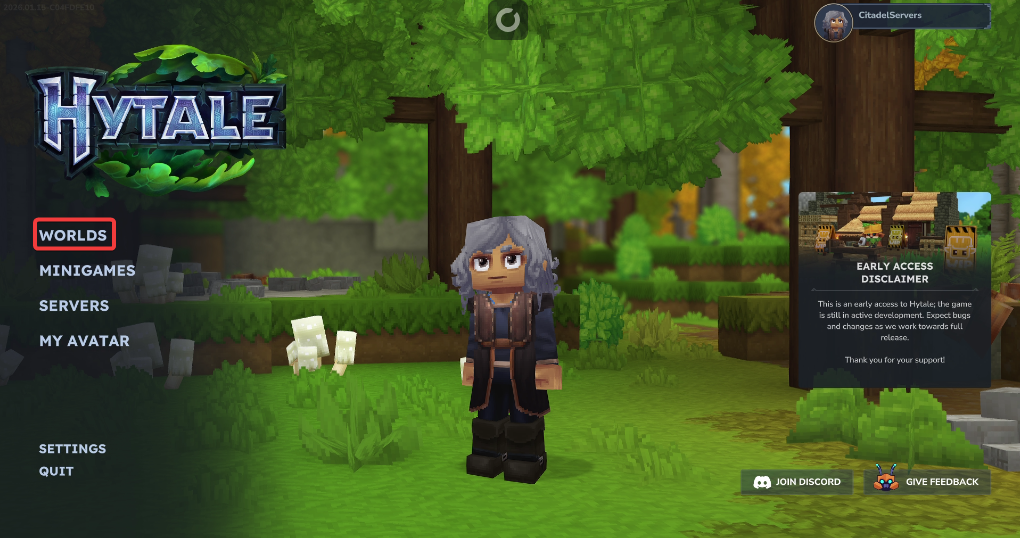
2. Open the World Menu to view and manage all available worlds on your server.
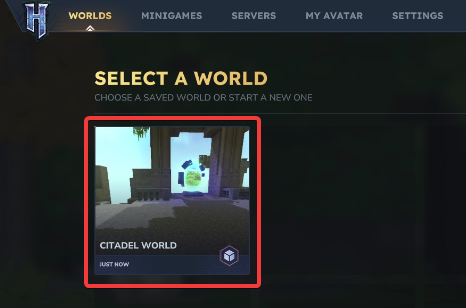
3. Right‑click the world you want to manage to open its action menu.
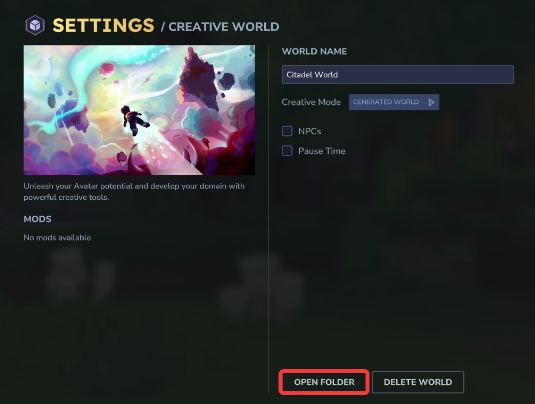
4. Click the Open Folder button to view the world’s files directly in your system.
5. Open the Universe folder in your server files to access all world directories and player data.
6. Log in to your Game Control Panel and navigate to your service.
7. Before making any modifications, stop the server from running by clicking the Stop button.

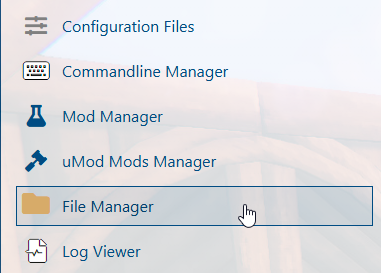
8. Navigate to the File Manager Tab.
9. In the File Manager tab, locate the universe folder to access your server’s world data.
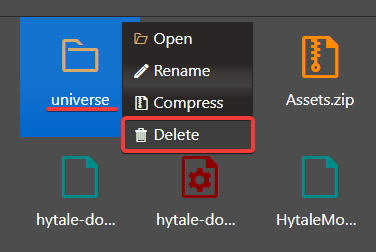
10. Upload both the players folder and the memories.json file by dragging and dropping them into the File Manager.
When transferring files, we highly recommend using FTP tools such as Filezilla.
11. Start the server to load the newly imported player data into your world.

Did the above information not work for you?
Please click here to contact our support via a ticket.
