

This guide will help you How to Manage Players on your Hytale Server: Kicking, Banning, and Unbanning.
Click here to order your Hytale server with AA Game Hosting today!
Running a Hytale server isn’t just about building worlds and hosting adventures. It’s also about maintaining a space where players can enjoy the game safely and fairly. As your community grows, you’ll inevitably encounter situations where you need to step in as an admin. Whether it’s removing disruptive players, enforcing rules, or correcting mistakes, knowing how to kick, ban, and unban players is essential to keeping your server healthy. This guide walks you through the core tools and commands you’ll use to manage players on your Hytale server, giving you the confidence to handle issues smoothly and keep your world running at its best.
NOTE: Only server admins or operators have permission to use these in‑game commands. If you don’t yet have admin status, check out our step‑by‑step guide here.
Kicking, Banning, and Unbanning Players on your Hytale Server
Commands entered in the server console should be typed without a leading slash. The console treats everything you enter as a direct instruction, so commands like kick PlayerName or ban PlayerName work exactly as written.
When running commands from inside the game, always include the leading slash so the chat system recognizes your input as a command rather than normal text. For example: /kick PlayerName.
Log in to your Game Control Panel and navigate to your service.
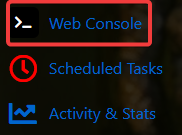
Navigate to the Web-Console Tab.
To Kick Players
This command removes a player from the server temporarily, meaning they are disconnected immediately but remain free to rejoin at any time. It’s useful for addressing minor disruptions, giving warnings, or quickly clearing an issue without enforcing a full ban.
Server Console:
kick <playername>
In-Game :
/kick <playername>
To Ban Players
This command prevents a player from returning to the server until their ban is lifted, making it a stronger and more long‑term moderation action than a simple kick. You can also add an optional explanation after the player’s name to clarify why the ban was issued, which helps maintain transparency and provides useful context for other admins.
Server Console:
ban <playername> [reason]
In-Game:
/ban <playername> [reason]
To Unban Players
This command lifts a player’s ban and restores their ability to rejoin the server, effectively reversing any previous restriction placed on their account. It’s typically used when a ban was issued in error, the player has resolved the issue that led to the ban, or you’ve decided to give them another chance.
Server Console:
unban <playername>
In-Game:
/unban <playername>
By using these commands, you can maintain smooth control over player activity and keep your Hytale server running as a fun, fair, and welcoming space for everyone. Clear moderation tools help you respond quickly to issues, enforce community standards, and create an environment where players feel safe and respected.
Did the above information not work for you?
Please click here to contact our support via a ticket.
