
This guide will help you on how to change your map to Abberation on your ARK Survival Ascended Server.
ARK: Survival Ascended offers players the ability to explore a variety of unique maps, each with its own challenges, resources, and environments. Among these, Aberration stands out as one of the most distinctive and demanding maps, featuring bioluminescent caverns, hazardous radiation zones, and a roster of creatures adapted to its alien underground world. If you’re running your own ARK Survival Ascended server, switching your map to Aberration can completely transform the gameplay experience for you and your community. Whether you’re seeking tougher survival conditions, new exploration opportunities, or simply a change of scenery, updating your server to Aberration is a straightforward process once you know the steps. This guide will walk you through the essentials of changing your server’s map, ensuring that you and your players can dive into the thrilling subterranean adventure that Aberration has to offer. By the end, you’ll be ready to configure your server settings, restart with the new map, and begin your journey into one of ARK’s most challenging environments.
Changing your Map to Abberation on your ARK Survival Ascended Server
Log in to your Game Control Panel and navigate to your service.
Before making any modifications, stop the server from running by clicking the Stop button.

There are three methods for changing your map to Aberration.
Method 1. Installing via Mod Manager
Navigate to Mod Manager Tab. Look for the Abberation Map and click the Install button on the side.

There are two ways to change the map via commandline manager.
Navigate to Commandline Manager Tab. Click Modify on the Default Commandline option. This will display the available options, including the Map section.
Select the "Aberration DLC MAP" for the Aberration map.

Method 3: Using a Modded Commandline
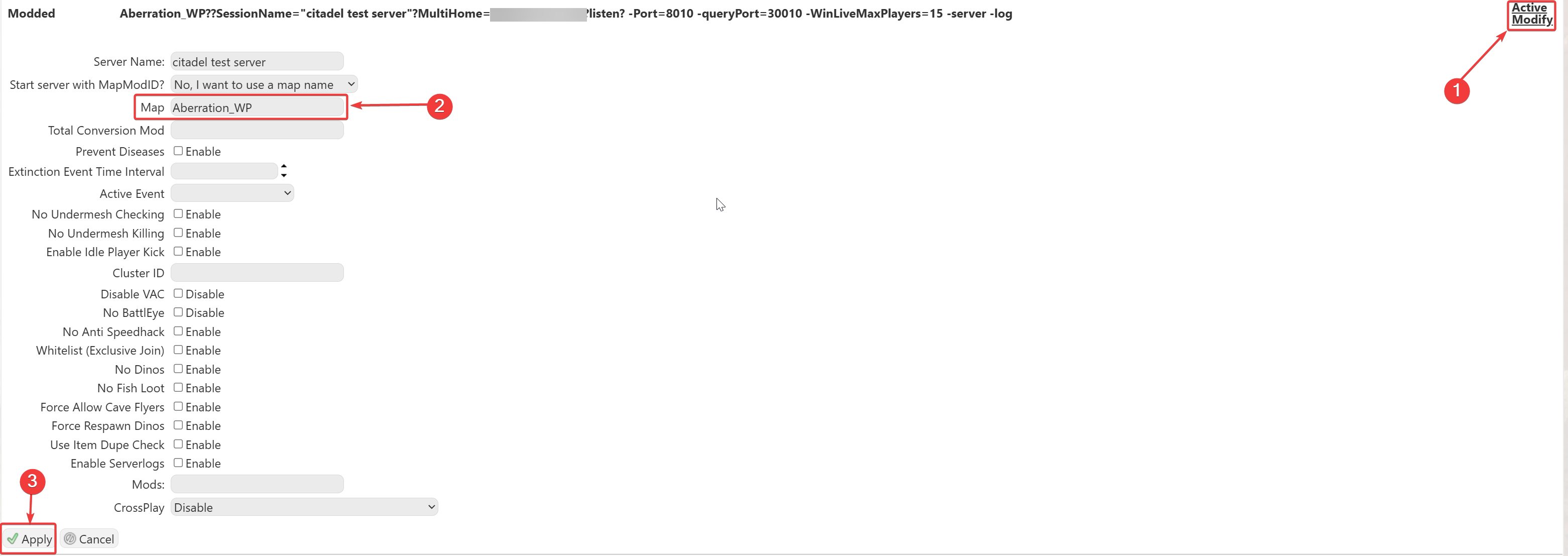
Please make sure to follow proper capitalization as they are case-sensitive.
Please click here to contact our support via a ticket.
