

This guide will help you on how to manually restore backup on your ARK Survival Ascended server.
Running an ARK: Survival Ascended server means managing not just the gameplay experience, but also the technical side of keeping your world safe. Backups are your safety net—whether you’re recovering from corrupted files, accidental deletions, or simply rolling back to a previous state after an update gone wrong. Knowing how to manually restore these backups ensures you can quickly get your server back online without losing progress. In this guide, we’ll walk through the essentials of locating your saved data, understanding the backup structure, and restoring files step by step. By the end, you’ll be equipped with the knowledge to confidently recover your server world whenever needed.
Manually Restoring Backup on your ARK Survival Ascended Server
1. Log in to your Game Control Panel and navigate to your service.
2. Before making any modifications, stop the server from running by clicking the Stop button.

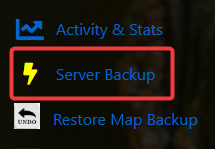
3. Create a backup by clicking Server Backup Tab. These backups are saved to a "backups" folder in your "File Manager".
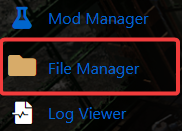
4. To find one of these backups, start by navigating to your File Manager.
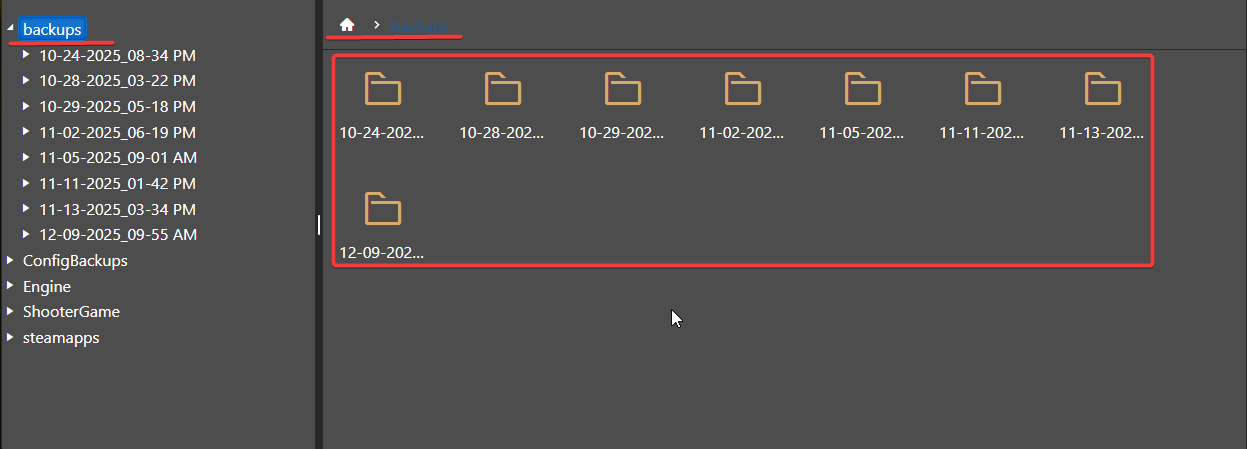
5. On the File Manager, look for Backup folder.
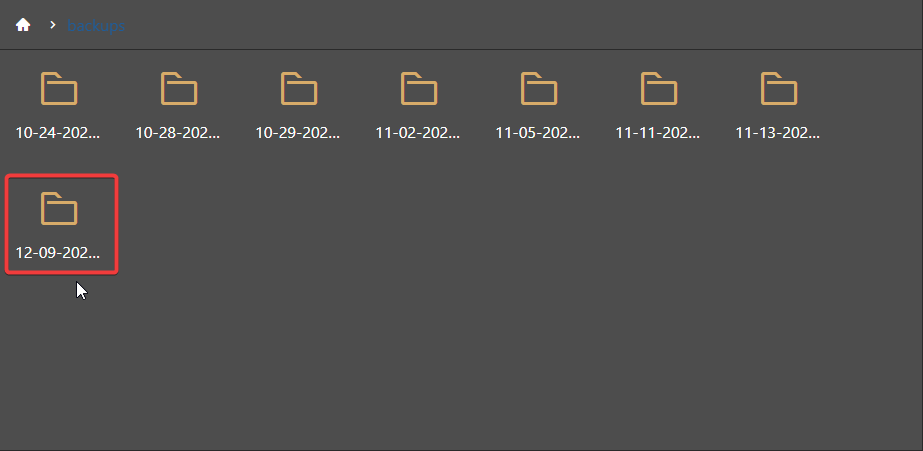
6. On the Backup Folder, click your desired backup that you wanted to restore and create a zip file of it. Once created, download the zip file to your local PC.
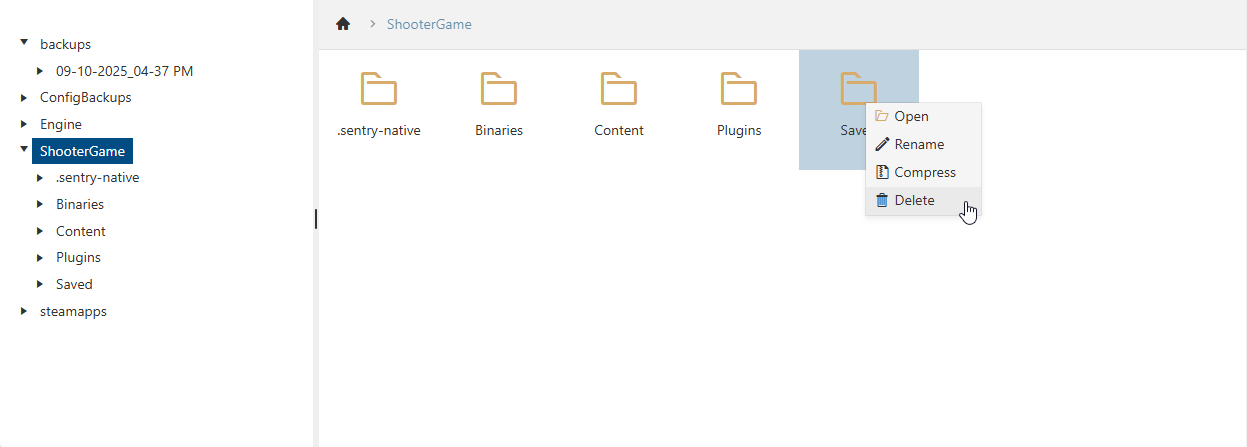
7. Go to Shooter Game, right click the Saved Folder and hit Delete.
(NOTE: This will delete your current saved data, we highly recommend you to create a backup of this as well before doing this process.Once it has been deleted it can't be retrieved again.)
8. Once deleted, upload the backup folder that you initially downloaded on your local PC to the same location. After uploading the folder, rename it to Saved.
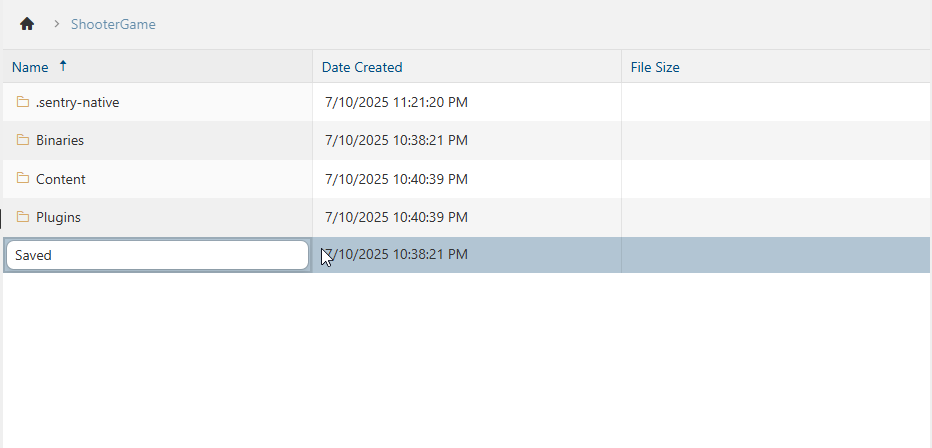
9. After you renamed the uploaded backup folder, start the server to apply the changes.
Did the above information not work for you?
Please click here to contact our support via a ticket.
