

This guide will help you on How to Install DarkRP on your Garry's Mod Server.
Click here to order your Garry's Mod server with AA Game Hosting today!
DarkRP is one of the most popular roleplay gamemodes for Garry’s Mod, transforming your server into a bustling city where players can take on jobs, earn money, and interact in a sandbox-style economy. Whether you’re setting up a community server or just experimenting with friends, installing DarkRP is the first step toward creating a fully immersive roleplay experience. By the end, you’ll have a functioning DarkRP server ready for players to join, explore, and roleplay in your custom world.
Installing DarkRP on your Garry's Mod Server (Via Mod Manager)
1. Log in to your Game Control Panel and navigate to your service.
2. Before making any modifications, stop the server from running by clicking the Stop button.

3. Navigate to Mod Manager Tab.
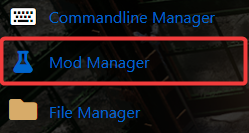
4. On the Mod Manager, look for Misc Addons & Tools and click the DarkRP Modification one click installation option.

5. Wait for the installation to be done then you can start your server.
Installing DarkRP on your Garry's Mod Server (Via Manual Installation)
1. Go to Github and download the DarkRP.
2. On the webpage, click the Download Zip.
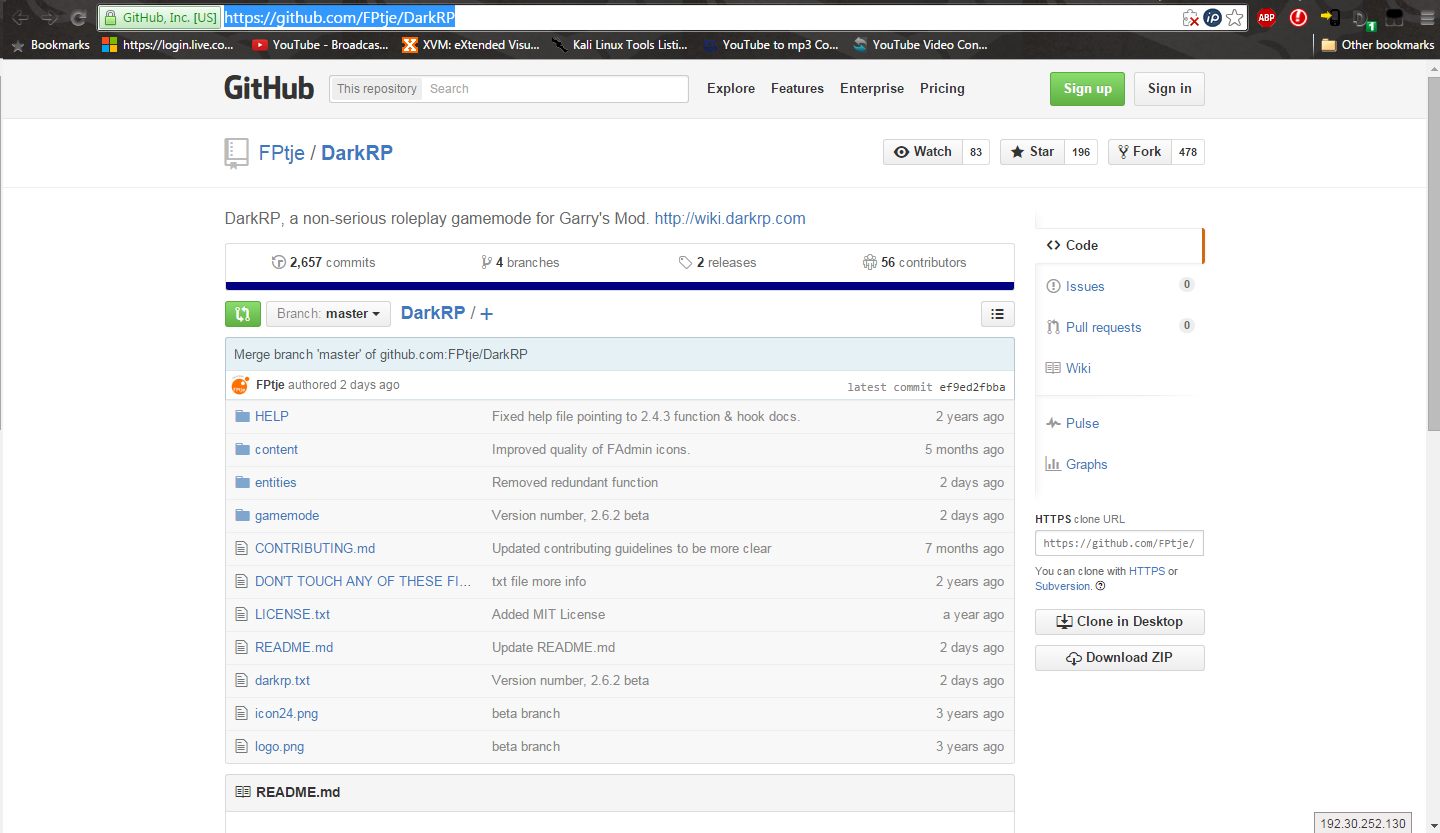
3. After you've downloaded the .zip, extract them to a folder named "darkrp" or a variant of such.
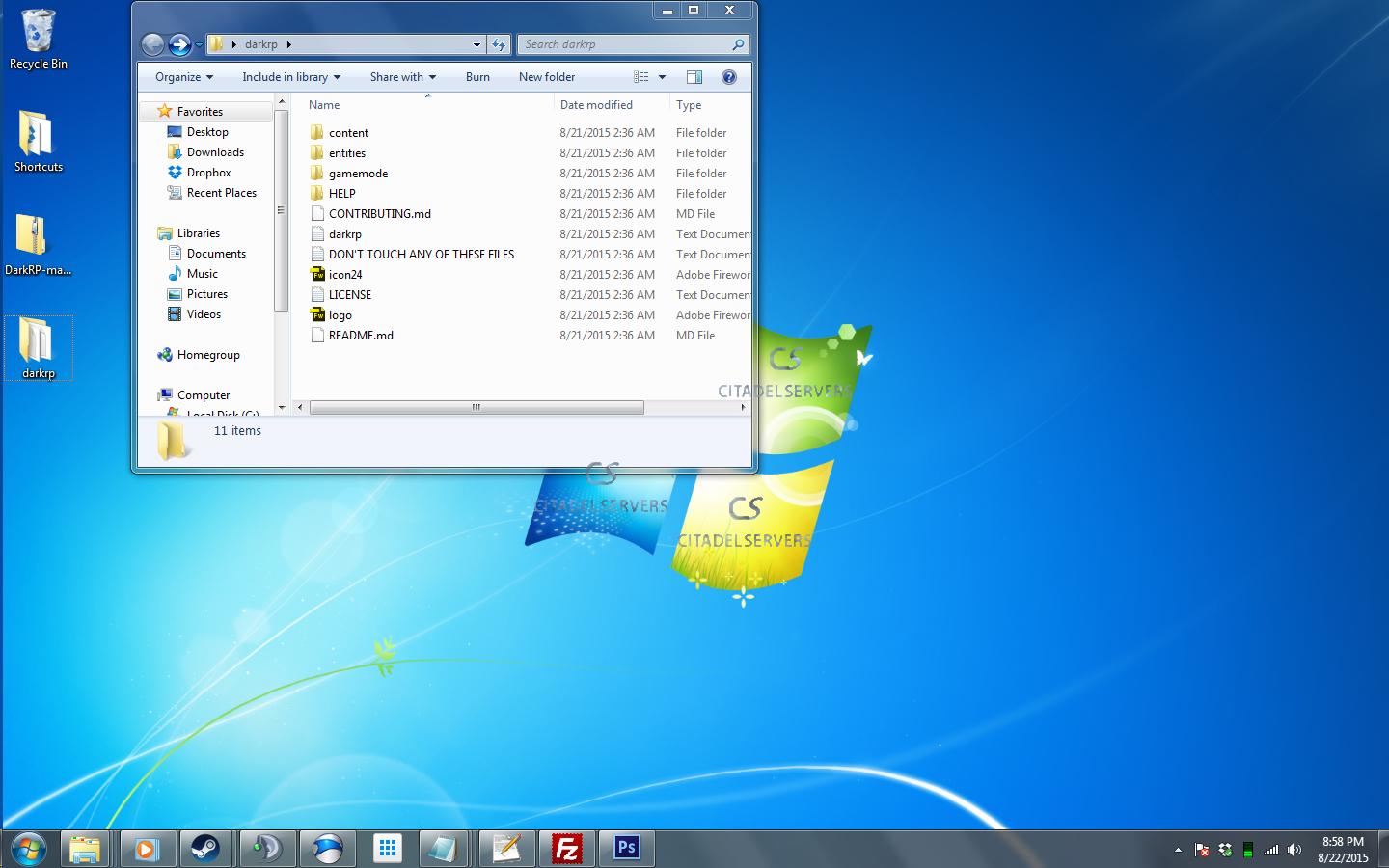
4. Now that you have the file you need to upload it on your server. We highly recommend to use FTP like Filezilla for faster and secured transfers.
5. Next is you navigate to your File Manager.
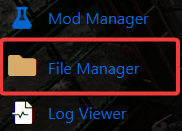
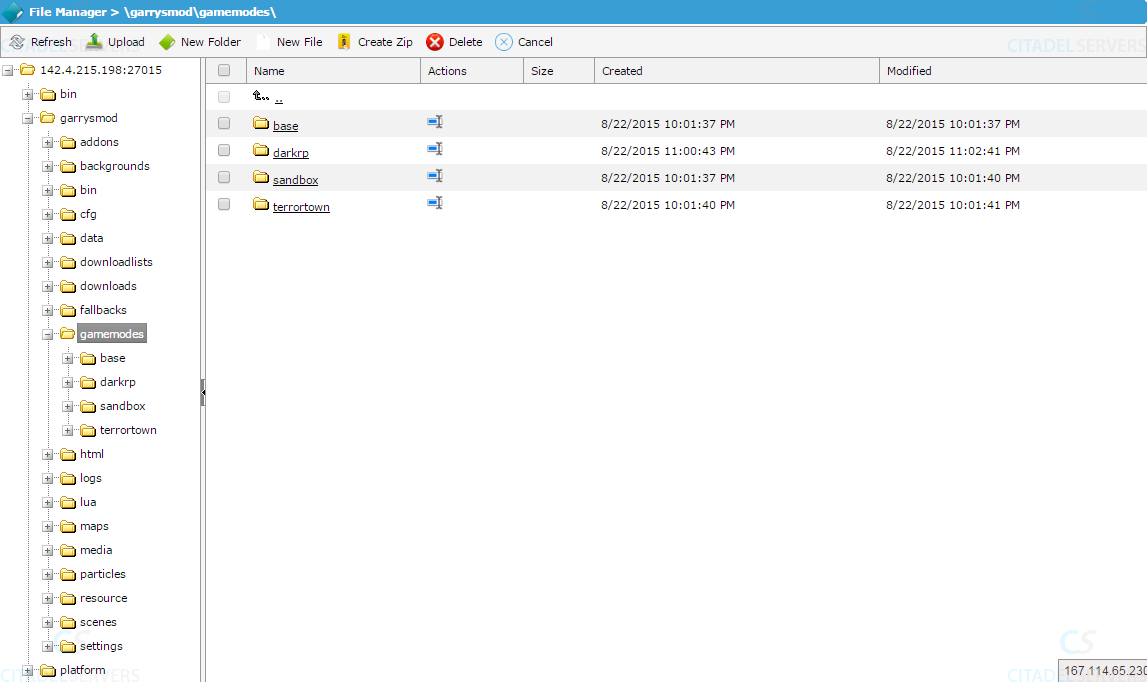
6. Go to \Garrysmod\gamemodes\ and upload the DarkRP there.
Setting the Commandline to Launch DarkRP
1. Once you're done uploading DarkRP on your server, you'll need to go to the Commandline Manager.
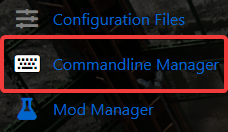
2. On the Commandline Manager, click the Custom Commandlines and select New to setup our launch for the server.
3. You will now create a new commandline.
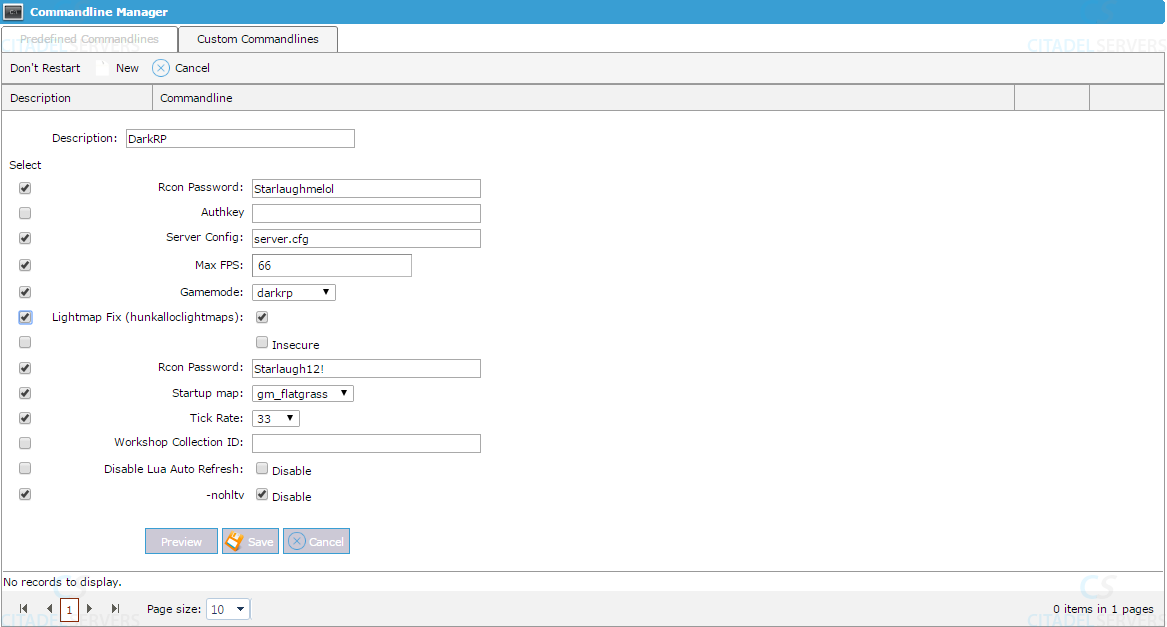
Fill it out close to this, change the map, passwords, and descriptions, but leave the rest alone.
4. After editing, click the Save button to apply the changes on your server and select it as a default commandline.

5. After selecting the commandline, start your server and play the game!
Did the above information not work for you?
Please click here to contact our support via a ticket.
