
This guide will help you on how to restore backups on your Empyrion Galactic Survival Server.
Click here to order your Empyrion Galactic Survival with AA Game Hosting today!
Running a dedicated server for Empyrion Galactic Survival means managing not only the gameplay experience but also the stability and safety of your world. Unexpected issues such as corrupted files, failed updates, or accidental changes can disrupt progress and affect your players. This is where backups become essential. Restoring a backup allows you to roll back your server to a previous state, ensuring that your world, player data, and configurations remain intact. Whether you’re recovering from a technical error or simply reverting to an earlier save, knowing how to properly restore backups is a vital skill for any server administrator. This guide will walk you through the process of restoring backups on your Empyrion Galactic Survival server, explain best practices for backup management, and help you safeguard your community’s progress against unexpected setbacks.
Restoring Backups on your Empyrion Galactic Survival Server
1. Log in to your Game Control Panel and navigate to your service.
2. Before making any modifications, stop the server from running by clicking the Stop button.

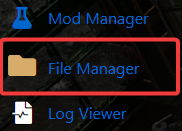
3. Go to the File Manager Tab.
4. On the File Manager, open the Backups folder.
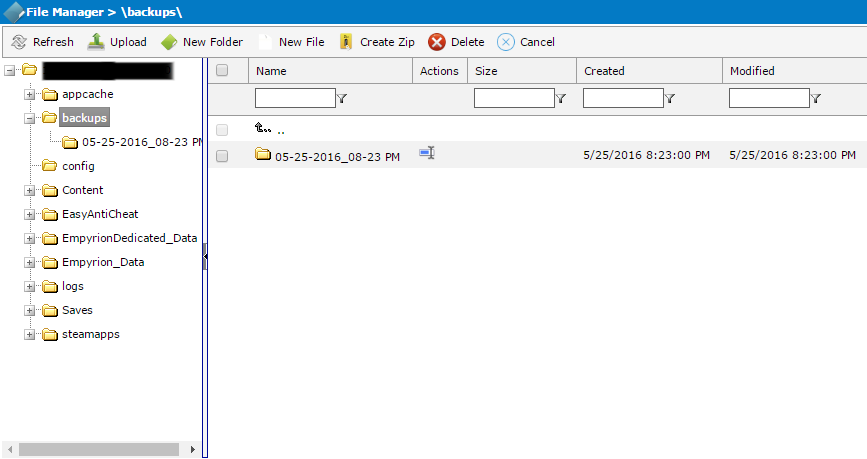
5. Select the backup folder you wish to restore. Each folder is labeled with the date and time the backup was created.
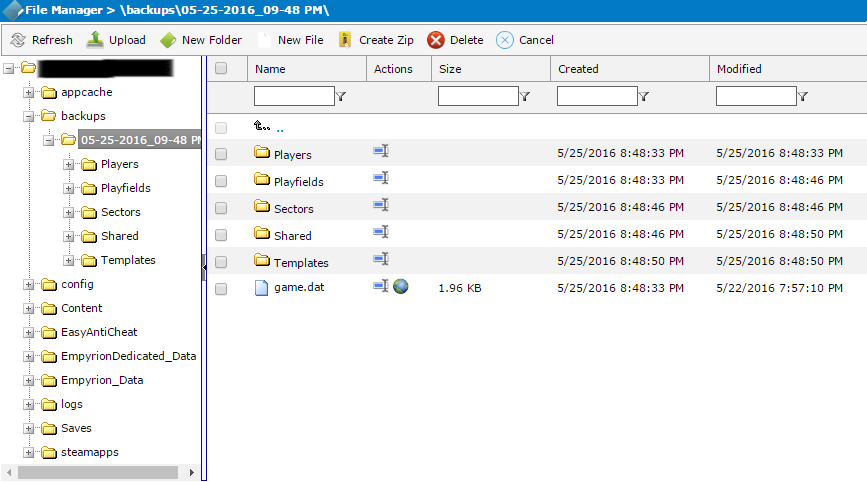
6. Right click the your desired backup folder and choose compress.
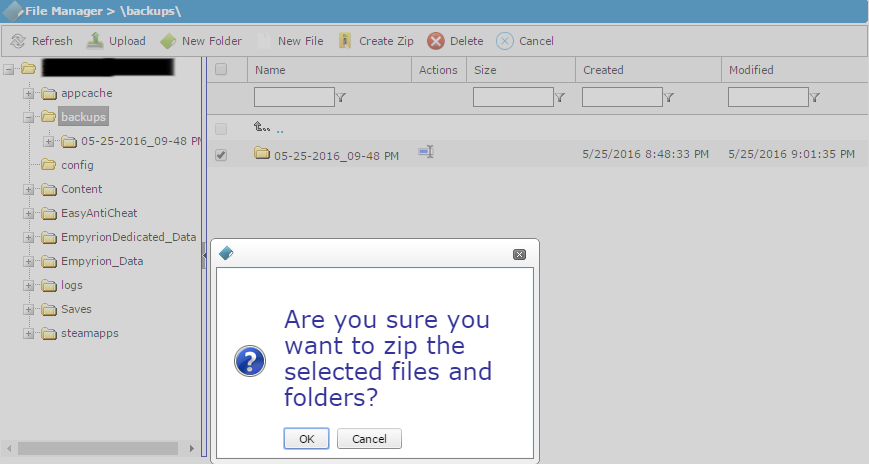
7. After creating, right click and download the zip file.
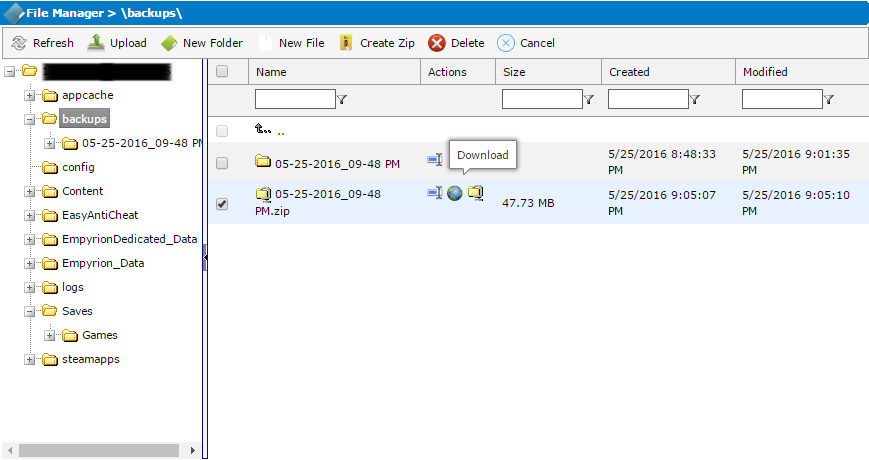
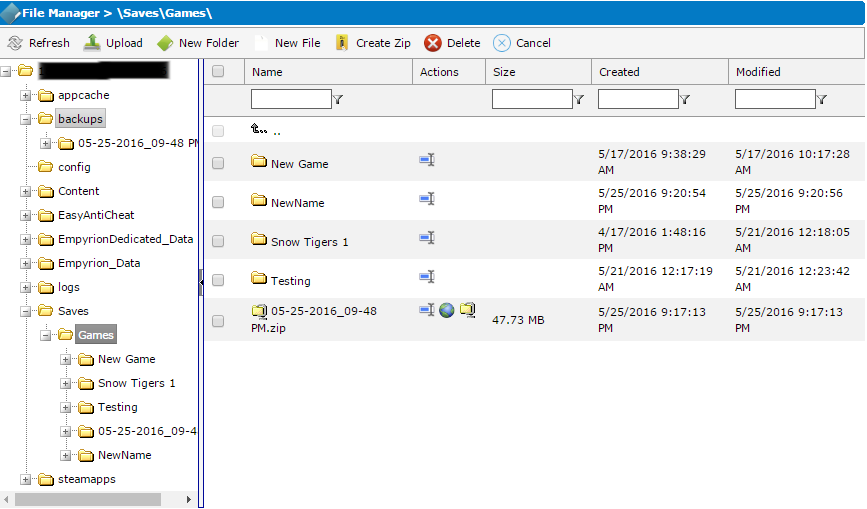
8. Next is open the Saves >> Games folder and upload the zip file here.
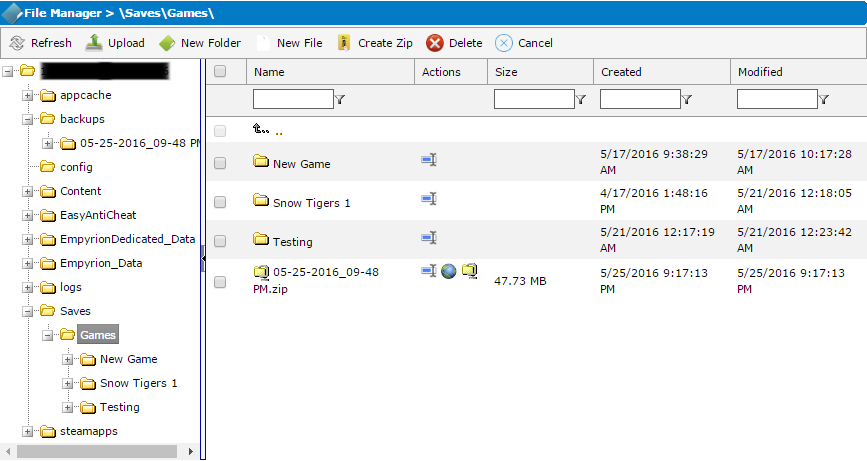
9. Extract the zip file on the same location, and Rename it according to your preferences.
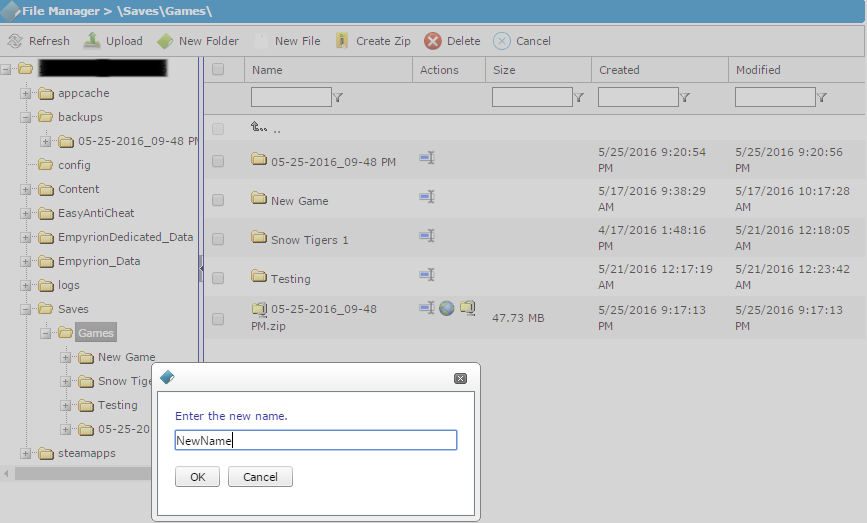
10. The game should now be saved and available. Restart the server.
Did the above information not work for you?
Please click here to contact our support via a ticket.
