

This guide will help you on how to upload local save file on your Don't Starve Together Server.
Not a client yet? Order a Don't Starve Together server today with AA Game Hosting
Managing your own Don’t Starve Together (DST) server allows you to customize the gameplay experience and continue your world exactly where you left off. One of the most common tasks for server administrators is uploading a local save file so that friends or community members can join in on an existing world. This process ensures that all your progress, settings, and world configurations are preserved when moving from single‑player or a local host setup to a dedicated server environment. In this guide, we’ll walk you through the steps to properly upload your local save file to your DST server, making sure your world is accessible, stable, and ready for multiplayer adventures. Whether you’re transferring a long‑running survival world or setting up a custom scenario, this process will help you seamlessly continue your journey with others.
Uploading your Local Save File on your Don't Starve Together Server
1. First of all, you must acquire your save file. If you played locally and want to upload that saved file, you can find it on
C:\Users\ThisPC\Documents\Klei\DoNotStarveTogether\336834953\client_save.
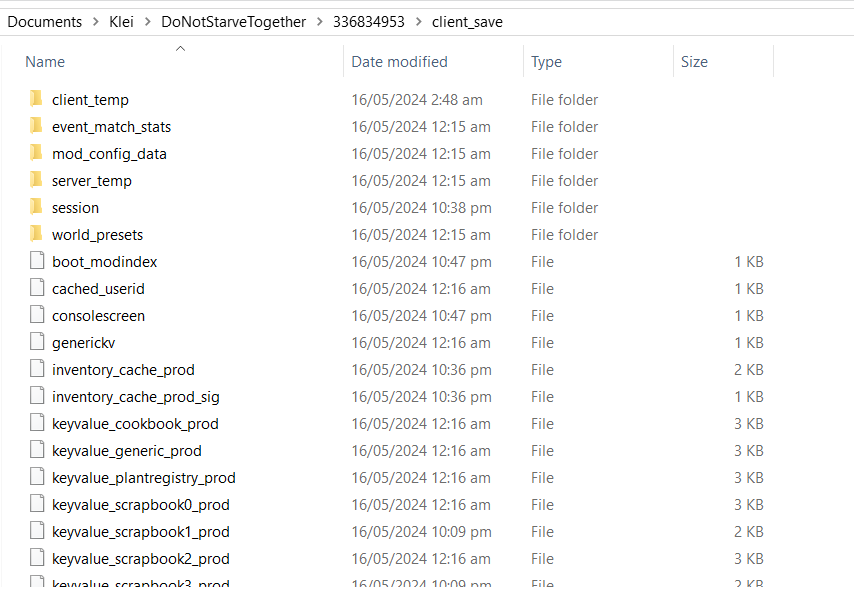
2. Once there, zip up the contents/compress it as /save/.
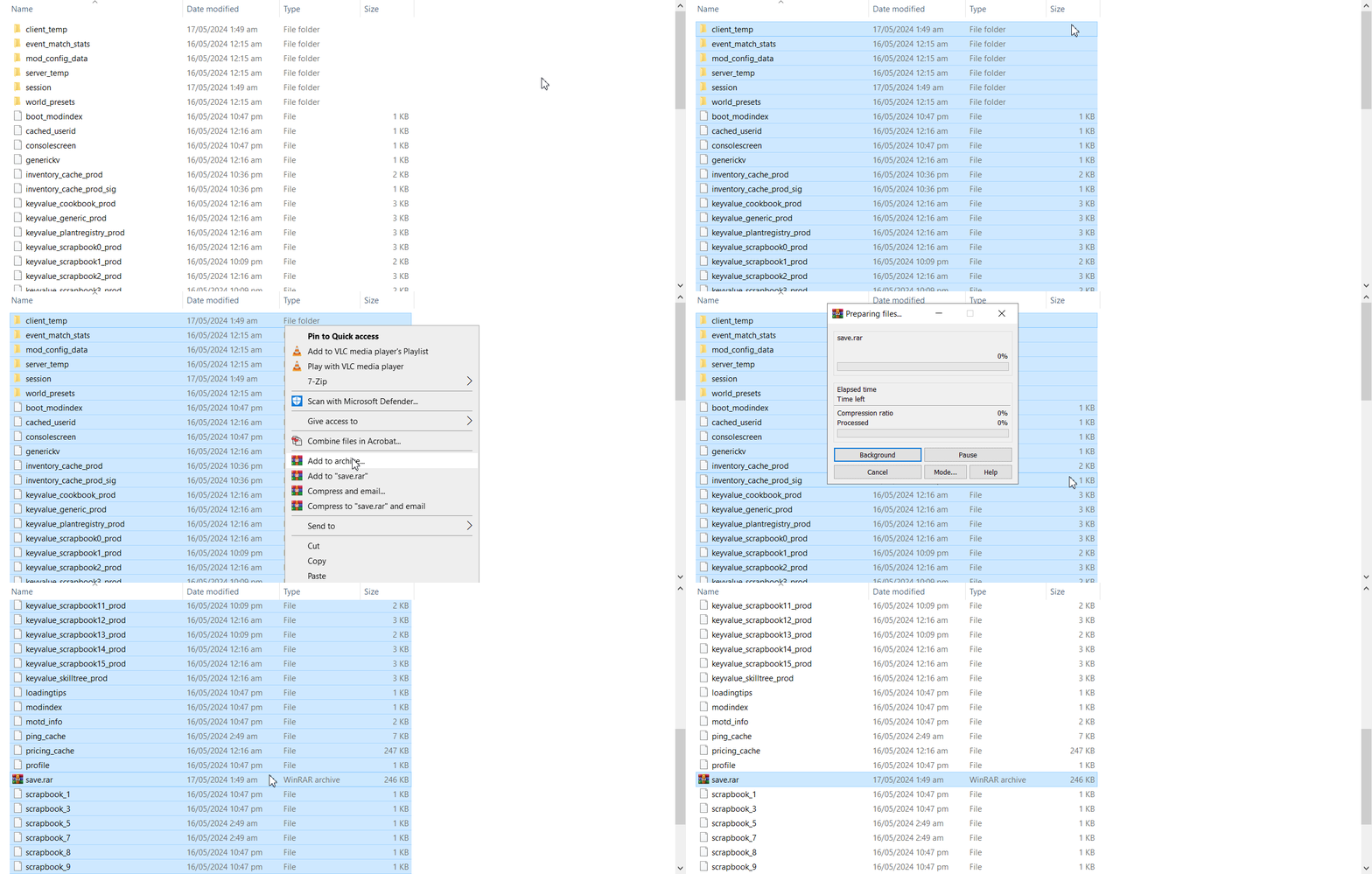
You can upload this world file via FTP functionality (follow this guide if you're unsure how to) that we support or upload via the File Manager in your game panel (only if the file is less than 100MB).
3. For uploading using the File Manager, you need to log in to your Game Control Panel and navigate to your service.
4. Before making any modifications, stop the server from running by clicking the Stop button.

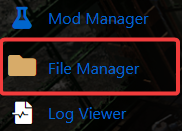
5. Go to File Manager.
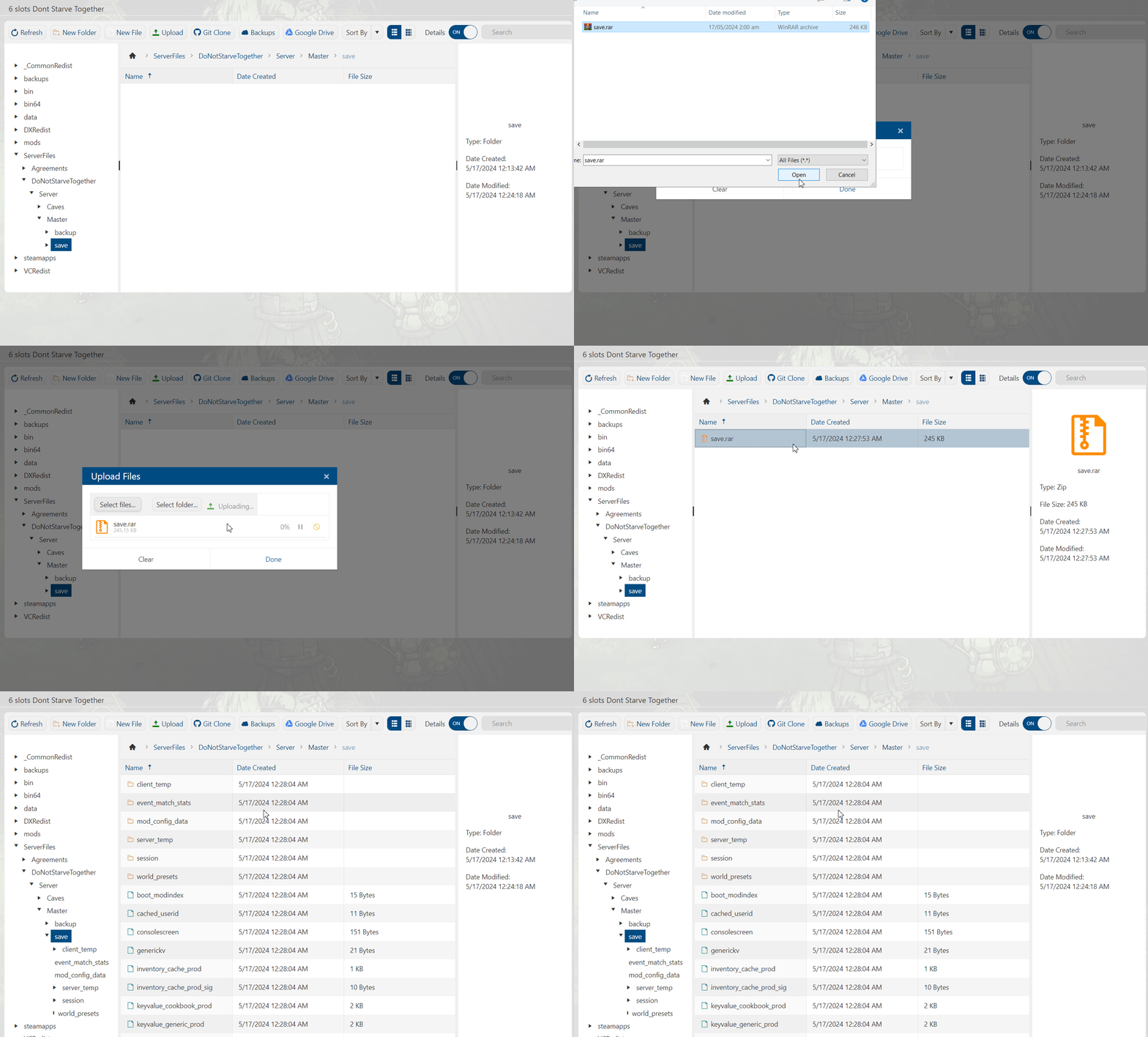
6. On the File Manager, navigate to ServerFiles > DoNotStarveTogether > Server > Master > save folder. This is where you will upload your compressed save file. Delete the existing files inside the folder.
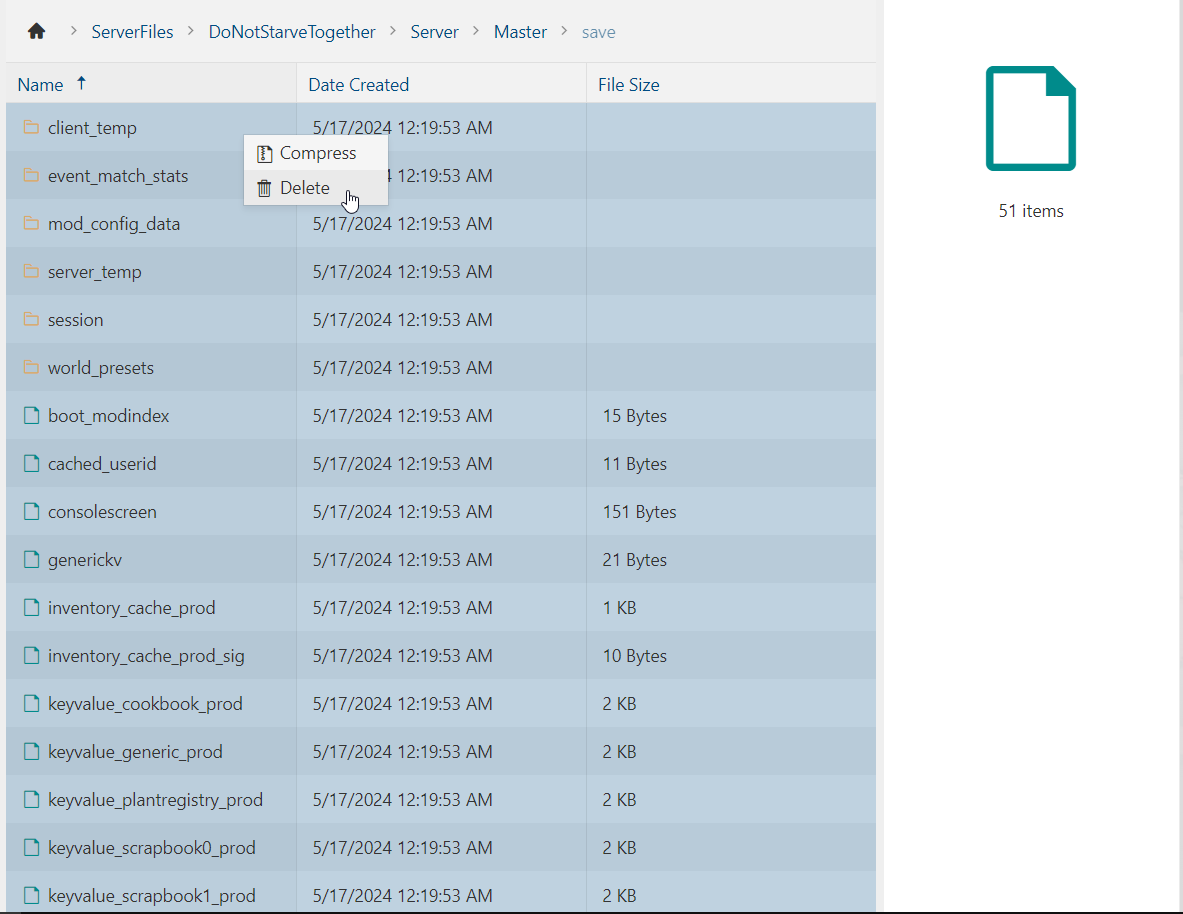
7. Once you did that, upload your zipped save file, and extract it inside the folder.
8. Start your server to generate the world of on your save file.
Did the above information not work for you?
Please click here to contact our support via a ticket.
