Now offering Palworld Game Servers!
Help
Register
Billing
Support
AA Game Hosting
  • 0 Shopping Cart
  • Home
  • Store
    • Browse All
    • Register a New Domain
    • Transfer Domains to Us
  • Announcements
  • Knowledgebase
  • Network Status
  • Affiliates
  • Contact Us
  • More
  • Account
    • Login
    • Register
    • Forgot Password?
  1. Portal Home
  2. Knowledgebase
  3. AA Game Hosting
  4. Game Servers
  5. Dedicated Game Servers
  6. Don't Starve Together
  7. How to Add Mods to your Don't Starve Together Server

  Categories

1
AA Game Hosting

  Categories

  Tag Cloud

7daystodie 7dtd 7d2d experimental switch admin agario ark survival evolved structure collision dino dino stats player stats local world uploading world admin commands dlc map genesis arma 2 waiting host waiting host mod installation mod install atlas arma 3 configuration configuration guide mods wasteland commandlist admin list command missionfile arma3 FTP Guide FTP File Transfer Protocol scheduled tasks scheduled tasks Ark: Survival Evolved Multiplayer Survival Game Server help Dedicated Server Support Ark Survival Evolved Server Configuration Sunkenlands Upload Upload World Upload Save Save File Palworld Necesse Arma Reforger Arma Connect Arma Mods Mods V Rising V Rising Guide connect V RIsing Private Password V Rising Server Ban Kick V Rising admin Voice chat V Rising voice Save Saved Progress V Rising Preset Workshop Arma Reforger Scenario Arma Reforger Mission Arma3 mission Terraria TModLoader Join Tshock Valheim Server password upload Server name Project Zomboid Quickstart Steam workshop update conan Conan Exiles join upate palworld Palworld Server Connection barotrauma quickstart guide Minecraft Java curseforge java Forge Change campaign configure Update karma system enable The Forest traitors how to how to join server in-game avorion DayZ Modding commands quick Quick start galaxy Server Configurations Difficulty Offset Max Creature Level Loot Scale Wipe Wild Dinos Restore Backup Restore Timestamps Mod Installation Disabling Battleye Anti-cheat PVE Setup Incubation Settings Spawn Rates 7 days to die Game Difficulty Reinstallation Crossplay Option 7 Days to Die Specific Version Selection Darkness Fall Mod Installation Ragnarok DLC Scorched Earth DLC The Center DLC Extinction DLC Fjordur DLC Aberration DLC Structure Collision Abberation Expansion Map Switching Maps Genesis Expansion Map custom map Crystal Isles DLC Genesis DLC Genesis 2 DLC Lost Islands DLC Valguero DLC Crossplay Options Scenario IDs Avorion New Galaxy Create Galaxy Battalion 1944 Quickstart Guide Connecting to Server Blackwake Game Mode Friendly Settings Adding Admins Admins Chivalry Medieval Warfare Add Mods Connect to Server In-Game Connection Citadel:Forge with Fire server configurations Multipliers XP Rates Isle of Siptah Maps Creative Mode Conan Exiles Mod Mods Installation Day of Defeat Source Custom Maps Server Messages dayz standalone DSZA Launcher Ban Players Item Spawns Login Logout Gameplay Settings Installing Community Online Tools Installing Mods Installing CF Admin Tools Contaminated Areas Day Time Settings Day Time Night Time Acceleration Night Mode Deer Isle Expansion Map Mod Map Installation Change the Weather DayZ Weather Weather Snow Loadouts Player Loadouts dayz admin How to become an Admin Don't Starve Together how to connect Cluster Token Token Generation Generate Server Token Troubleshooting Guide Server not showing Delete Data Delete World Delete Save Caves Caves Setup Cluster Server Clustering Cave Server New Reign Beta Expansion DST DST Upload Save File Uploading Local Save File Server not starting Troubleshooting Console Commands Custom World Generate World ECO How to connect Eco Joining server Empyrion Galactic Survival Custom Scenarios Changing Scenarios Changing Game Mode Difficulty Settings Configuring Difficulty Settings World Seed Configuring World Seed Backup Backup Restoration Admin Permissions Custom Admin Permissions Upload Save file Custom Save File Enshrouded Server Name Custom Roles Add Custom Roles Add Roles Enshrouded Password Add Password Gathering Rate Adjusting Gathering Rate Adjust Difficulty Experience Gain Adjusting Experience Gain Admin Day Length Changing Day Length World Custom Modifiers Customizing World Custom Modifiers Death Penalties Disabling Death Penalties Disable Death Penalties Weapon Durability Disabling Weapon Durability Disable Weapon Durability Peaceful Mode Enable Peaceful Mode Garry's Mod Map Change Changing Maps Changing Game Modes Game Modes IP address

  Support

  My Support Tickets   Announcements   Knowledgebase   Downloads   Network Status   Open Ticket

How to Add Mods to your Don't Starve Together Server Print

  • Add Mods, Don't Starve Together, DST, Mod Installation, Server Configurations
  • 0

don't-starve-together-logo.png

This guide will help you on How to add mods on your Don't Starve Together Server.

Not a client yet? Order a Don't Starve Together server today with AA Game Hosting


Mods are one of the best ways to customize and enhance your Don’t Starve Together experience. Whether you want to add new characters, tweak gameplay mechanics, or introduce quality-of-life improvements, mods allow you to tailor your server to match your group’s playstyle. Setting them up might seem intimidating at first, but the process is straightforward once you understand the steps. In this guide, we’ll walk through the essentials of adding mods to your server from locating and installing them to configuring settings so they run smoothly for everyone. By the end, you’ll be able to transform your world into a unique survival adventure that reflects your creativity and preferences.


Adding Mods on your Don't Starve Together Server


Note: Many mods on the workshop are outdated or incompatible with other mods, please check when the mod was last updated and its compatibility with DST: ROG (Not rog beta)
If you install mods which conflict or are outdated or for the single player version, then this will cause server instability, server/client crashes, or might corrupt the server.


1. Locating the mod's Workshop ID

In order to install a mod in your control panel, you will first need to access the Steam Workshop. Once you have opened the Don't Starve Together Workshop, copy the Workshop ID number from your mod's link that you are browsing.
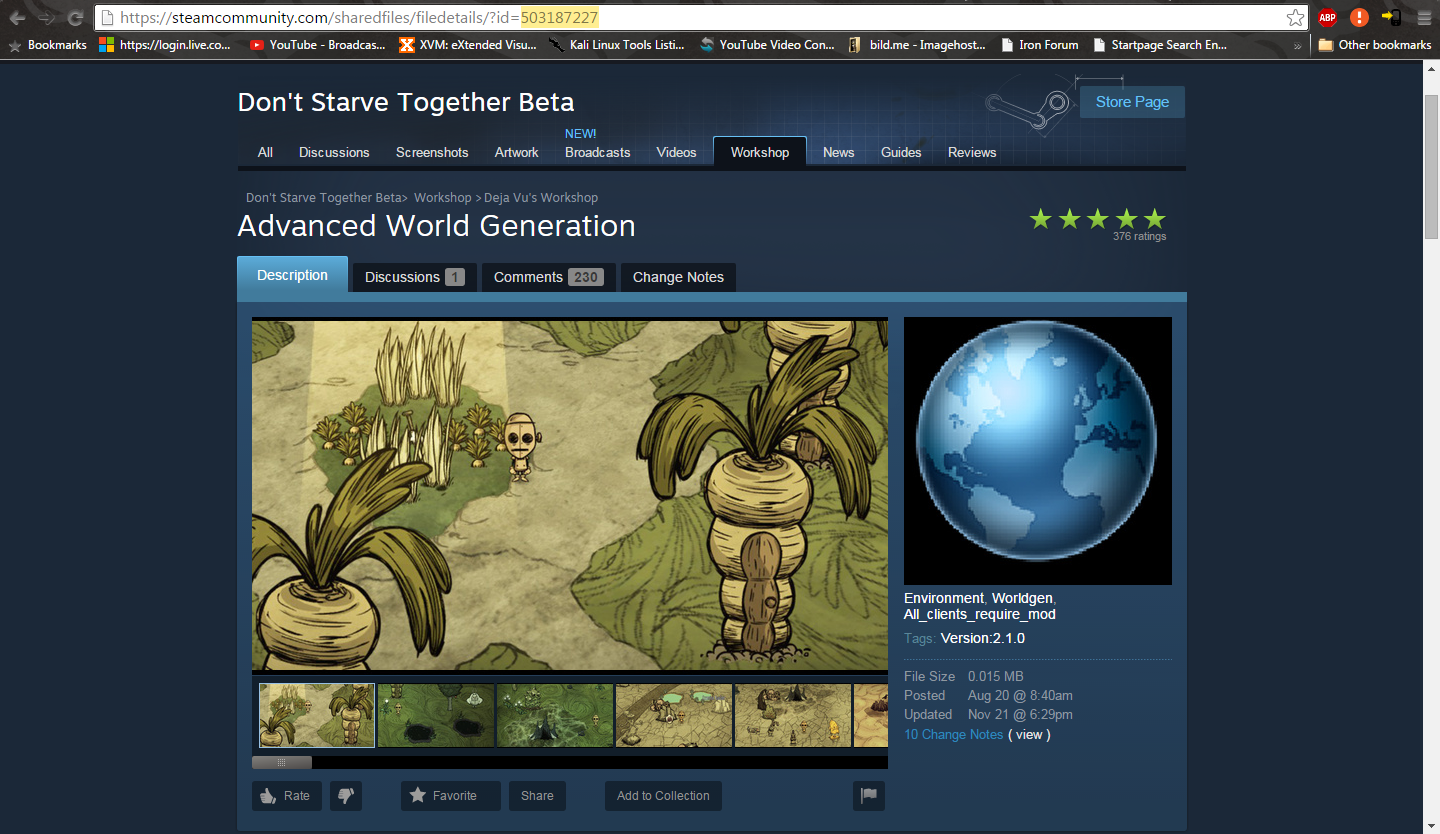
e.g. 379628839 in the example below.
 
Note: This is the mod's unique ID number (ID number is highlighted in the image)
 
steam-workshop-installing-mods.png
 
 
2. Log in to your Game Control Panel and navigate to your service.

3. Before making any modifications, stop the server from running by clicking the Stop button.

 
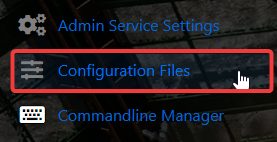
4. Go to Configuration Files.


5. On the Configuration Files, look for dedicated_server_mods_setup.lua file and click the Text Editor.

dont-starve-together-server-configuration-adding-mods.png


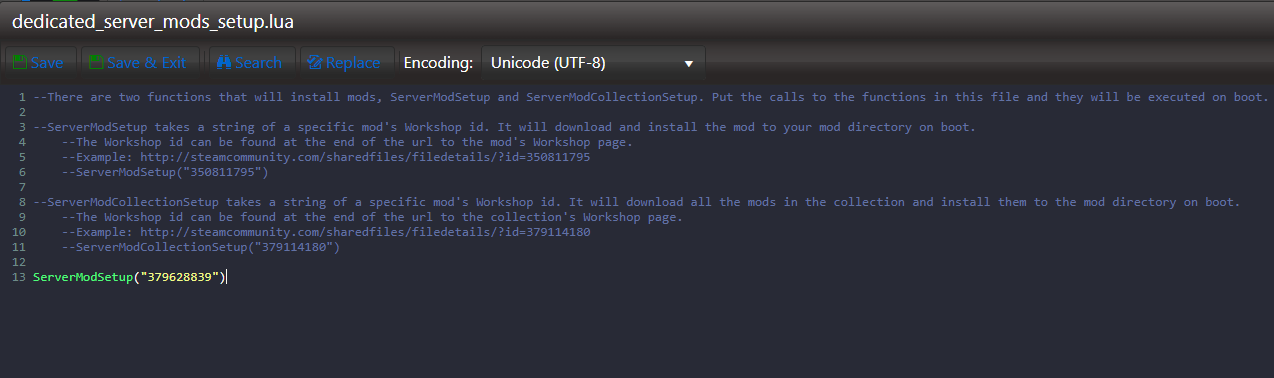
6. On the Text Editor, Add your mod's Workshop ID into the file.

e.g. ServerModSetup("379628839")
 

dont-starve-together-server-configuration-adding-mods-1.png

If you're trying to add a workshop collection, add the collection's ID into the file:

e.g. ServerModCollectionSetup("379114180")


7. After editing, click the Save button to apply the changes on your server.

 

8. The mods you've added to "dedicated_server_mods_setup.lua" will be downloaded and installed to your mod folder, but they aren't enabled by default. So to enable the mods on your server you have to "force enable" the mods.

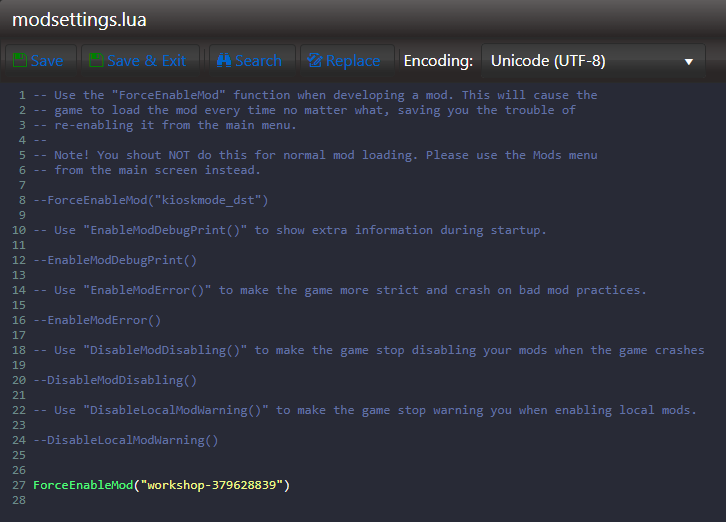
To do this you will need to modify the file "modsettings.lua" to force enable the mods you've added to "dedicated_server_mods_setup.lua".

dont-starve-together-server-configurations-adding-mods-2.png


9. On the Text Editor, add this line: ForceEnableMod("workshop-379628839")
dont-starve-together-server-configuration-adding-mods-3.png

 Note: To ensure that clients will be able to download the corresponding mods from the Workshop, you must not change the mod directory names.

Enabling Collections: Each Mod inside a collection need to be added manually with this method or the one below.


10. After editing, click the Save button to apply the changes on your server.

 
11. An alternative advanced method of force enabling your mods is using a "modoverrides.lua" file. Use this method if your mod has custom configuration options.
To do this, go to “modoverrides.lua” (or create it if it doesn't already exist) and add this:
 
return {
["workshop-379628839"] = { enabled = true },
["workshop-361336115"] = { enabled = true,
configuration_options =
{
hunt_time = 6,
}
},
["workshop-336882447"] = { enabled = true }
}
 
 
Replace the Workshop ID's in the example above with the ID's of your mods. Make sure to keep the table structure intact.

Add any configurable options your mod might require with "configuration_options", as seen in the example above.
 
Note: Dedicated servers can override the mod config options to non-valid options using this method.


Errors and bugs
 
Question: Why are my mods not working? I get Failed GetFileResponse in my console.
 
Example:

[00:00:32]: Failed GetFileResponse
 
This error means there is a problem with the steam servers. This issue is usually resolved within a few hours and rarely occurs.

Unfortunately, this is out of CitadelServers' scope of support and Klei's hands as it's Steam's workshop servers that are at fault rather than the game or our DST game servers.


Did the above information not work for you?
Please click here to contact our support via a ticket.

Was this answer helpful?

Related Articles

How to Generate a Token for your Don't Starve Together Server This guide will help you on how to generate a token for your Don't Starve Together server.... I Can't See my Server in the Server List in Don't Starve Together (Troubleshooting Guide) This guide will help you on how to troubleshoot your Don't Starve Together server when it's not... Quickstart Guide for your Don't Starve Together Server This is a quick start guide to jumpstart your adventures on your Don't Starve Together server.... How to Delete your World and Generate a New One on your Don't Starve Together Server This guide will help you on How to Delete your World and Generate a New One on your Don't... How to Upload Local Save File to your Don't Starve Together Server This guide will help you on how to upload local save file on your Don't Starve Together Server....
« Back

  Tag Cloud

7daystodie 7dtd 7d2d experimental switch admin agario ark survival evolved structure collision dino dino stats player stats local world uploading world admin commands dlc map genesis arma 2 waiting host waiting host mod installation mod install atlas arma 3 configuration configuration guide mods wasteland commandlist admin list command missionfile arma3 FTP Guide FTP File Transfer Protocol scheduled tasks scheduled tasks Ark: Survival Evolved Multiplayer Survival Game Server help Dedicated Server Support Ark Survival Evolved Server Configuration Sunkenlands Upload Upload World Upload Save Save File Palworld Necesse Arma Reforger Arma Connect Arma Mods Mods V Rising V Rising Guide connect V RIsing Private Password V Rising Server Ban Kick V Rising admin Voice chat V Rising voice Save Saved Progress V Rising Preset Workshop Arma Reforger Scenario Arma Reforger Mission Arma3 mission Terraria TModLoader Join Tshock Valheim Server password upload Server name Project Zomboid Quickstart Steam workshop update conan Conan Exiles join upate palworld Palworld Server Connection barotrauma quickstart guide Minecraft Java curseforge java Forge Change campaign configure Update karma system enable The Forest traitors how to how to join server in-game avorion DayZ Modding commands quick Quick start galaxy Server Configurations Difficulty Offset Max Creature Level Loot Scale Wipe Wild Dinos Restore Backup Restore Timestamps Mod Installation Disabling Battleye Anti-cheat PVE Setup Incubation Settings Spawn Rates 7 days to die Game Difficulty Reinstallation Crossplay Option 7 Days to Die Specific Version Selection Darkness Fall Mod Installation Ragnarok DLC Scorched Earth DLC The Center DLC Extinction DLC Fjordur DLC Aberration DLC Structure Collision Abberation Expansion Map Switching Maps Genesis Expansion Map custom map Crystal Isles DLC Genesis DLC Genesis 2 DLC Lost Islands DLC Valguero DLC Crossplay Options Scenario IDs Avorion New Galaxy Create Galaxy Battalion 1944 Quickstart Guide Connecting to Server Blackwake Game Mode Friendly Settings Adding Admins Admins Chivalry Medieval Warfare Add Mods Connect to Server In-Game Connection Citadel:Forge with Fire server configurations Multipliers XP Rates Isle of Siptah Maps Creative Mode Conan Exiles Mod Mods Installation Day of Defeat Source Custom Maps Server Messages dayz standalone DSZA Launcher Ban Players Item Spawns Login Logout Gameplay Settings Installing Community Online Tools Installing Mods Installing CF Admin Tools Contaminated Areas Day Time Settings Day Time Night Time Acceleration Night Mode Deer Isle Expansion Map Mod Map Installation Change the Weather DayZ Weather Weather Snow Loadouts Player Loadouts dayz admin How to become an Admin Don't Starve Together how to connect Cluster Token Token Generation Generate Server Token Troubleshooting Guide Server not showing Delete Data Delete World Delete Save Caves Caves Setup Cluster Server Clustering Cave Server New Reign Beta Expansion DST DST Upload Save File Uploading Local Save File Server not starting Troubleshooting Console Commands Custom World Generate World ECO How to connect Eco Joining server Empyrion Galactic Survival Custom Scenarios Changing Scenarios Changing Game Mode Difficulty Settings Configuring Difficulty Settings World Seed Configuring World Seed Backup Backup Restoration Admin Permissions Custom Admin Permissions Upload Save file Custom Save File Enshrouded Server Name Custom Roles Add Custom Roles Add Roles Enshrouded Password Add Password Gathering Rate Adjusting Gathering Rate Adjust Difficulty Experience Gain Adjusting Experience Gain Admin Day Length Changing Day Length World Custom Modifiers Customizing World Custom Modifiers Death Penalties Disabling Death Penalties Disable Death Penalties Weapon Durability Disabling Weapon Durability Disable Weapon Durability Peaceful Mode Enable Peaceful Mode Garry's Mod Map Change Changing Maps Changing Game Modes Game Modes IP address

  Support

  My Support Tickets   Announcements   Knowledgebase   Downloads   Network Status   Open Ticket

Loading...
Loading...
Choose language
العربية
Azerbaijani
Català
中文
Hrvatski
Čeština
Dansk
Nederlands
English
Estonian
Persian
Français
Deutsch
עברית
Magyar
Italiano
Macedonian
Norwegian
Português
Português
Română
Русский
Español
Svenska
Türkçe
Українська

Choose Currency

£ GBP
$ USD
€ EUR

Generate Password

Please enter a number between 8 and 64 for the password length

AA Game Hosting is a Game Hosting Company, we offer game servers, Voice servers and Web hosting which we support 24/7 by a team of technical professionals and support staff,we aim to provide the best game hosting in the industry news, focusing on the very best games, we only utilise high performance hardware and the best networks avaliable.

HOSTING SERVICES
  • Cloud Web Hosting
  • Game Server Hosting
  • Minecraft Server Hosting
  • Voice Server Hosting
  • WEB HOSTING
  • Personal Webhosting
  • Community Webhosting
  • Cloud Webhosting
  • INFORMATION
  • About us
  • Privacy Policy
  • Terms of Service
  • Payment Options
  • ACCESS
  • Web Control Panel
  • Game Control Panel
  • Support
  • Contact Us

    • Twitter
       
      Facebook

    AA Game Hosting

    © 2024 AA Game Hosting ® All Rights Reserved.