

This guide will help you with how to repair a Corrupted SQL Database on your ARK: Ascended Server
A corrupted SQL database is one of the most disruptive issues your ARK: Ascended server can encounter. When the database becomes damaged, often after an unexpected shutdown, a failed update, or a write‑error during saving, the server may refuse to start, fail to load player data, or display the “SQL Database is corrupt” message in the console. Repairing the database is essential to restoring normal operation, and in most cases, the problem can be fixed by rebuilding the affected files, restoring a clean backup, or forcing the server to regenerate missing entries. This introduction outlines what causes SQL corruption, how to identify the damaged components, and the steps you can take to safely repair the database and bring your ARK: Ascended server back online.
Repairing SQL Database Corruption in ARK: Ascended
1. Log in to your Game Control Panel and navigate to your service.
2. Before making any modifications, stop the server from running by clicking the Stop button.

3. Navigate to the Web Console Tab.

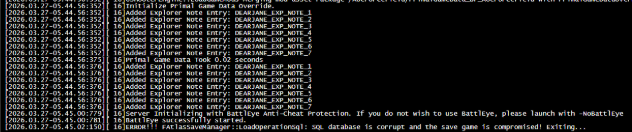
4. If the web console flags SQL corruption or warns that the save file is invalid, follow the rest of this guide to repair the issue.
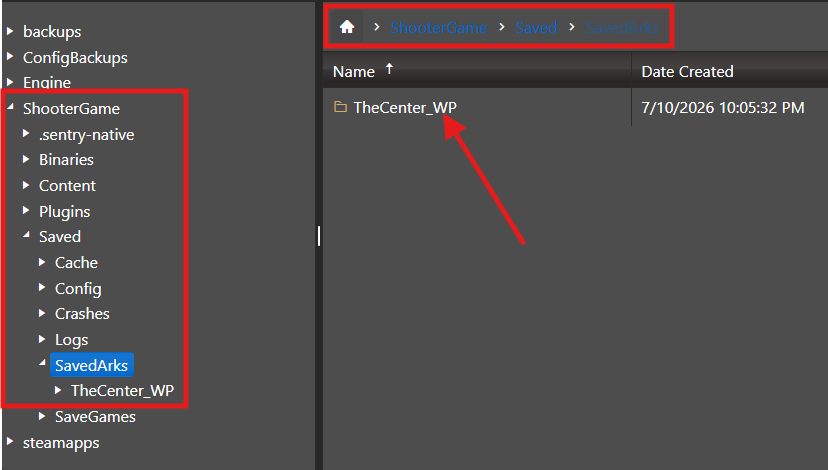
5. Access the File Manager in the sidebar, then go to <Home>/ShooterGame/Saved/SavedArks/<Map Folder>
6. In the map’s save folder, identify the main map save, commonly named <MapName>_WP.ark. The other timestamped files are backup saves generated by ARK.
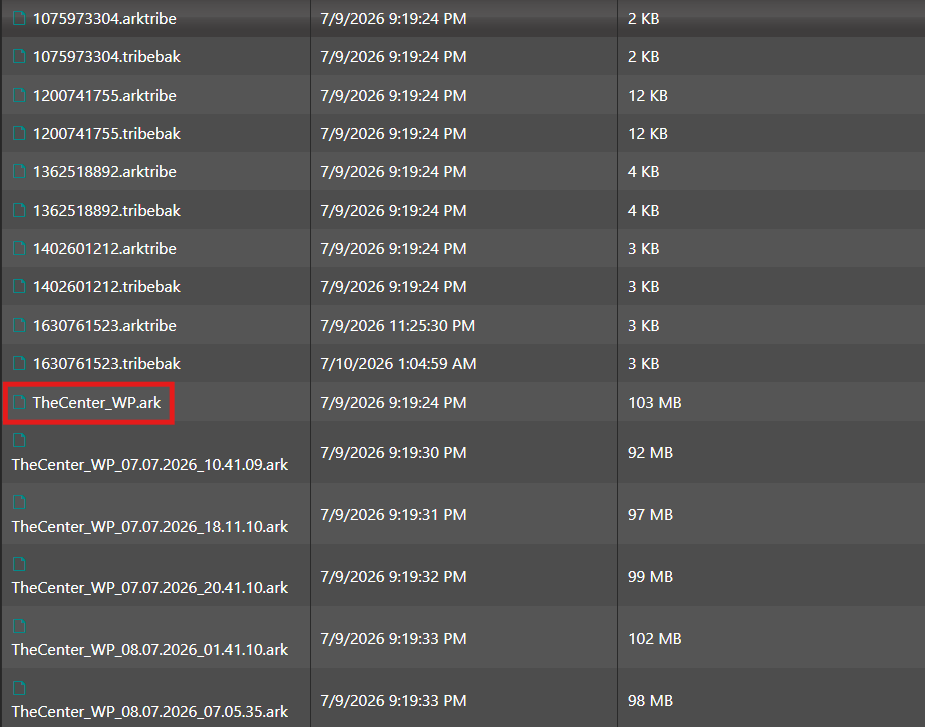
7. Once you’ve identified the main map file and the newest backup, you’ll replace the corrupted file with that backup. You can either rename the original map file or delete it entirely since it’s already damaged.
8. At this point, you can start the server. It should load the backup save successfully. If it fails to start, continue testing older backups until one works.
Please click here to contact our support via a ticket.