
This guide will help you with how to Fix Server Mod Problems Manually in your ARK: Ascended Server
Mod issues on ARK: Survival Ascended servers usually come down to a few predictable causes: missing files, outdated versions, incorrect load order, or a mod failing to register during startup. When any of these happen, players may see connection errors, missing content, or the server may refuse to boot entirely. Manually troubleshooting your mods gives you full control over the process, letting you verify each file, confirm IDs, and ensure the server is loading exactly what you expect. This introduction walks you through the essential checks and fixes so you can quickly identify the problem, correct it, and get your ARK: Ascended server running smoothly again.
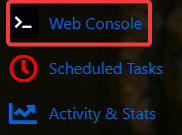
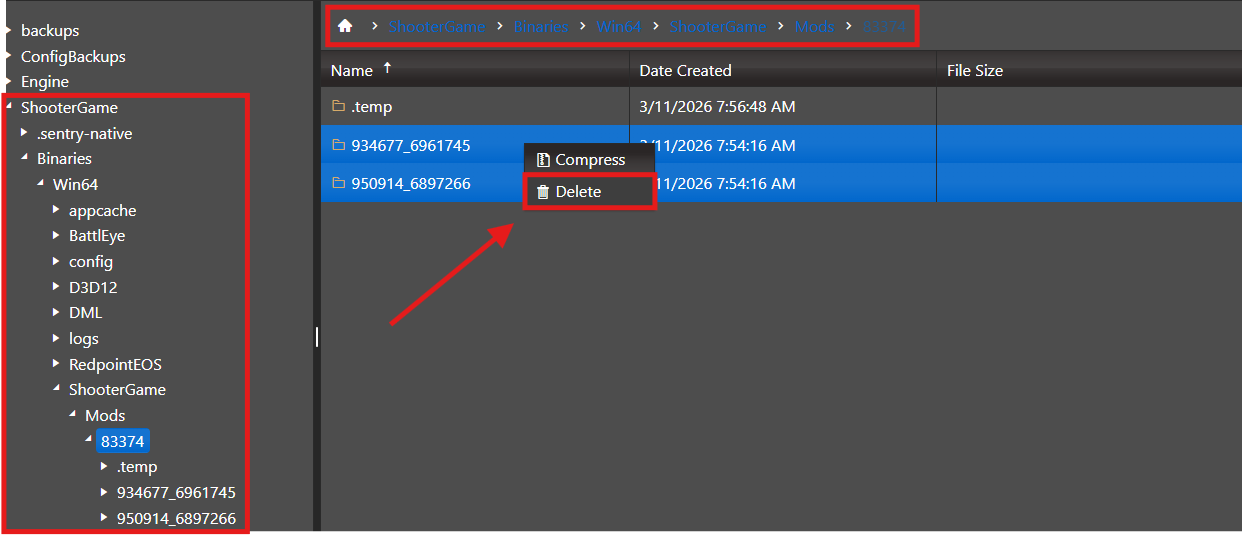

2. Create a backup of your mod list, save the file, and start the server afterward.
3. If the server boots normally with no mods loaded, that confirms the problem is due to complete incompatibility with one or more mods.
4. The next step is to pinpoint which mods are causing the problem. Rather than adding everything back, reintroduce two or three mods at a time and start the server after each batch.
5. You’ll know the server is ready for players when the console shows: “Server has completed startup and is now advertising for join.”
6. Keep adding mods by batch until the server no longer initializes. Remove that batch, then add each mod individually to determine which one is preventing the server from launching.
7. After isolating the issue, you’ll have a short list of mods to exclude. These can be added back later, but review their respective mod pages to ensure they’ve been updated and are compatible again.
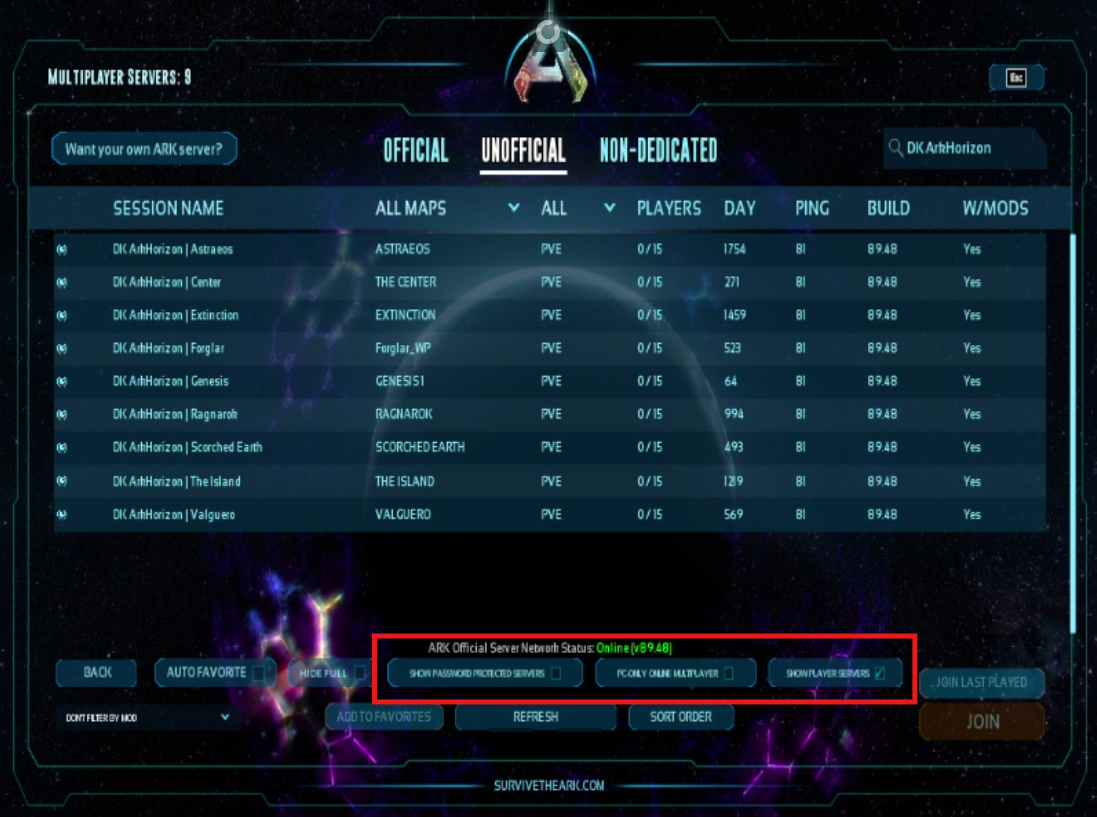
If the server is missing from the browser list but the console reports: “Server has completed startup and is now advertising for join.” the server is online, just not visible in the list.
Ensure that “Player Servers” is checked in your filters, and confirm the password filter matches your server’s configuration. If the password filter is set incorrectly, the server won’t appear in the list.
Did the above information not work for you?
Please click here to contact our support via a ticket.