
This guide will help you How to Get Cosmetic Mods Working When You See the “Mods Are for PC Only” Error in your ARK: Ascended Server
If your ARK: Ascended server shows the “Mods are for PC only” error, it typically means a cosmetic mod isn’t being loaded correctly. This issue often appears after a game update or when the server fails to properly recognize the mod during startup.
1. Log in to your Game Control Panel and navigate to your service.
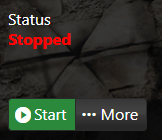
2. Before making any modifications, stop the server from running by clicking the Stop button.
3. Navigate to the Configuration Files Tab to continue.
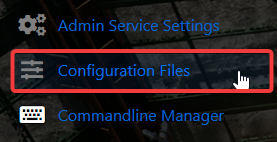
4. In the Configuration Files section, locate the GameUserSettings.ini file and click Text Editor next to it.


After updating the configuration, install the cosmetic mod through the in‑game mod browser. Once the installation is complete, remove the mod’s ID from your command line before starting the server again to ensure it loads correctly.
Start the server once all changes are complete. You’ll know the cosmetic mod is loading correctly if the server initializes without showing the “Mods are for PC only” error.
Did the above information not work for you?
Please click here to contact our support via a ticket.