

This guide will help you How to Install and Manage Mods on your TF2 Server
Buy Your Team Fortress 2 Server Today and Start Playing Immediately
Modding your Team Fortress 2 server is one of the most effective ways to customize gameplay, streamline administration, and create a unique experience for your players. Whether you want to add quality‑of‑life improvements, introduce new server utilities, or enable powerful admin tools, TF2’s modding ecosystem, centered around MetaMod and SourceMod, gives you everything you need to take full control of your server. This guide walks you through the entire process of installing and managing mods, from setting up the core frameworks to adding plugins and keeping everything organized. By the end, you’ll have a fully mod‑ready TF2 server that’s easier to manage, more flexible, and far more enjoyable for both you and your community.
Installing Mods on your Team Fortress 2
1. Browse available mods by visiting tf2mods.net or gamebanana.com.
2. After downloading your mod, log in to your Game Control Panel and navigate to your service.
3. Before making any modifications, stop the server from running by clicking the Stop button.

4. Navigate to the File Managers Tab to continue.
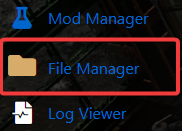
5. Inside the File Manager, navigate to your TF2 installation directory. The location where your game is installed.
Steam > steamapps > common > Team Fortress 2 > tf > custom
6. The final folder, custom, is where TF2 loads all of your custom content, so this is where your mods belong. All that’s left to do is copy and paste the .vpk file you downloaded earlier into this folder.
When transferring files, we strongly recommend using an FTP client like FileZilla to prevent file corruption.
7. After uploading all the files, start your server to install and load the mod.
Did the above information not work for you?
Please click here to contact our support via a ticket.
