

This guide will help you verify Subnautica Files to match the Correct Nitrox Version
Order Your Subnautica Server Now and Start Exploring Instantly
Verifying your Subnautica game files is one of the simplest and most reliable ways to ensure your installation matches the version required by Nitrox. Because Nitrox depends on specific game assets and version consistency, even a small file corruption or outdated build can cause connection failures, world‑loading issues, or version mismatch errors. By running a file integrity check through your game platform, you can confirm that Subnautica is fully updated, correctly installed, and ready for stable multiplayer with Nitrox. This quick step helps eliminate common problems before they happen and keeps your client perfectly aligned with the server.
Verify Your Subnautica Installation to Prevent Version Mismatches
1. Launch the Steam client and navigate to your Library, then locate Subnautica in your game list.
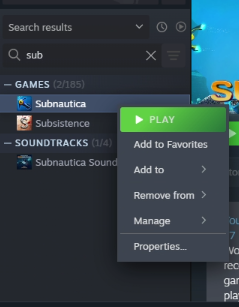
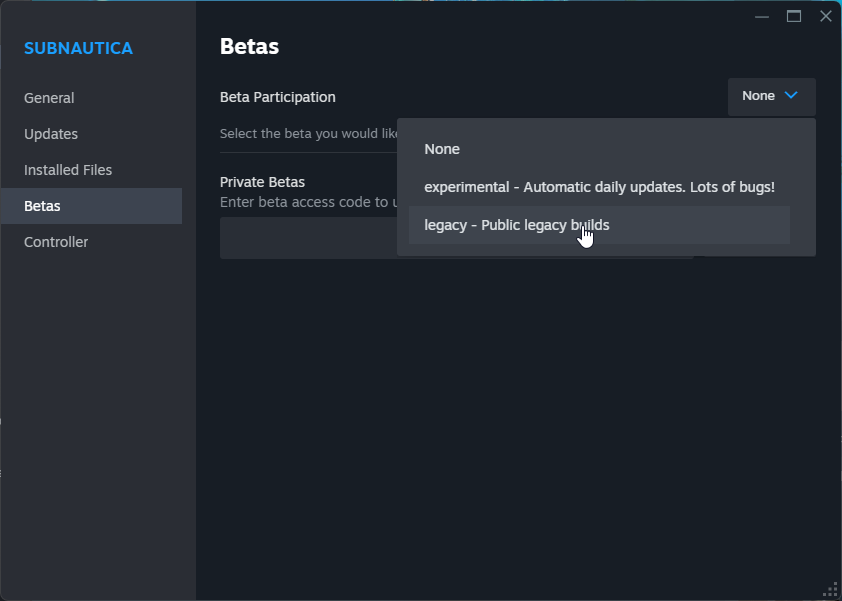
2. Right‑click the game and choose “Properties.” Navigate to the “Updates” section and confirm that the Legacy version is selected.
3. Navigate to the “Installed Versions” tab and click “Verify Integrity of Game Files” to let Steam check and repair your installation.
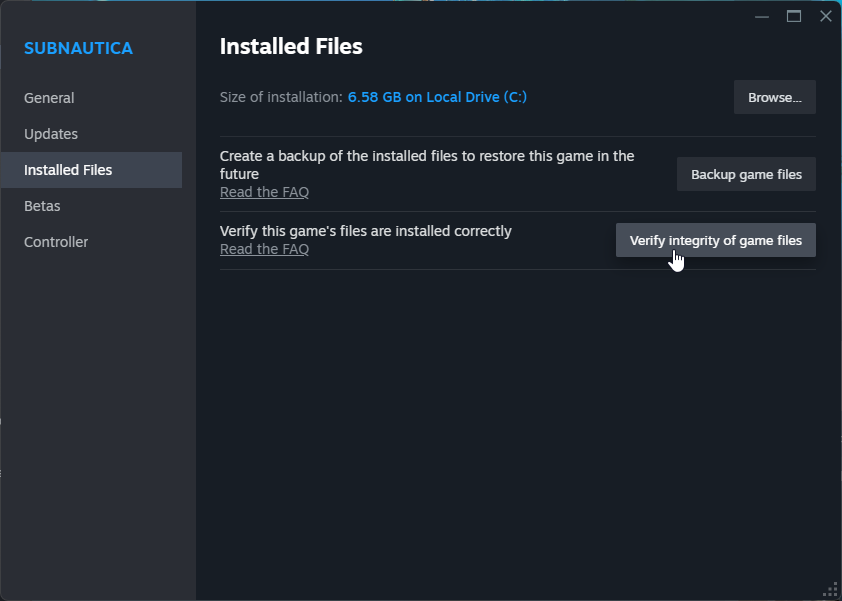
4. This process makes sure your installation is fully aligned with the Legacy version and clears out any outdated or leftover files from previous Nitrox builds that might interfere with your game client.
Installing the Nitrox Multiplayer Mod for Subnautica
Next, install the latest Nitrox version compatible with the Legacy build. At the time of writing, this is Nitrox 1.7.1.0.
Download and install this version directly from the official Nitrox website to ensure you’re using the correct build.
Below are the official instructions from the Nitrox website for installing the Nitrox client on your Subnautica Legacy build.
You can download the required version here.
1. Unzip the Nitrox folder to your preferred installation location. Avoid launching the program directly from the ZIP file, as it will be unable to save progress and may behave unpredictably.
2. Launch the NitroxLauncher with administrator privileges to ensure it can access all required files.
3. Open the Options menu, click Change, and browse to the folder where your Subnautica installation is located.
Here are common installation locations:
Epic Games: C:\Program Files\Epic Games\Subnautica
Steam: C:\Program Files\Steam\steamapps\common\Subnautica
Did the above information not work for you?
Please click here to contact our support via a ticket.
