

This guide will help you How to Customize Weather, Seasons, and World Environment on your Sons of the Forest Server
Get Your Sons of the Forest Server Online in Minutes with AA Game Hosting
Customizing the weather, seasons, and overall world environment on your Sons of the Forest server lets you shape the island into exactly the kind of experience you want your players to have. Whether you're aiming for harsher survival conditions with longer winters and unpredictable storms, or a calmer, more builder‑friendly world with mild weather and extended daylight, these settings give you full control over the atmosphere and pacing of your server. In this guide, you’ll learn where to find the environment configuration options, what each setting influences, and how to fine‑tune them to match your preferred style of gameplay. From season length and temperature changes to weather intensity and environmental hazards, you’ll be able to tailor the world so it feels uniquely yours.
Configuring Environment Settings on Your SOTF Server
1. Log in to your Game Control Panel and navigate to your service.
2. Before making any modifications, stop the server from running by clicking the Stop button.
3. Navigate to the Configuration Files Tab to continue.
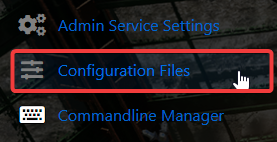
4. In the Configuration Files section, locate the DedicatedServer.cfg file. This is your main Sons of the Forest server configuration.
Click the Config Editor next to the Text Editor to open it.

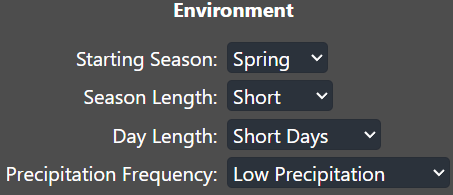
5. Scroll to the Environment Settings section and customize each parameter based on how you want the weather, seasons, and overall environment to behave on your server.
6. When you’re finished, click Save to ensure all adjustments are applied.

If you prefer to change the server name directly in the file rather than through our UI, click the Text Editor next to the Config Editor and make your adjustments there.

This ensures that any custom changes you’ve made, such as mods or custom scenarios, are preserved and won’t be overwritten by the Config Editor’s preset settings.
When you’re finished, click Save to ensure all adjustments are applied.
Did the above information not work for you?
Please click here to contact our support via a ticket.