

This guide will help you How to Grant Admin Access in Sons of the Forest Servers
Get Your Sons of the Forest Server Online in Minutes with AA Game Hosting
Managing admin permissions is essential for keeping your Sons of the Forest dedicated server secure, organized, and running smoothly. Whether you're hosting a private world for friends or managing a large multiplayer community, granting admin access allows trusted players to moderate gameplay, manage server settings, and use administrative commands when needed. In this guide, you’ll learn how to add admins to your Sons of the Forest server, where to find the required Steam IDs, and how to configure admin permissions correctly. Follow the steps below to give players administrative access and take full control of your server management experience.
Adding Admins to a Sons of the Forest Game Server
1. Log in to your Game Control Panel and navigate to your service.
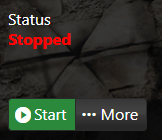
2. Before making any modifications, stop the server from running by clicking the Stop button.
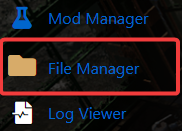
3. Navigate to the File Manager Tab to continue.
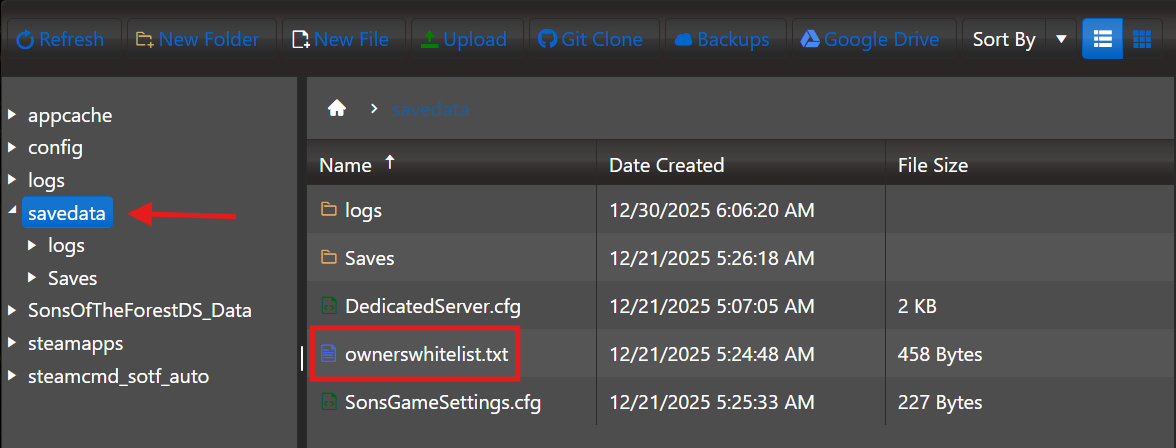
4. In the File Manager, navigate to the savedata folder, then right-click the ownerwhitelist.txt file and choose Edit to modify the file.
5. Add your Steam64 ID to the file. You can find it on your Steam profile or by using a lookup tool such as https://steamid.io/.

6. After making your changes, click Save to apply them.

You can now start the server.
7. Once you are connected to the server, type cheatstick in the chat box to enable admin mode. After activating it, press F1 to open the admin panel.
Did the above information not work for you?
Please click here to contact our support via a ticket.