
This guide will show you how to Add Your Custom World to a Terraria Server
Click here to order your Terraria server with AA Game Hosting.
Adding a custom world to your Terraria server is one of the best ways to personalize your gameplay experience. Whether you’ve handcrafted a massive build, explored a unique seed, or simply want to continue your single‑player adventure with friends, uploading your world gives your server a fresh identity. This guide walks you through the process from start to finish, making it easy to prepare your world file, upload it to your hosting environment, and configure your server to load it correctly. By the end, you’ll have your own custom world running smoothly and ready for players to join.
Uploading a Custom World to Your Terraria Server
1. Log in to your Game Control Panel and navigate to your service.
2. Before making any modifications, stop the server from running by clicking the Stop button.

3. Go to File Manager.
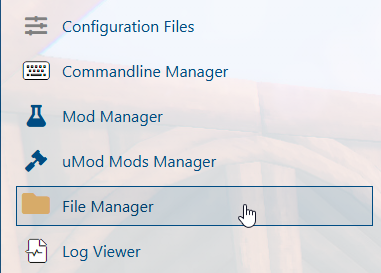
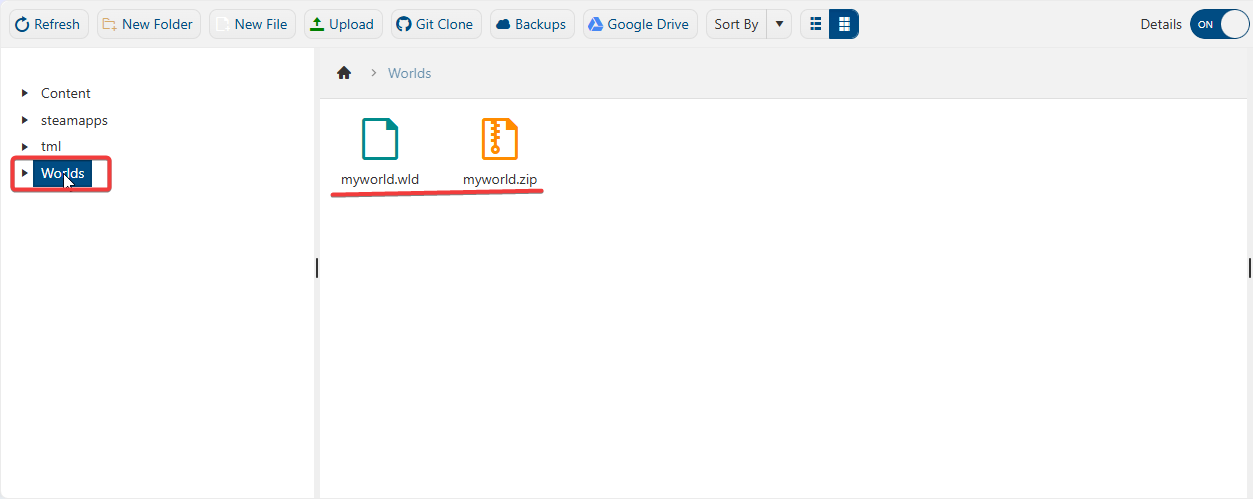
4. On the File Manager, for the Vanilla server, go to Worlds Folder (For Tmodloader server, go to tml>>saves>>worlds). You can easily upload a world you have on your local computer. This can be done via FTP, like Filezilla.
Vanilla Server
Tmodloader Server
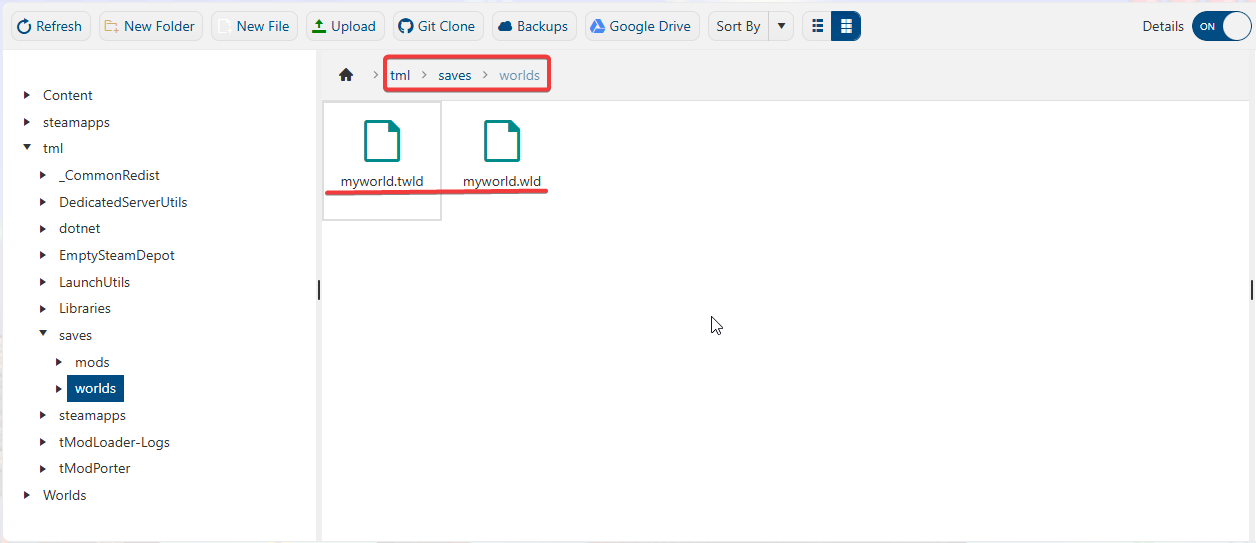
5. To load your custom world, you need to rename the ".wld" world file. (NOTE: There should be no spaces or special characters in the name.)

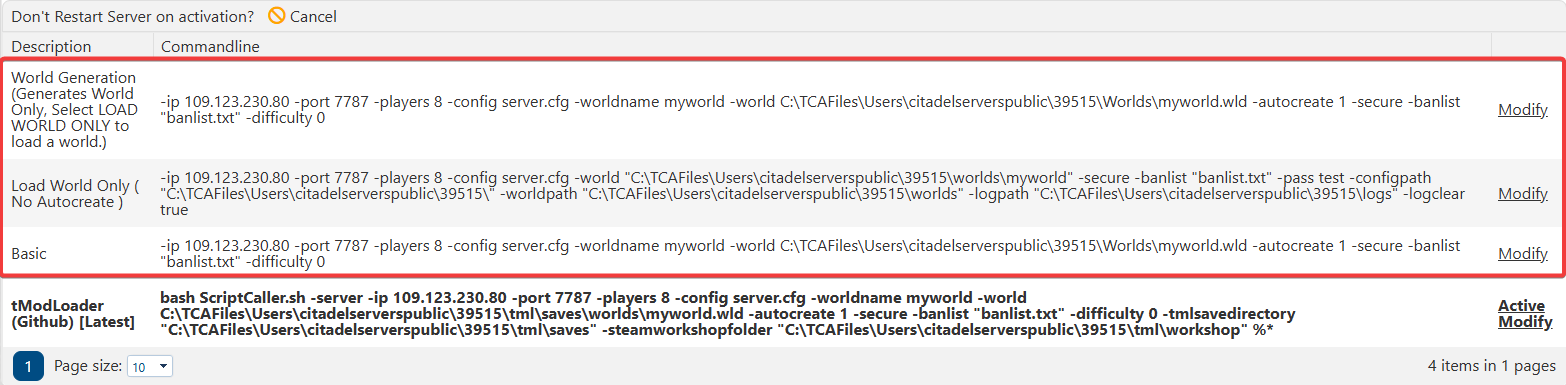
6. Once edited, go to Commandline Manager and choose your Commandline by clicking Modify.
For Vanilla Servers
For Tmodloader
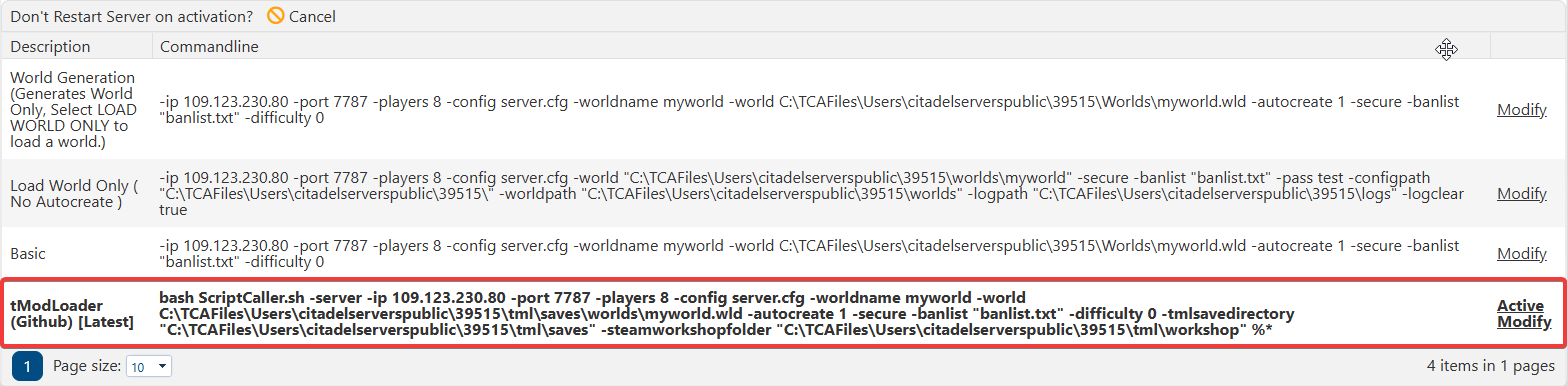
8. On the commandline, change the world name to the new name of your custom world. For the action to take, choose Load Old/Current World. This will load the custom world ".wld" file that you uploaded.
9. After the editing, click Apply to execute the changes on your server.

This should be the same for both Vanilla and Tmodloader servers, except for the 2nd Commandline for the Vanilla server, since it doesn't have an option for autocreate worlds.
Start the server and enjoy your custom world.
If you encountered issues during the process,
Please click here to send a ticket to our team.
