

This guide will show you how to Properly Configure Your Terraria Server for Best Performance
Click here to order your Terraria server with AA Game Hosting.
Running a Terraria server isn’t just about launching the executable and hoping for the best. Performance depends heavily on how well the server is configured. Everything from world size and CPU load to network settings and mod management can influence stability and gameplay smoothness. A well‑tuned server reduces lag, prevents desync issues, and keeps multiplayer sessions running reliably even with large worlds or many players. Whether you’re hosting a small private world for friends or managing a busy community server, understanding the key configuration options gives you the control you need to create a fast, stable, and enjoyable Terraria experience.
Optimizing and Configuring Your Terraria Server for Smooth Multiplayer
Terraria Configuration Files
Navigate to your server in the control panel and click "Configuration files" as shown.

This will then reveal many files; the tshock files that are shown in the image will only appear if you have the Tshock mod installed.
The file you want to access is the "server.cfg" file. Click the text editor to access this file.


Once here, you will see many options, many of which are inactive/commented out. To make them active, remove the # before the line.
e.g., to set a password for your server, find:
#Set the server password
#password=p@55w0rd
Then remove the # from the password line so it looks like:
#Set the server password
password=p@55w0rd
Your server password would now be "p@55w0rd."
Terraria Commandline Options
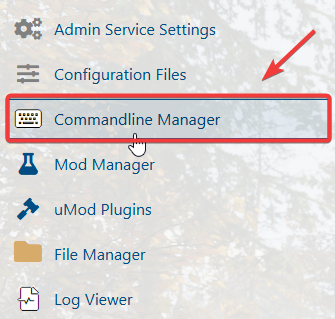
One there, click on "Selected" on the default command line or custom if you wish.

If you encountered issues during the process,
Please click here to send a ticket to our team.