

This guide will help you How to Switch Your Rust Server to Hardcore Mode
Click here to order your RUST server with AA Game Hosting today!
Hardcore Mode transforms Rust into a far more punishing and adrenaline‑charged experience. By tightening survival mechanics, restricting conveniences, and raising the stakes of every encounter, it creates a server environment where only the most strategic and resilient players thrive. Whether you’re running a private community or shaping a high‑intensity public server, enabling Hardcore Mode is a powerful way to redefine how your players engage with the world. In this guide, you’ll learn exactly how to activate Hardcore Mode on your Rust server and what to expect once it’s enabled, so you can deliver a tougher, more immersive survival challenge from the moment players log in.
Enabling Hardcore Mode on Your Rust Server
For seasoned Rust players looking for an even tougher survival experience, the new Hardcore mode strips away several key features, making the world more brutal and unforgiving. Among the disabled elements are global chat, team formations, crawling while downed, and the map, forcing players to rely purely on their instincts and communication within a limited range.
In addition to these restrictions, Hardcore mode also introduces a cap of 5 sleeping bags per player. At the same time, the local chat range is reduced to just 100 meters, intensifying the difficulty and fostering a more immersive survival experience.
1. Access the Game Panel – Log in and navigate to your Rust server settings.
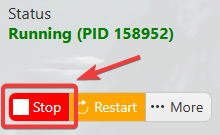
2. Stop the Server – Before making any changes, click the Stop button to prevent disruptions.
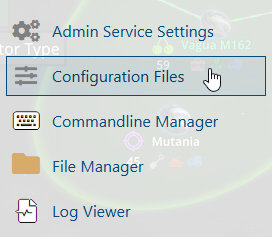
3. Modify the Game Mode – Go to the Commandline Manager tab and select Custom Game Mode.
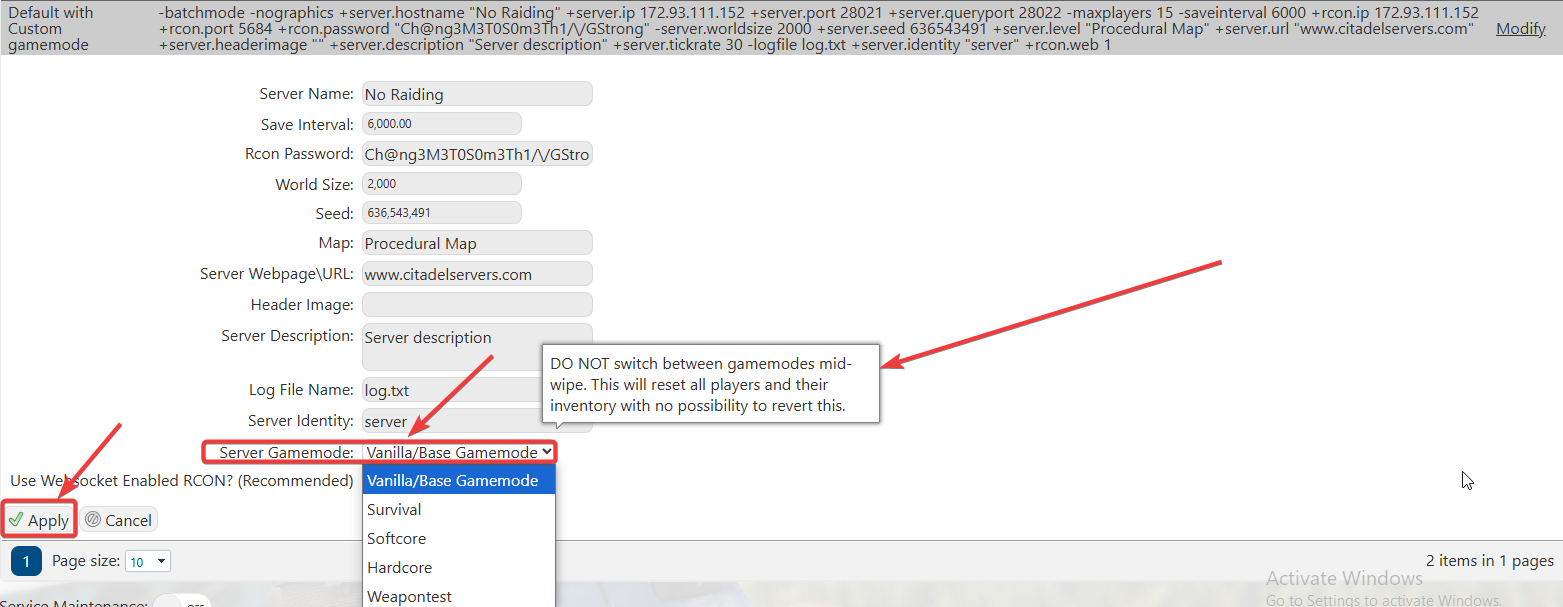
4. Enable Hardcore Mode – Click on Server Gamemode, choose Hardcore, then hit Apply and Start the server.
(NOTE: DO NOT switch between gamemods mid wipe. This will reset all players and their inventory with no possibility to revert this.)
If you encountered issues during the process,
Please click here to send a ticket to our team.
