
This guide will help you customize your Rust Server Description, Header Image, and Website Link
Click here to order your RUST server with AA Game Hosting today!
Customizing your Rust server’s appearance is one of the simplest ways to make it stand out in the server browser and attract new players. A well‑crafted description, an eye‑catching header image, and a polished website link help communicate your server’s identity before anyone even joins. Whether you’re running a small community server or building a large public network, these details shape first impressions and set expectations for gameplay, rules, and atmosphere. In this guide, you’ll learn exactly how to update your Rust server’s description, header image, and website URL using your server’s configuration files and startup parameters. Each step is straightforward, beginner‑friendly, and designed to help you present your server in the best possible light. By the end, your server will look more professional, more inviting, and more aligned with the experience you want to offer.
Updating Your Rust Server: Description, Header Image & URL Guide
Every Rust server features a server information page, visible both in-game and on the server list. This allows server owners to configure and personalize their server overview, making key details easily accessible to players.
Among the most commonly customized settings are:
Server URL
Server description
Header image
Follow these steps to update your Rust server’s details:
1. Log in to the Game Panel and navigate to your Rust server.
2. Before making any modifications, stop the server from running by clicking the Stop button.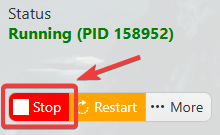
3. Navigate to the Configuration Files Tab.
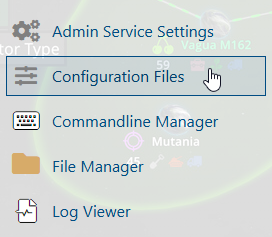
4. On the Configuration Files, you will see the server\server\cfg\server.cfg file, which is the General Server Config. Click the Text Editor beside the Config Editor.

5. Make any required changes to server.url, server.description and server.headerimage.
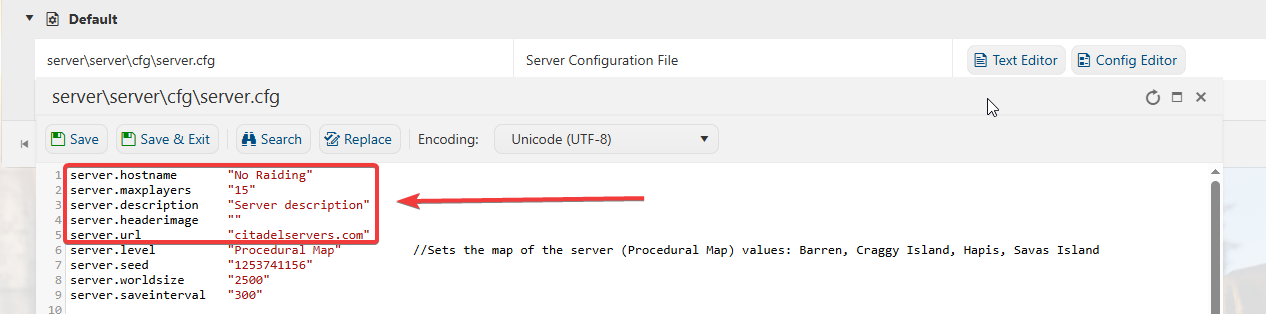
6. Once you've updated your settings, save your changes and start the server to apply them.
You can also change the Server Description, Header Image, and URL using the Commandline Manager. Just make the changes to your predefined command lines, then hit Apply.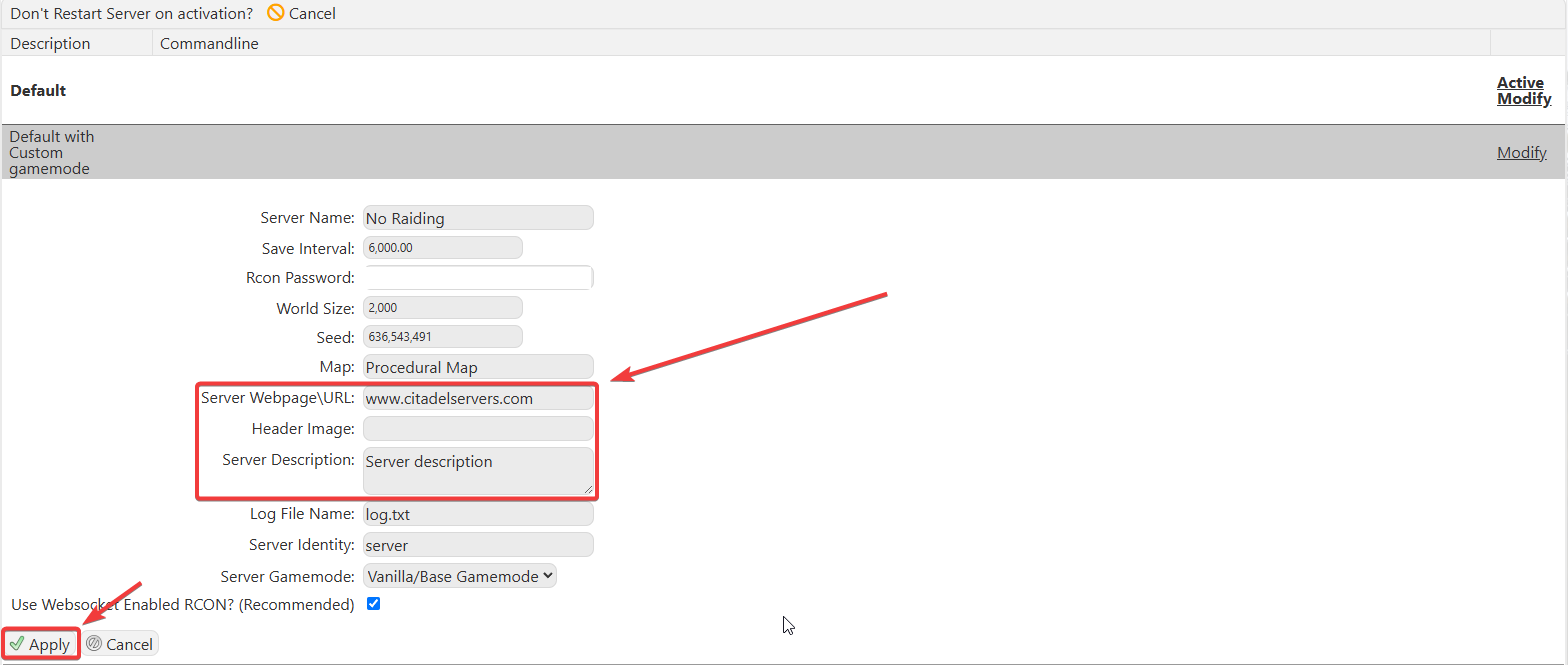
If you encountered issues during the process,
Please click here to send a ticket to our team.
