
This guide will show you how to Back Up Your World Folder on your Project Zomboid Server
Click here to order your Project Zomboid server with AA Game Hosting.
Keeping your Project Zomboid server running smoothly means protecting the world your players have built. Whether you’re preparing for a major update, installing new mods, or just safeguarding against unexpected corruption, backing up your world folder is one of the most important maintenance tasks you can perform. This folder contains the heart of your server, player data, map changes, safehouses, vehicles, and all the progress your community has made. Manually backing up your world folder ensures you always have a reliable restore point if something goes wrong. In this guide, you’ll learn exactly where to find your world files and how to create a clean, secure backup that you can restore at any time. It’s a simple process that can save you from major headaches down the road.
Backing Up Your Project Zomboid World Folder
1. Log in to your Game Control Panel.
2. Stop the server to ensure it saves properly.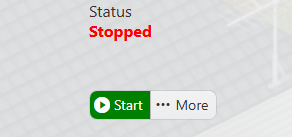
3. Use the "Quick Backup" command on the sidebar.
Execute this and wait for it to finish.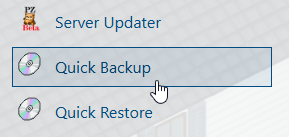
4. Once it's finished, open the File Manager.
The backup will be available as a Zip file in the backups folder.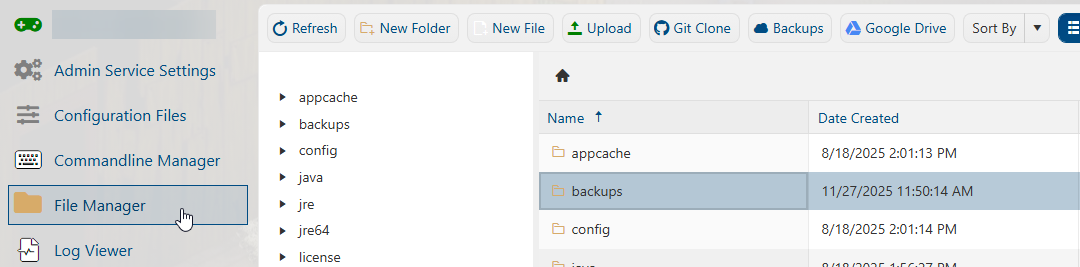
If you encountered issues during the process,
Please click here to send a ticket to our team.
