

This guide will help you with the Guide to Updating Your Hytale World Seed.
Click here to order your Hytale server with AA Game Hosting today!
Updating your Hytale world seed can open the door to fresh terrain, new structures, and a completely revitalized gameplay experience, without losing the progress you’ve already built. Whether you’re looking to explore different biomes, refresh your world’s generation, or simply understand how seeds shape the landscapes you play in, knowing how to update your seed safely is essential. This guide walks you through what seeds do, how world generation works in Hytale, and the steps and considerations involved in changing your seed so you can reshape your adventure with confidence.
Customizing Your Hytale Server: Adjusting the World Seed
1. Log in to your Game Control Panel and navigate to your service.
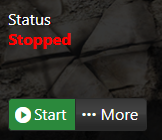
2. Before making any modifications, stop the server from running by clicking the Stop button.
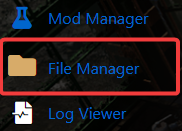
3. Navigate to the File Manager Tab.
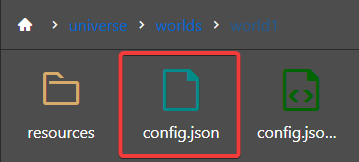
4. Follow the directory path /home/universe/worlds/(your‑selected‑world)/config.json to access the configuration file for that specific world.
Set the Seed value to the specific world seed that aligns with the terrain style, biome distribution, and overall generation pattern you want your new world to follow.
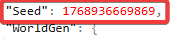
5. After editing, click the Save button to apply your changes and update the server’s configuration.

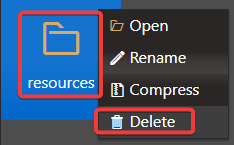
6. Select the chunks and resources folders if they exist for that world and delete them to allow the server to regenerate fresh terrain and assets based on the new seed.
Did the above information not work for you?
Please click here to contact our support via a ticket.
