

This guide will help you set and Manage Player Capacity on your Hytale Server.
Click here to order your Hytale server with AA Game Hosting today!
Setting and managing player capacity on your Hytale server is an essential part of shaping how your world feels, performs, and grows. The number of players you allow online at once directly affects server stability, community dynamics, and the overall gameplay experience. Whether you're hosting a small private world for friends or building a larger public server, understanding how to adjust player limits gives you the flexibility to match your server’s capacity with your goals. A well‑configured player limit helps prevent lag during peak activity, protects the server from unexpected traffic spikes, and ensures that everyone who joins has a smooth, enjoyable experience. It also gives you control over how social or intimate your world feels. Smaller limits create tight‑knit groups, while higher limits support bustling, active communities. As your server evolves, you can adjust these settings at any time, making player capacity a dynamic tool for managing growth and performance. Most server owners revisit player capacity as their community expands, their hardware changes, or they introduce new gameplay features that affect performance. Knowing where to adjust these settings and how they impact your server helps you maintain a stable environment while giving players the experience you intend.
Adjusting Player Capacity on Your Hytale Server
1. Log in to your Game Control Panel and navigate to your service.
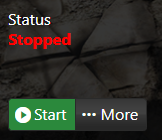
2. Before making any modifications, stop the server from running by clicking the Stop button.
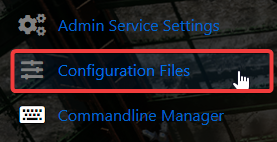
3. Navigate to the Configuration Files Tab.
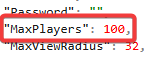
4. In the Configuration Files section, locate the config.json file and find the Max Players entry that controls your server’s player limit.

You can adjust the Max Players value to match the size and needs of your server community.
5. After editing, click Save to apply the changes to your server immediately.

Did the above information not work for you?
Please click here to contact our support via a ticket.
