

This guide will help you on how to Kick, Ban, and Unban Players on your Insurgency Standalone Server.
Click here to order your Insurgency Standalone server with AA Game Hosting today!
Running your own Insurgency standalone server gives you full control over the gameplay experience, including how you manage your player community. Whether you’re dealing with disruptive behavior, enforcing fair play, or simply keeping things organized, knowing how to kick, ban, and unban players is an essential part of server administration. In this guide, we’ll walk through the basics of each command, explain when to use them, and show you how to keep your server environment fun and respectful for everyone. By the end, you’ll feel confident in handling player management smoothly, whether it’s a quick kick for rule-breaking, a ban for repeated offenses, or an unban when someone deserves a second chance.
How to Kick, Ban, and Unban Players on your Insurgency Standalone Server
1. Log in to your Game Control Panel and navigate to your service.
2. Before making any modifications, stop the server from running by clicking the Stop button.

3. Navigate to the File Manager Tab.
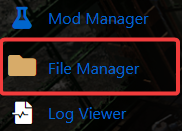
4. On the File Manager, look for ..\insurgency\cfg and create the following files by following the GIF below:
banned_ip.cfg
banned_user.cfg

5. Next is navigate to the Configuration Files Tab.
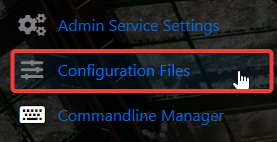
6. On the Configuration Files tab, look for server.cfg and click the Config Editor.
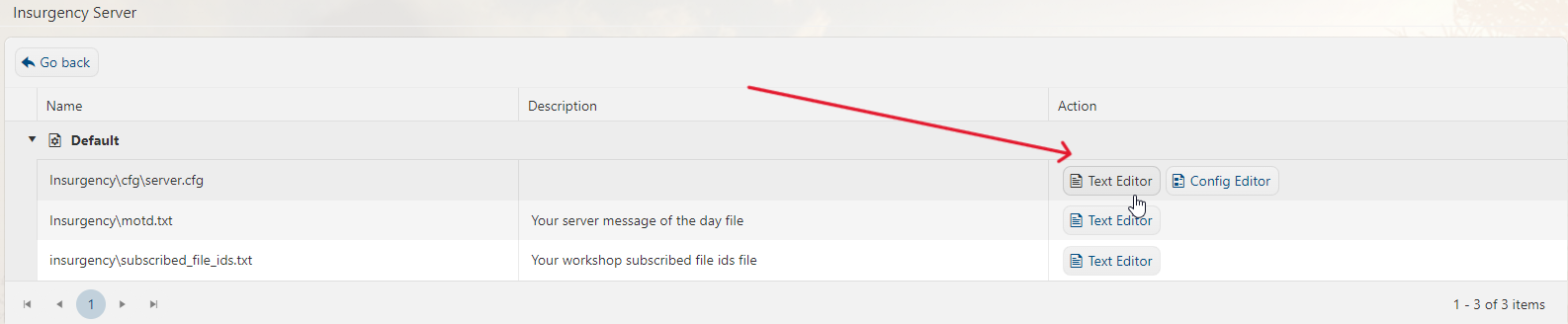
7. Now add these commands to the text file that pops up:
banned_ip.cfg // personal banlist based on user IPs writeid writeip
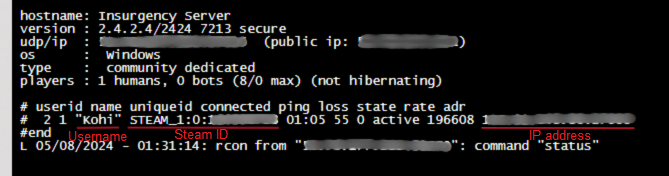
rcon_password <your rcon password> then press Enter. Then type in status once again, and it should show the following lines, showing information about the server and the players connected: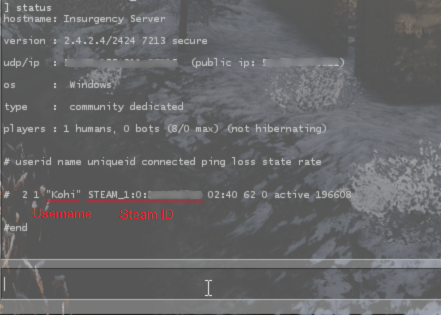
- Kicking:
kick <name>kickid <id>
Explanation: <name> is the user name <id> is SteamID and have following format: STEAM_x:x:xxxxxxxx where “x” stands for number
Examples: kick arc kickid STEAM_0:0:12345678
- Adding/removing banned users/ips through console (works also via RCON):
Adding/removing IP:
addip <time> <ip> removeip <ip>Explanation:
<time> How many MINUTES will be IP-banned, 0 = permanent ban <ip> stands for the numeric IPv4 address of the user (example: 1.2.3.4)removeip does not need the <time> parameter
Examples:
addip 0 10.10.10.11 removeip 1.2.3.4- Adding/removing steamID:
banid <time> <id>removeid <id>
Explanation:<time>How many MINUTES will be IP-banned, 0 = permanent ban<id>is SteamID and have following format: STEAM_x:x:xxxxxxxx where “x” stands for number
Examples:banid 0 STEAM_0:0:12345678removeid STEAM_0:0:87654321 - To write banned IPs/IDs to a file, type this command into the console, depending on what you’ve banned:
writeidwriteip
- To view banned IDs or IPs through the console, use those respective commands:
listidlistip
Explanation: listid - will show you how many IDs are banned, exact IDs, and for how long listip - will show you how many IPs are banned, exact IPs, and for how long
Did the above information not work for you?
Please click here to contact our support via a ticket.
