

This guide will help you change your map to Temptress Lagoon on your ARK Survival Ascended Server.
If you’re ready to explore new horizons in ARK: Survival Ascended, switching your server’s map to Temptress Lagoon is a fantastic way to refresh your gameplay experience. This custom map offers a unique blend of lush biomes, hidden caves, and aquatic adventures that can completely transform the way you and your tribe survive. Changing your server’s map isn’t just about loading into a new environment it’s about tailoring your ARK world to match your playstyle. Whether you’re seeking fresh challenges, new resources, or simply a change of scenery, Temptress Lagoon delivers a vibrant and immersive setting. By the end, you’ll be ready to dive into the mysterious waters and lush landscapes of Temptress Lagoon, giving your ARK server a fresh start filled with discovery and adventure.
Changing your Map to Temptress Lagoon on your ARK Survival Ascended Server
1. Log in to your Game Control Panel and navigate to your service.
2. Before making any modifications, stop the server from running by clicking the Stop button.

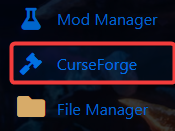
3. Navigate to Curseforge Tab.
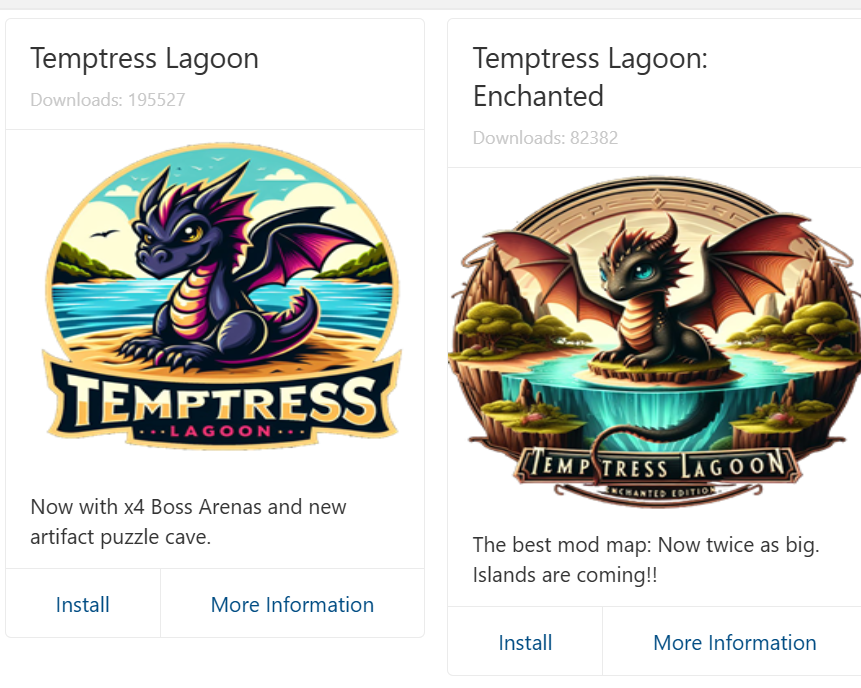
4. On the Curseforge, there are two versions of the Temptress Lagoon map:
Temptress Lagoon – Standard Version
Temptress Lagoon Enchanted – an enhanced version with additional features.
Install the one that you prefer.
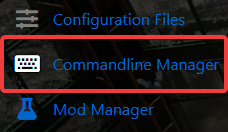
5. Next is navigate to Commandline Manager Tab.
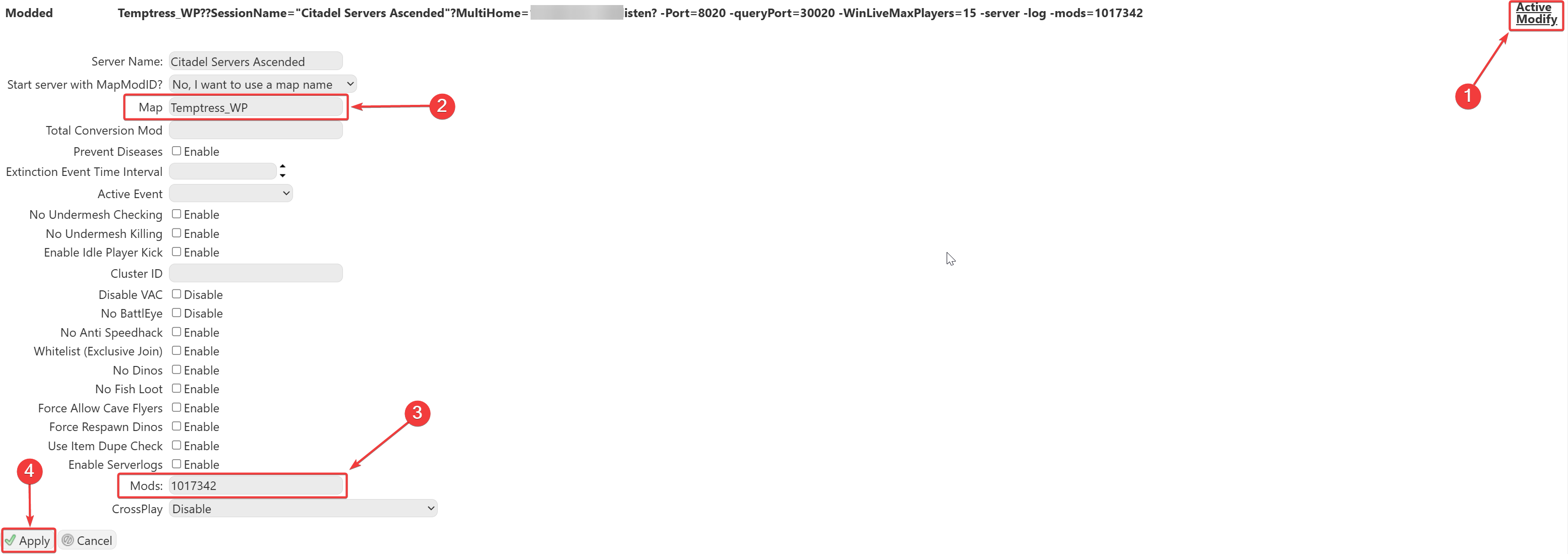
6. On the Commandline Manager, click Modify on the Modded option. In the Map section, enter:
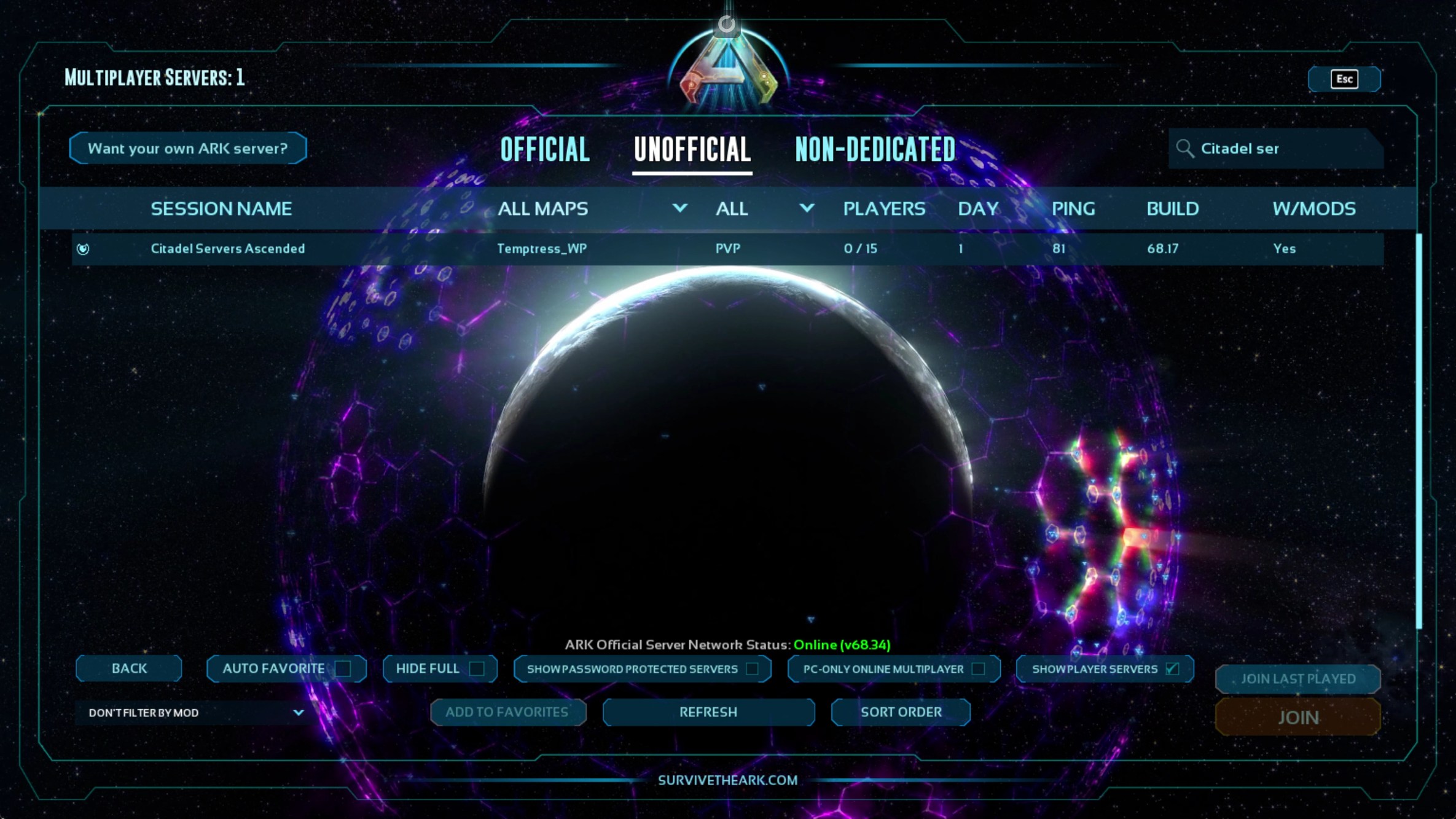
Temptress_WP
7. Make sure the Mod ID for Temptress Lagoon is added to your mod list to ensure the map loads properly.
Standard Version - 944375
Premium Version - 1017342
8. Once everything is set up and the server is started, you’ll be able to find your server in the in-game server list.
Note: We support all official maps of the game for ARK: Ascended. "_WP" needs to be added at the end for the maps to work.
Please make sure to follow proper capitalization as they are case-sensitive.
Please click here to contact our support via a ticket.
