

This guide will help you change your map to Amissa on your ARK Survival Ascended Server.
One of the best parts of hosting your own ARK Survival Ascended server is the ability to tailor the adventure to your liking. By switching maps, you can completely reshape the survival experience for yourself and your community. While official maps like Valguero or Fjordur offer their own unique challenges, custom maps such as Amissa bring an entirely new dimension of exploration and creativity. Known for its breathtaking landscapes, diverse biomes, and custom-designed areas, Amissa provides a fresh survival environment that blends beauty with danger, making it a popular choice among dedicated ARK players. This guide will introduce you to the process of changing your server’s map to Amissa. We’ll cover the essential steps for updating your server configuration, ensuring compatibility with mods and settings, and preparing your players for the transition. By the end, you’ll be ready to launch your server into Amissa’s expansive world and unlock new adventures in one of the most visually stunning custom maps available for ARK Survival Ascended.
Changing your Map to Amissa on your ARK Survival Ascended Server
1. Log in to your Game Control Panel and navigate to your service.
2. Before making any modifications, stop the server from running by clicking the Stop button.

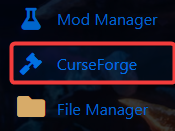
3. Navigate to Curseforge Tab.
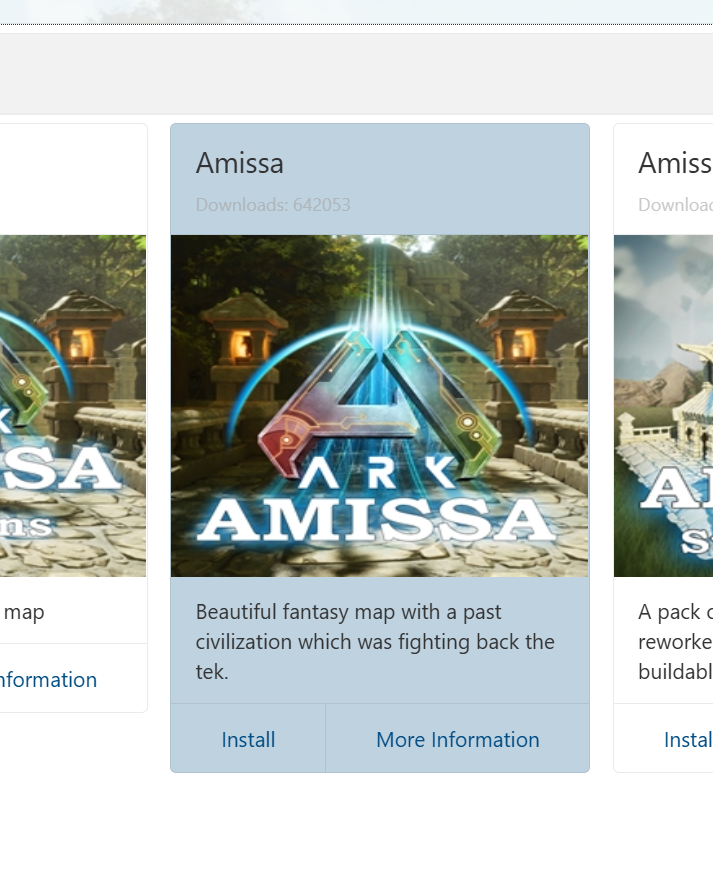
4. On the Curseforge, search for the Amissa Map and install it.
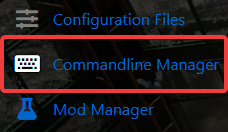
5. Next is navigate to Commandline Manager Tab.
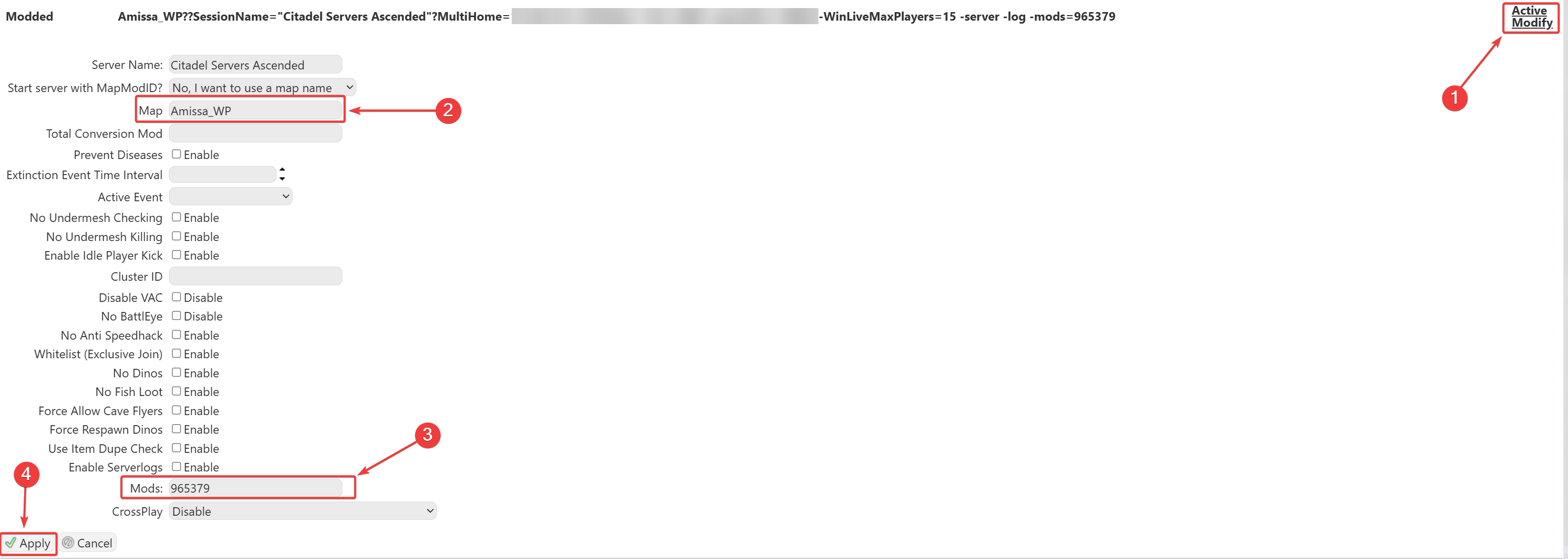
6. On the Commandline Manager, Click Modify on the Modded option. In the Map section, enter:
Amissa_WP.
7. Make sure the Mod ID for Amissa is added to your mod list to ensure the map loads properly.
Mod ID - 965379
8. Once everything is set up and the server is started, you’ll be able to find your server in the in-game server list.

Note: We support all official maps of the game for ARK: Ascended. "_WP" needs to be added at the end for the maps to work.
Please make sure to follow proper capitalization as they are case-sensitive.
Please click here to contact our support via a ticket.
