

This guide will help you How to Set Up Admin Accounts and Permissions in the Unturned Server
Power Up Your Unturned Server Today with AA Game Hosting
Managing admins and permissions is essential for keeping your Unturned server organized, secure, and running smoothly. Whether you’re giving trusted players moderation tools or setting up a full administrative team, Unturned’s permission system lets you control exactly who can access server commands and management features. This guide walks you through how to add admin accounts, assign permissions, and configure the settings needed to maintain a safe and well‑moderated server environment.
Managing Admins and Server Permissions
Method 1 - Owner
1. Start by finding your SteamID. Visit steamcommunity.com, log in if needed, and click your username at the top of the page. Those numbers are your SteamID.
2. Setting your role to (owner) gives you full admin privileges. Use @ plus the command name to execute actions. For instance, to switch the server time to day, type:@Night.
3. Log in to your Game Control Panel and navigate to your service.
4. Before making any modifications, stop the server from running by clicking the Stop button.

5. Navigate to the Configuration Files Tab to continue.
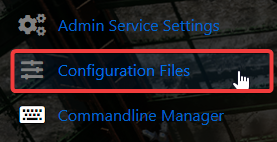
6. In the Configuration Files area, you’ll see the Servers\server -sv\server\Commands.dat file, which stores your general server config. Click the Text Editor to begin editing.

7. Add a new line for each admin you want to assign using the following format: owner your_steam_id_64
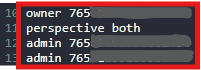
8. When you’re finished configuring the difficulty, click the Save button to commit the changes to your server.

Method 2 - Via Rocket Admin
1. Log in to your Game Control Panel and navigate to your service.
2. Before making any modifications, stop the server from running by clicking the Stop button.
3. Navigate to the Configuration Files Tab to continue.
4. In the Configuration Files area, you’ll see the \Servers\Public\Rocket\Permissions.config.xml file, which stores your general server config. Click the Text Editor to begin editing.

5. You can define additional groups or modify the existing defaults. Out of the box, Unturned includes the default group for all players and the moderator group for basic moderation roles.
To add a new group, you will need to add it right after the last </Group> tag and just before the </Groups> tag.
<Group>
<Id>Administrator</Id>
<DisplayName>Admin</DisplayName>
<Members>
<Member>76561197960265728</Member>
</Members>
<Commands>
<Command>p</Command>
<Command>p.reload</Command>
<Command>tp</Command>
<Command>tphere</Command>
<Command>i</Command>
<Command>test</Command>
<Command>save</Command>
<Command>Admin</Command>
<Command>Admins</Command>
<Command>Ban</Command>
<Command>Bans</Command>
<Command>Chatrate</Command>
<Command>Clear</Command>
<Command>Cycle</Command>
<Command>Day</Command>
<Command>Debug</Command>
<Command>Experience</Command>
<Command>Give</Command>
<Command>Kick</Command>
<Command>Night</Command>
<Command>Permit</Command>
<Command>Permits</Command>
<Command>Players</Command>
<Command>Say</Command>
<Command>Slay</Command>
<Command>Teleport</Command>
<Command>Time</Command>
<Command>Timeout</Command>
<Command>Unadmin</Command>
<Command>Unban</Command>
<Command>Unpermit</Command>
<Command>Vehicle</Command>
<Command>Welcome</Command>
<Command>color.red</Command>
</Commands>
<ParentGroups />
</Group>
6. To give a group additional abilities, simply add the corresponding commands. For example, the night command was added to the moderator group since it isn’t included by default.
For a full reference of all available commands, check the Unturned command list.
You can add players to the group by listing their SteamIDs, for example:
<Member>76561197537827867</Member>
<Member>76561193783578688</Member>
You can now use the rocket admin commands prefixed with an (!):!Night
7. When you’re finished configuring the difficulty, click the Save button to commit the changes to your server.
Did the above information not work for you?
Please click here to contact our support via a ticket.
