

This guide will help you with how to Switch Maps on a Killing Floor 2 Dedicated Server
Host Killing Floor 2 with AA Game Hosting
Switching maps on a Killing Floor 2 dedicated server is a quick way to keep gameplay fresh, test new arenas, or move your players into the action you want right away. Whether you're managing a public server, running a private session with friends, or rotating through custom Workshop maps, knowing how to change the active map gives you full control over the flow of each match. In this guide, you’ll learn the different methods for changing maps, how each option works, and what to expect when applying changes on a live server, all so you can manage your KF2 environment with confidence.
Changing the Active Map on a KF2 Server
1. Log in to your Game Control Panel and navigate to your service.
2. Before making any modifications, stop the server from running by clicking the Stop button.
3. Navigate to the Commandline Manager Tab to continue.

4. In the Commandline Manager, find the Default command line and select the Modify button on the right.
5. Find the Startup Level line and set it to your preferred map.
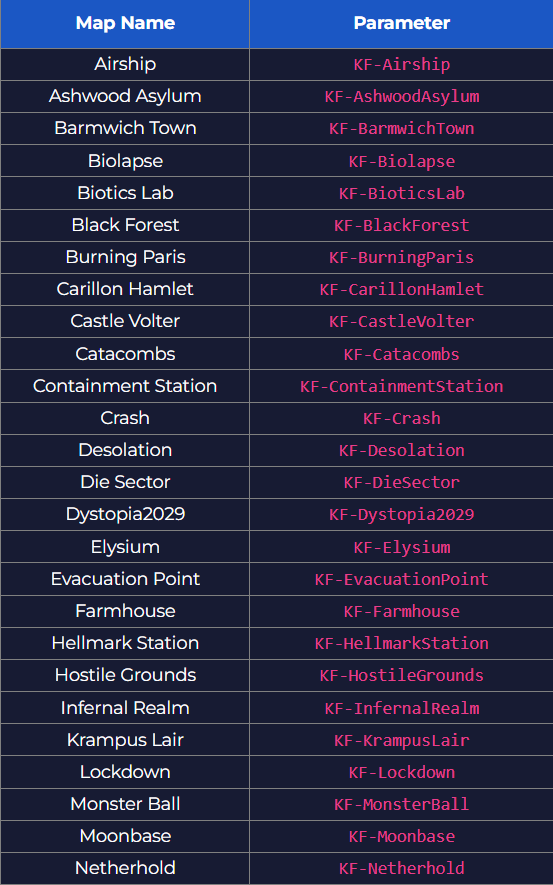
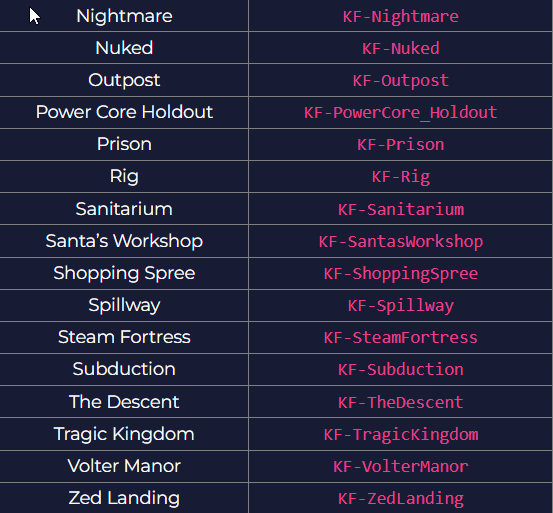
6. Once you're done editing, select Apply and then start your server.
Did the above information not work for you?
Please click here to contact our support via a ticket.