

This guide will help you how to configure your server settings on your Hytale Server.
Click here to order your Hytale server with AA Game Hosting today!
Hytale, the highly anticipated sandbox RPG from Hypixel Studios, is designed with both creativity and security in mind. When running servers or integrating custom tools, authentication tokens play a crucial role in ensuring that only verified users and applications can access protected resources. Setting up your Hytale Authentication Token is an essential step for server administrators, mod developers, and community managers who want to maintain a secure environment while enabling smooth connections between players and services. Tokens act like digital keys: they confirm your identity, grant permissions, and help prevent unauthorized access. In this guide, we’ll walk through the basics of generating, configuring, and managing your authentication token. By the end, you’ll understand not only how to set it up, but also why it’s important for safeguarding your Hytale projects and keeping your server ecosystem running reliably.
Important:
Each Hytale game license can authenticate up to 100 active servers at the same time. If you need to run more servers, you will need additional licenses or an approved provider entitlement.
Device Authorization (Recommended Method)
The device authorization method works on headless servers and does not require a browser on the server itself.
1. Log in to your Game Control Panel and navigate to your service.
2. Before making any modifications, stop the server from running by clicking the Stop button.

3. Navigate to the Web-Console Tab.
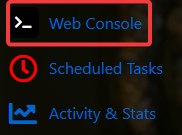
4. On the Web-Console tab, initiate your login. Run the following command:
/auth login device
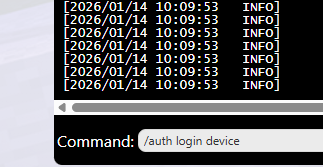
5. Open the Authorization Page.
The console will display a message similar to the following:
============================================================DEVICE AUTHORIZATION============================================================Visit: https://accounts.hytale.com/deviceEnter code: ABCD-1234Or use: https://accounts.hytale.com/device?user_code=ABCD-1234============================================================Waiting for authorization (expires in 900 seconds)...

6. Approve the Server. Open the provided link on any device with a web browser. Sign in to your Hytale account
Enter the authorization code (if prompted). Confirm access for the server.
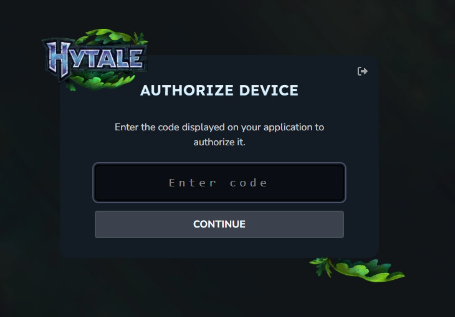
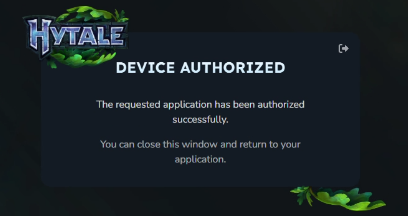
7. Authentication Complete. Once approved, your server console will confirm success, indicating the server is now authenticated and ready to accept players.
Authentication successful! Mode: OAUTH_DEVICE
8. Run the command below in the web console:
/auth persistence Encrypted
This will forever save the token/auth to the server.
All Set! You can then follow our Quick Start Guide.
Checking Authentication Status
To confirm your server is authenticated, run:
This will display whether the server is currently logged in and authorized.
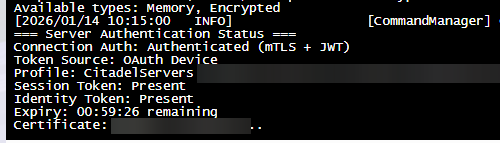
Authentication Commands Reference
| Command | Purpose |
|---|---|
/auth login device |
Starts device-based authentication (recommended) |
/auth login browser |
Starts browser-based login (requires desktop access) |
/auth select <number> |
Choose a profile if multiple accounts are detected |
/auth status |
Displays current authentication state |
/auth cancel |
Stops an active login attempt |
/auth logout |
Clears authentication data and logs out |
Authentication Token Behavior
Hytale uses OAuth tokens to maintain secure access. These tokens refresh automatically while the server remains online.
| Token Type | Valid Duration | Description |
|---|---|---|
| Access Token | ~1 hour | Used for session creation |
| Refresh Token | ~30 days | Renews access tokens |
| Game Session | ~1 hour | Automatically renewed before expiry |
As long as your server stays online, re-authentication is usually unnecessary.
Common Issues & Fixes
Authentication Failed at Startup
If the server starts without authentication, try the following:
1. Re-run /auth login device
2. Ensure the token has not expired
3. Verify the account has the correct permissions
When Re-Authentication Is Required
You may need to log in again if:
- The server was offline for over 30 days
- You manually logged out
- Account credentials were changed
Did the above information not work for you?
Please click here to contact our support via a ticket.
