
 This guide will help you about MelloTrainer in FiveM server.
Running a FiveM server is all about customization and enhancing the player experience. One of the most popular tools for this is MelloTrainer, a versatile in-game trainer that gives server admins and players access to a wide range of features from spawning vehicles and changing skins to tweaking weather and managing server settings. This Quick Start Guide is designed to help you get MelloTrainer up and running smoothly on your FiveM server, even if you’re new to server management. MelloTrainer can transform your FiveM server into a more dynamic and engaging environment. Whether you’re setting up a roleplay world, testing scripts, or just having fun with friends, this guide will give you the confidence to install and use MelloTrainer effectively without unnecessary headaches.
Mello Trainer is a server-sided trainer based on the Lambda Menu. This is written in Lua with a NUI written with HTML, CSS, and JS.
How to install Mello Trainer?
1. Log in to your Game Control Panel and navigate to your service.
2. Before making any modifications, stop the server from running by clicking the Stop button.

3. Navigate to the Mod Manager Tab.
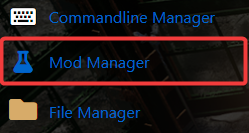
4. Click the arrow beside FxServer Trainers to expand the group.
5. Click the Install button for Mello Trainer v0.5.5.

Where to configure MelloTrainer?
1. Log in to your Game Control Panel and navigate to your service.
2. Before making any modifications, stop the server from running by clicking the Stop button.
3. Navigate to the Configuration Files Tab.
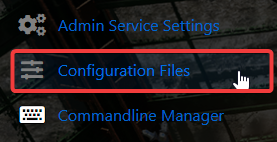
4. Click the Text Editor button for Mello Trainer v0.5.5.
5. Edit as needed and click save.
6. Restart the server to apply changes.
| Key | Action |
|---|---|
| F1 | Open/Close the trainer |
| Arrow Keys | Move up,down,left, and right respectively. |
| Enter | Select the current trainer option |
| Backspace | Go back to the previous menu |
| F2 | Toggle No-Clip Mode |
| F3 | Teleport to Current Way Point |
| Z | Toggle Between Big & Small Minimap |
NoClip Controls
| Key | Action |
|---|---|
| F2 | Toggle Noclip Mode |
| Shift | Switch Noclip Movement Speed |
| Q | Move Upwards |
| Z | Move Downwards |
| W | Move Forwards |
| S | Move Backwards |
| A | Rotate Left |
| D | Rotate Right |
Did the above information not work for you?
Please click here to contact our support via a ticket.
