
 This guide will help you on how to change txadmin framework on your FiveM server.
Running a FiveM server isn’t just about hosting players—it’s about managing the environment efficiently. That’s where TXAdmin comes in. TXAdmin is the built-in web panel and management tool bundled with FiveM, designed to help server owners control resources, monitor performance, and configure frameworks with ease. Sometimes, server owners want to switch frameworks for example, moving from ESX to QBCore, or testing a custom setup. Changing frameworks in TXAdmin isn’t complicated, but it does require careful steps to avoid breaking scripts or losing data. TXAdmin makes framework changes manageable by giving you a structured environment to swap, configure, and test different setups. It’s the control hub that ensures your FiveM server runs smoothly no matter which framework you choose.
Changing TXAdmin Framework on your FiveM Server
1. Log in to your Game Control Panel and navigate to your service.
2. Before making any modifications, stop the server from running by clicking the Stop button.

3. Navigate to Commandline Manager Tab.
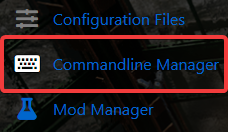
4. On the Commandline Manager, activate the TXAdmin line.

5. Start the server and make sure that it is online.
6. Navigate to TXAdmin Tab.
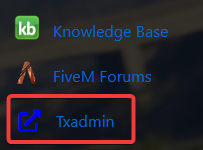
7. Once on the TXAdmin, your Game Panel Username will be used for the TXAdmin user.
The password will be "masterpassword123". 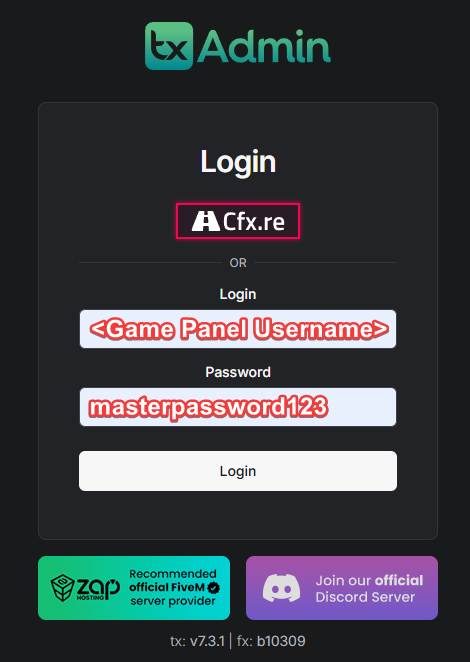
We recommend changing the password as soon as possible. You can change it in "Your Account" options on the top right of the page.
8. Once logged in, go to System and select "Master Actions". Then click "Reset FXserver", then select your preferred Framework.
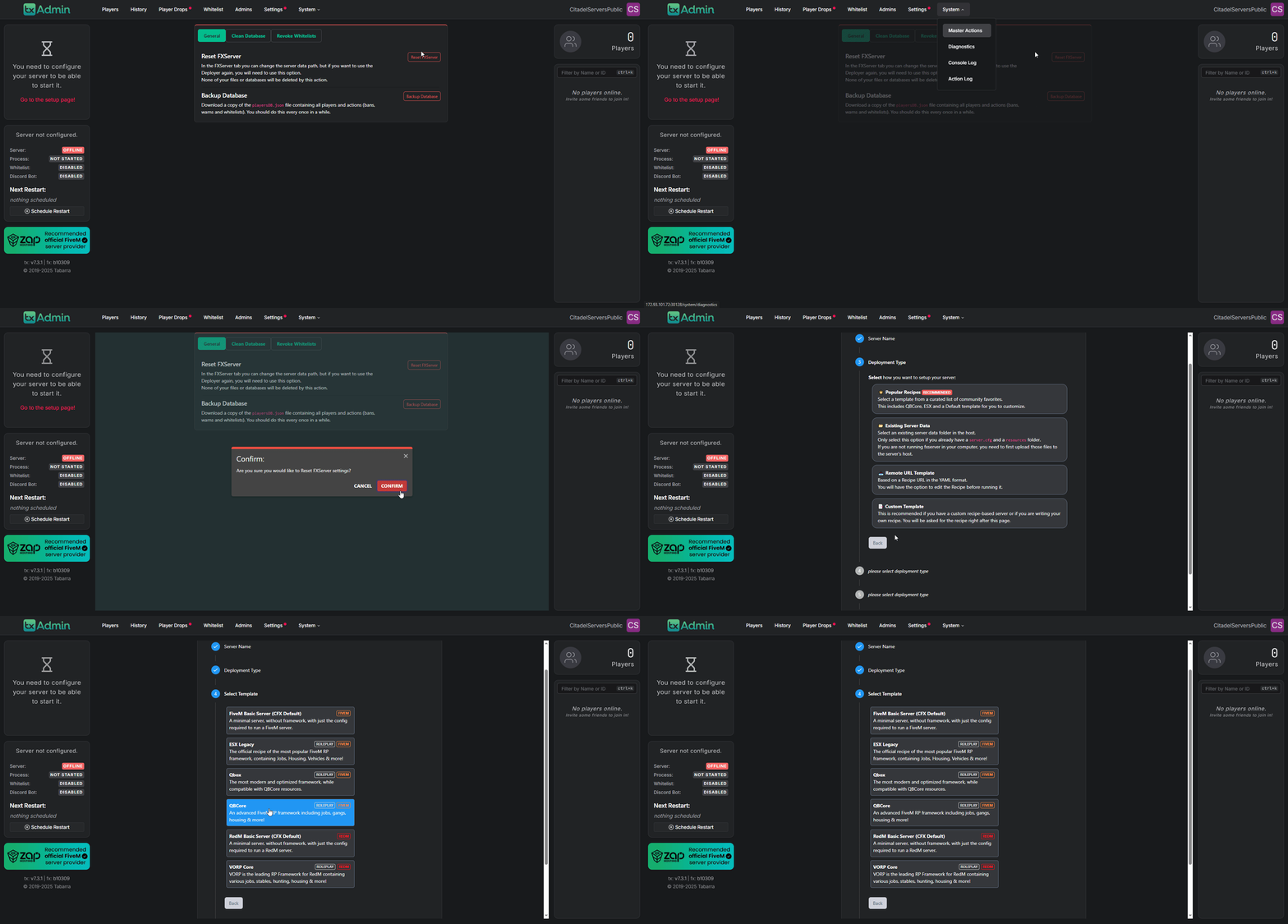
9. Follow the following prompts after this and provide your License Key and Database information. Please do not edit any file paths in the installation process to ensure everything goes smoothly.
10. Once it's done installing, you can now start your server.
Did the above information not work for you?
Please click here to contact our support via a ticket.
