

This quickstart guide will help you jump-start your adventure on your Citadel: Forged with Fire server.
Click here to order your Citadel Forged With Fire server with AA Game Hosting today!
Welcome, adventurer! Whether you're a lone mage seeking dominion or a guild leader preparing for war, hosting your own server in Citadel: Forged With Fire is the key to unlocking a fully customizable fantasy experience. This guide is your spellbook for getting started packed with everything you need to conjure your own realm from the ground up.
Connecting to your Citadel: Forged with Fire Server
1. Log in to your Game Control Panel and navigate to your service.
2. Start the server and launch the game.
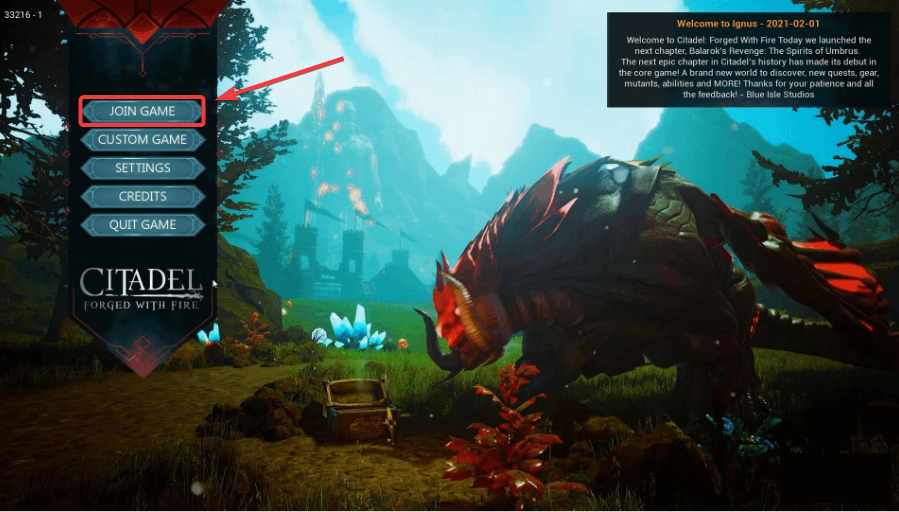
3. On the Game Menu, navigate to Join Game.
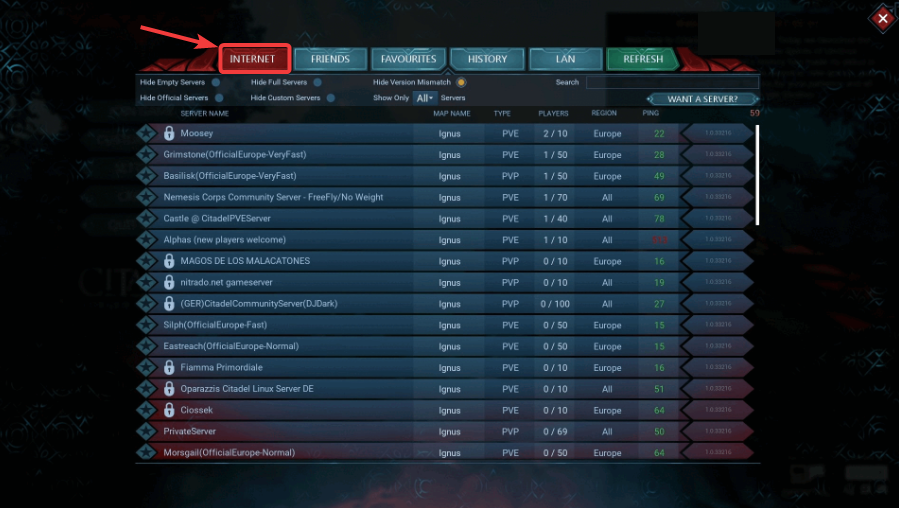
4. On the Search Page, click the Internet to show all the servers on the game.
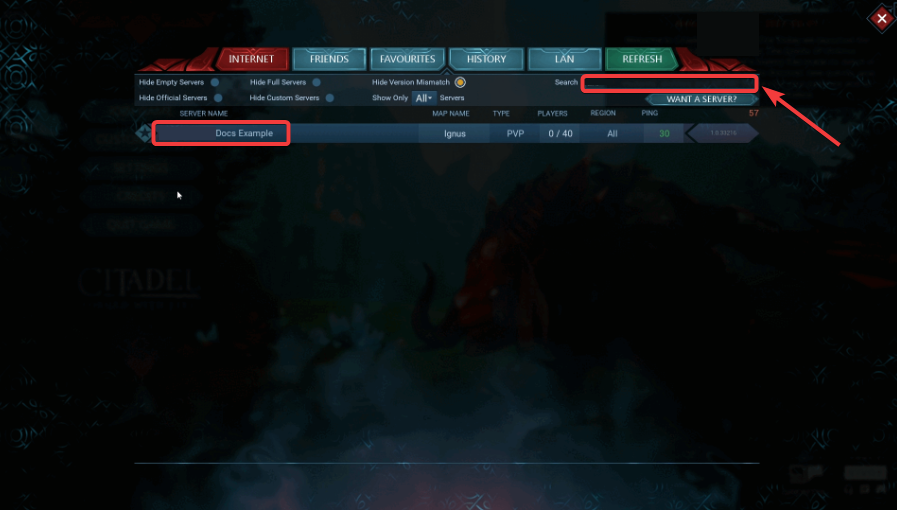
5. Search the name of your server using the search bar above. Once the server shows up, you can add it to your favorites.
Setting up your Server Name and Password
Follow these simple steps to customize your server name and password:
1. Stop the Server before making any changes, ensure your server is fully stopped to prevent file conflicts.
2. Navigate to the Configuration Files section in your server control panel.
3. Open the Game.ini File Locate the file at: Citadel\Saved\Config\WindowsServer\Game.ini Click the Text Editor button to open it.
4. Scroll to the section labeled WorldCreationSettings.
5. Within the quotation marks (""), enter your desired ServerName and/or Password.
a. Contains no special characters
b. Is no longer than 12 characters
6. After making your changes, save the file and restart the server to apply the new settings.
Need further assistance?
Please click here to contact support via a ticket.
