

This guide will show you how to Reset Your Game While Keeping Mods Installed on your 7 Days to Die Server
Resetting your game while keeping all your mods installed is a great way to start fresh without losing the custom content you’ve added to enhance your 7 Days to Die experience. Over time, local saves, configuration files, and cached data can become cluttered or corrupted, leading to performance issues, broken worlds, or unexpected behavior, especially when running multiple mods. The good news is that you don’t need to reinstall the entire game to fix these problems. By clearing the right folders and preserving your mod directory, you can reset your game cleanly while keeping every mod intact. This guide walks you through exactly what to remove, what to keep, and how to ensure your modded setup loads smoothly afterward.
Starting Fresh in 7 Days to Die While Preserving Your Mods
1. Log in to your Game Panel.
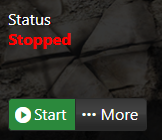
2. Before making changes, make sure the server is stopped.
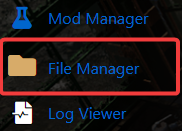
3. Navigate to File Manager.
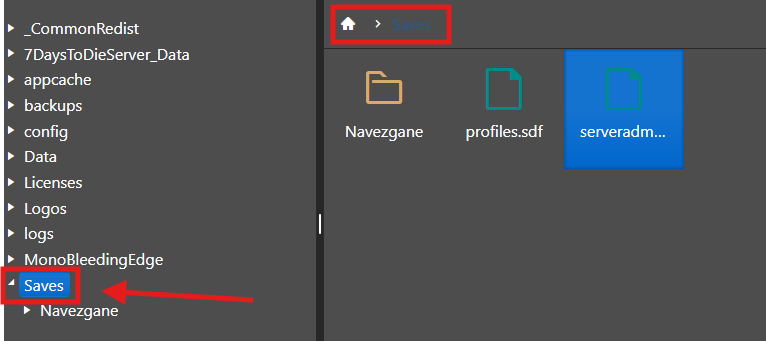
4. Go to the Saves directory and open it to access all of your saved game files.
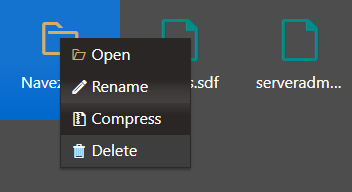
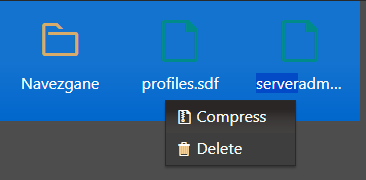
5. Right‑click a file to delete it, or highlight multiple files with a left‑click and use Delete to remove them in bulk.
or
Did the above information not work for you?
Please click here to contact our support via a ticket.