
This guide will show you how to Fix Your 7 Days to Die Server Not Showing in the Server List
When your 7 Days to Die server doesn’t appear in the public server list, it can be frustrating, especially when players are waiting to join. This issue is almost always caused by a networking or configuration mismatch, and the good news is that it’s fully fixable. Whether you’re hosting through a provider or running the server yourself, ensuring the correct ports, visibility settings, and network rules are in place will allow your server to broadcast properly to the master list. This guide walks you through the most common causes and the exact steps needed to get your server showing up reliably in the in‑game browser.
Ensuring Your 7 Days to Die Server Appears in the Public Server List
1. Log in to your Game Panel.
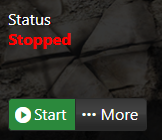
2. Before making changes, make sure the server is stopped.
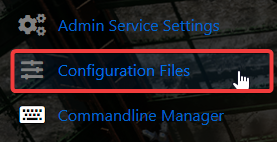
3. Navigate to Configuration Files.
4. In the Configuration Files section, locate the serverconfigmain file and click the Text Editor to modify its contents directly.

5. Add the following parameter to your server configuration, then click Save & Exit to apply the change:
<property name="Region" value="Europe" />

Make sure this entry aligns with the formatting of your existing parameters, then update the value to match your preferred server region.
6. Once you’ve finished making your changes, select Save to apply them to the server.

Did the above information not work for you?
Please click here to contact our support via a ticket.