

This guide will show you how to Fully Wipe Player Data and Reset Your 7 Days to Die Server
Resetting your 7 Days to Die server and wiping player data is essential when you want to start fresh, clear corrupted saves, or prepare the world for a new season or community event. Over time, player inventories, bases, and world files can become cluttered or unstable—especially on long‑running servers or heavily modded setups. Performing a full wipe ensures that every player begins on equal footing and that your server loads clean, conflict‑free data. This guide will walk you through what gets removed during a wipe, why you might need one, and how to safely reset your server so it’s ready for a brand‑new playthrough.
Resetting Worlds
1. Log in to your Game Panel.
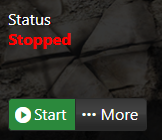
2. Before making changes, make sure the server is stopped.
3. Navigate to Configuration Files.
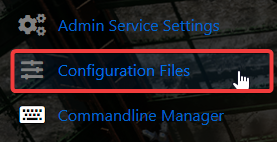
4. In the Configuration Files section, locate the serverconfigmain file and click the Text Editor to modify its contents directly.

5. Update the GameName property to the new name you want to use.

To revert to your previous world, simply change the GameName value back to its original name.
6. Once you’ve finished making your changes, select Save to apply them to the server.

1. Log in to your Game Panel.
2. Before making changes, make sure the server is stopped.
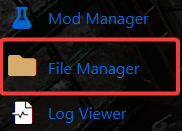
3. Navigate to File Manager.
4. From the File Manager, navigate to Saves\YourWorldName\YourSaveName\Player.
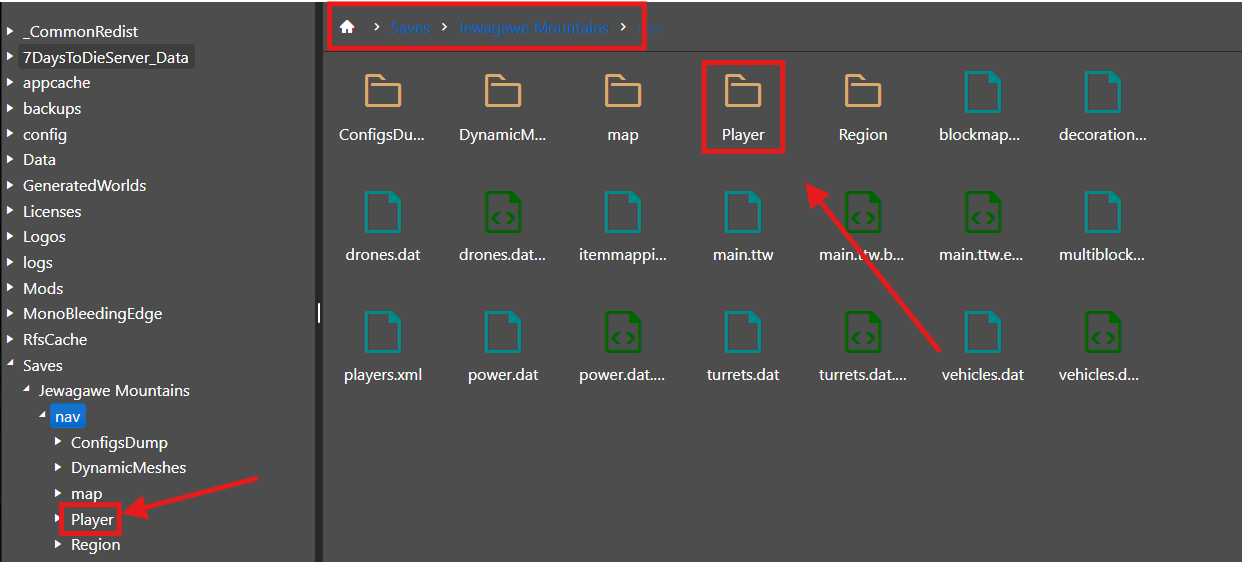
6. Inside the Player folder, locate the <EOS_ID>.ttp, <EOS_ID>.ttp.bak, and <EOS_ID>.meta files, and delete all three.
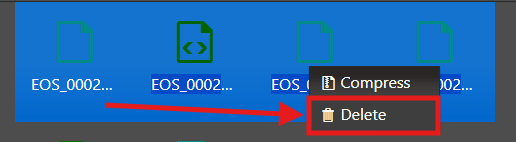
7. Once finished, start or restart your server so the changes take effect.

Did the above information not work for you?
Please click here to contact our support via a ticket.