

This quickstart guide will help you jumpstart your adventure on your Heat Server.
Click here to order your Heat server with AA Game Hosting today!
Getting started with a Heat server doesn’t have to be complicated. This quickstart guide is designed to help you set things up smoothly and get playing faster. With just a few steps like logging into your Game Control Panel, grabbing your server’s connection info, and adding it to Steam’s server list, you’ll be ready to connect and invite friends. From there, you can tweak your server settings using configuration files and command line options to customize the experience to your liking. By the end, you’ll have a working Heat server that’s tailored to your preferences, with the confidence to explore more advanced customization later.
How to Connect to your Heat Server
1. Log in to your Game Control Panel and navigate to your service.
2. Copy the Connection Info/Query Port listed.
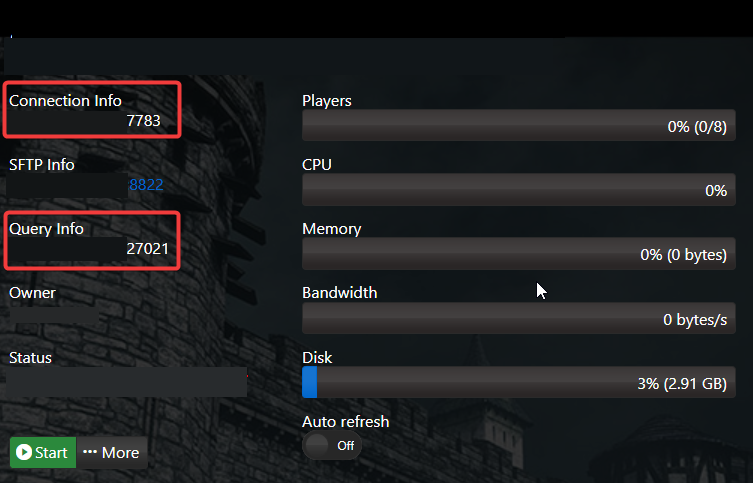
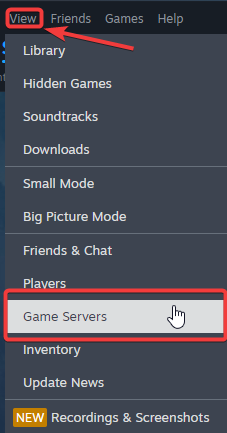
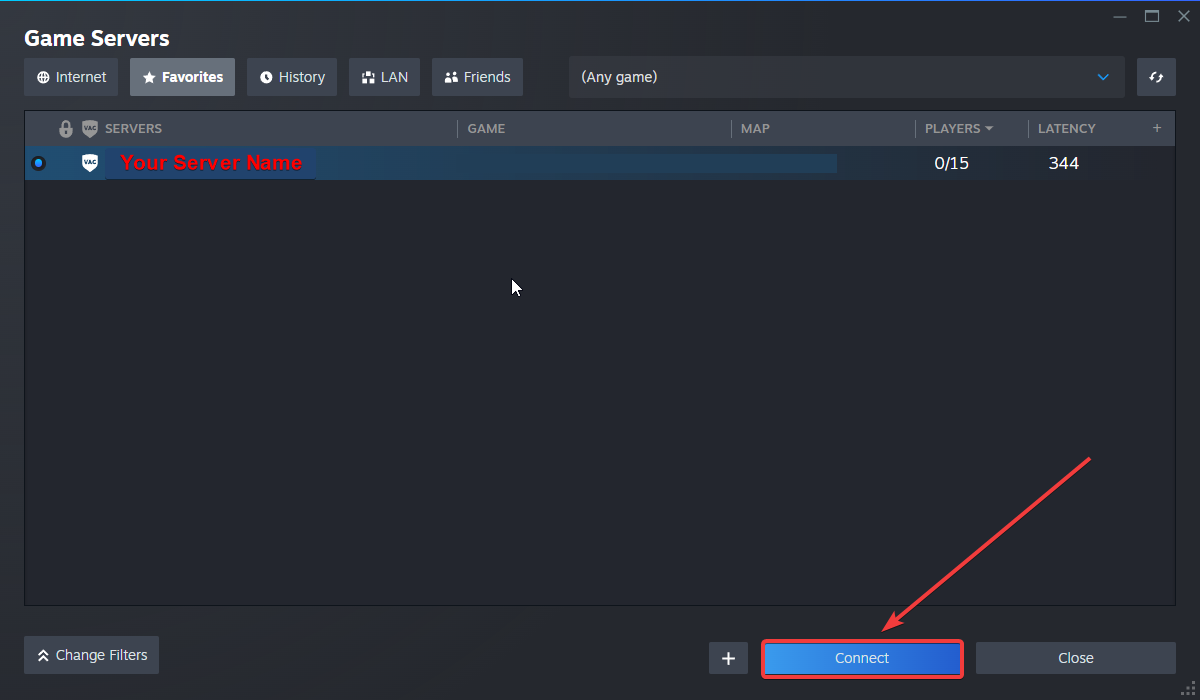
3. Open Steam. Click the View tab, then click Game Servers.
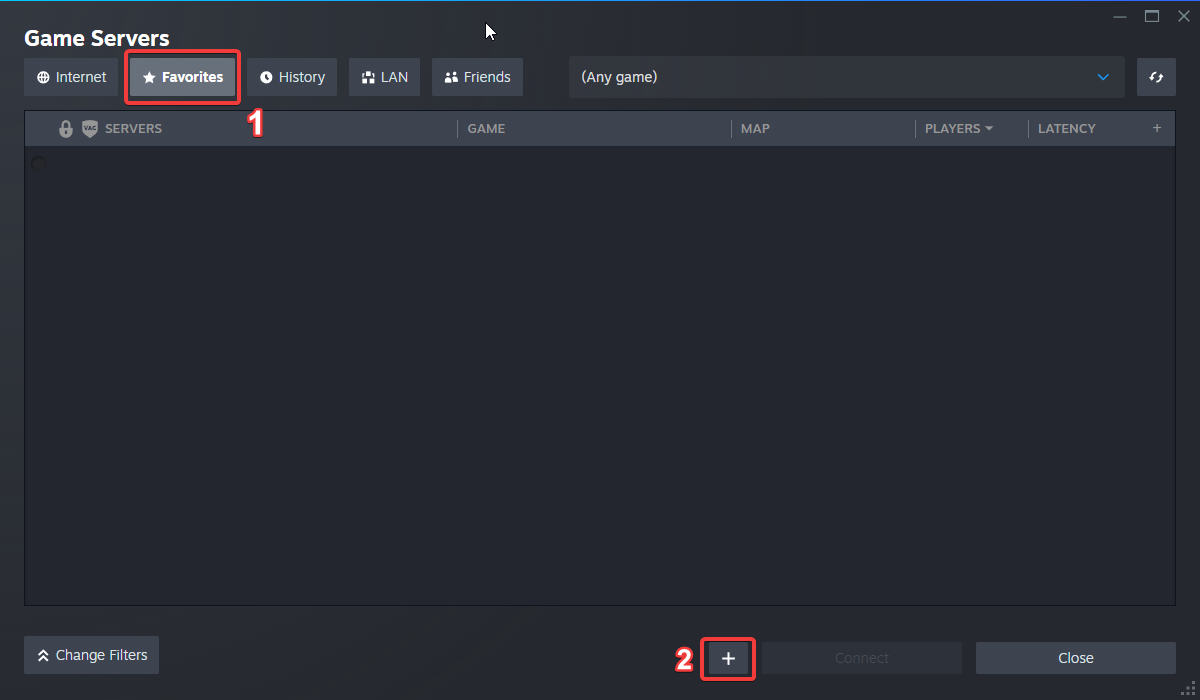
4. Click on the Favourites tab, then click the "+" sign and Add Server.
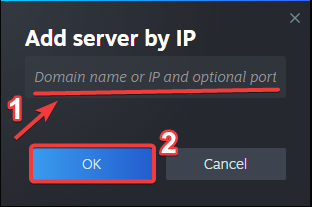
5. Paste in your server's Connection Info or Query Info IP/Port.
6. Click Connect.
Configuring your Server Name and Password
To edit these basic settings, follow these steps:
1. Log in to your Game Control Panel and navigate to your service.
2. Before making any modifications, stop the server from running by clicking the Stop button.

3. Go to the Configuration Files Tab.
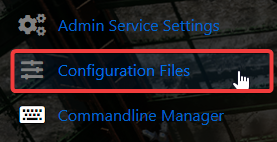
4. For the Configuration Files, select the Config Editor Button.
A pop-up will appear, and you can change the Server Name and Password.
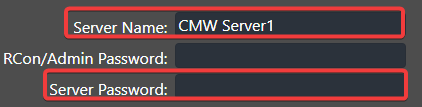
5. After editing, click Save to apply the changes.

Did the above information not work for you?
Please click here to contact our support via a ticket.
