
This guide will show you how to join on your Chivalry Medieval Warfare server In-Game.
Joining a server in Chivalry: Medieval Warfare is a straightforward process that lets you dive into intense medieval combat with players around the world. Whether you're looking for a casual skirmish or a competitive battle, the game offers a variety of servers tailored to different playstyles and maps. To get started, launch the game and navigate to the multiplayer menu. From there, you can browse the server list, filter by game mode, ping, or player count, and select a server that suits your preferences. Once you’ve found the right one, simply click to join and prepare for battle swords, shields, and siege engines await!
Joining your Chivalry Medieval Warfare Server In-Game
How to Find your IP Address?
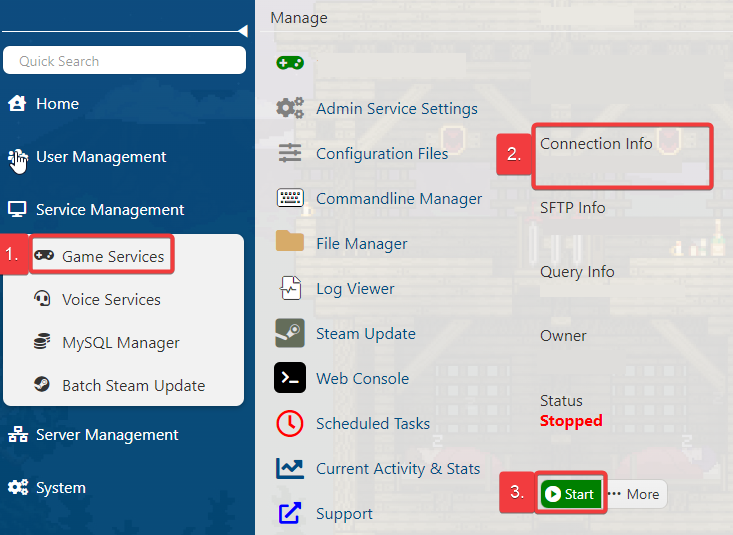
1. Log in to your Game Control Panel.
2. In the Service Management section, click on Game Services to view your list of hosted games. From there, locate and click on your specific server to access its settings and management options.
3. Under Connection Info, you'll find your server's IP address, which is essential for joining or sharing access with others. Before attempting to connect, make sure your server is actively running otherwise, players won't be able to join.
Option 1: Joining the server via Lobby
1. Log in to your Game Control Panel and navigate to your service.
2. Start your server and Launch the Game.
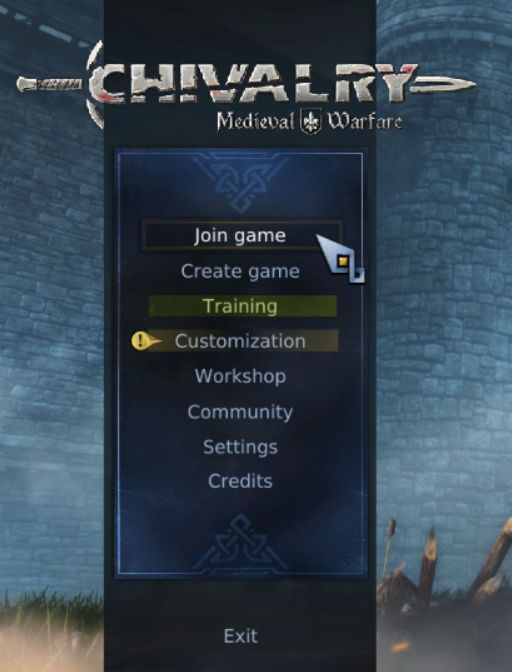
3. Click the Join Game in the Main Menu.
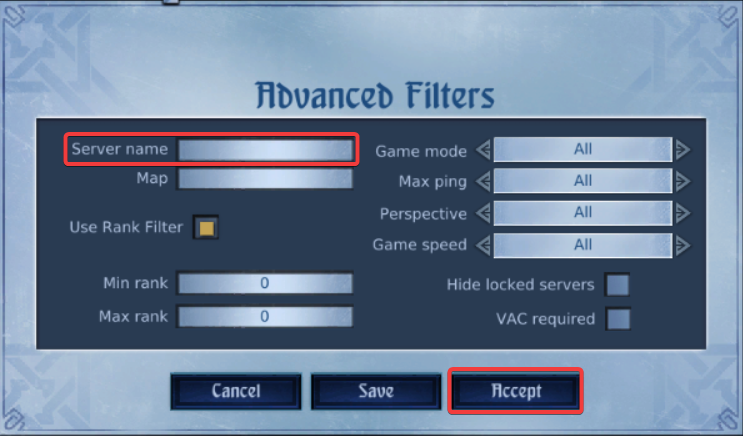
4. In the Join Game lobby, locate and click the Advanced Filter button positioned in the lower-right corner of the screen.
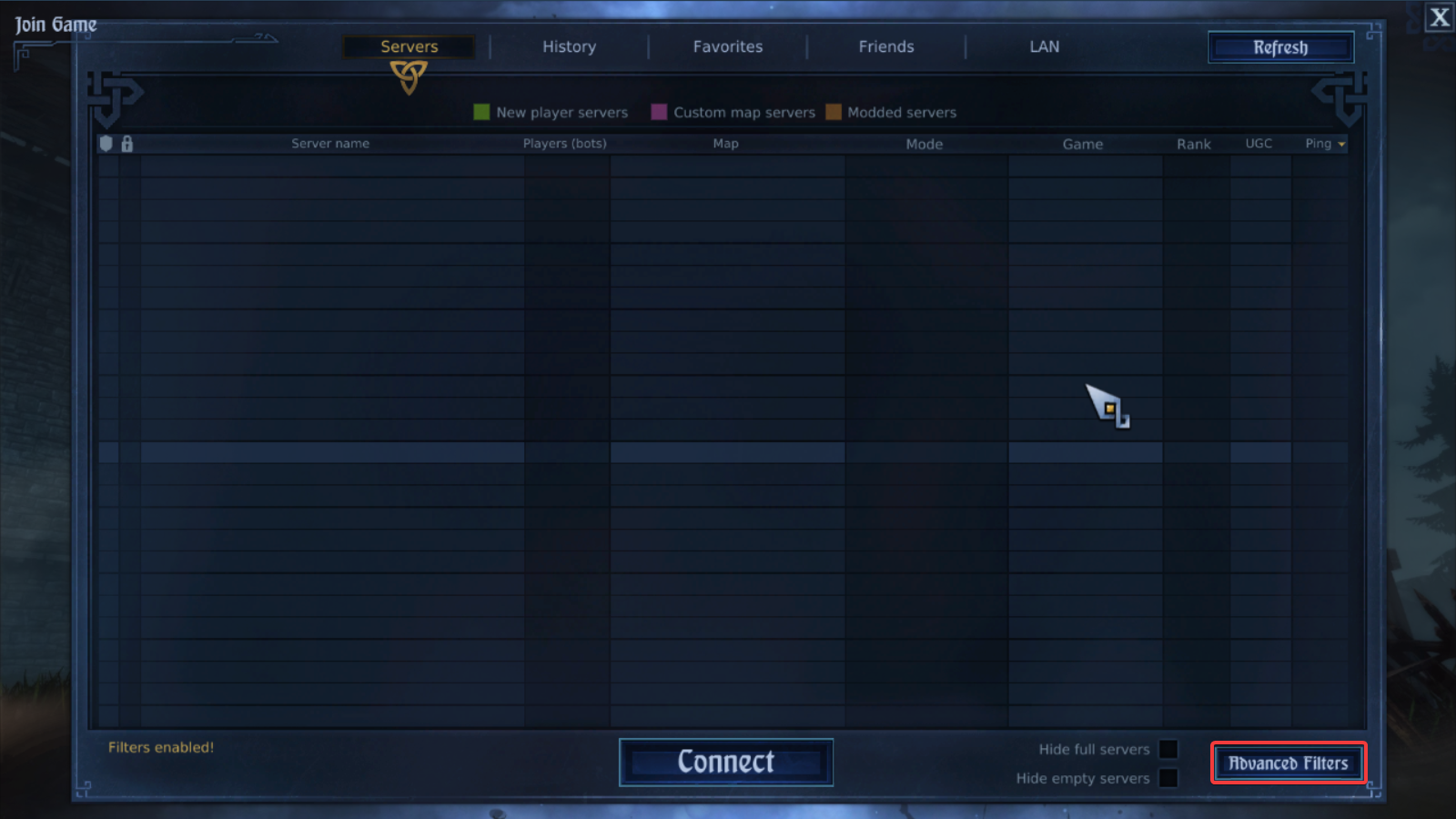
5. Type the server name into the search field, adjust filters such as Game Mode, Minimum Rank, and Maximum Rank as needed, then click Accept to apply your settings.
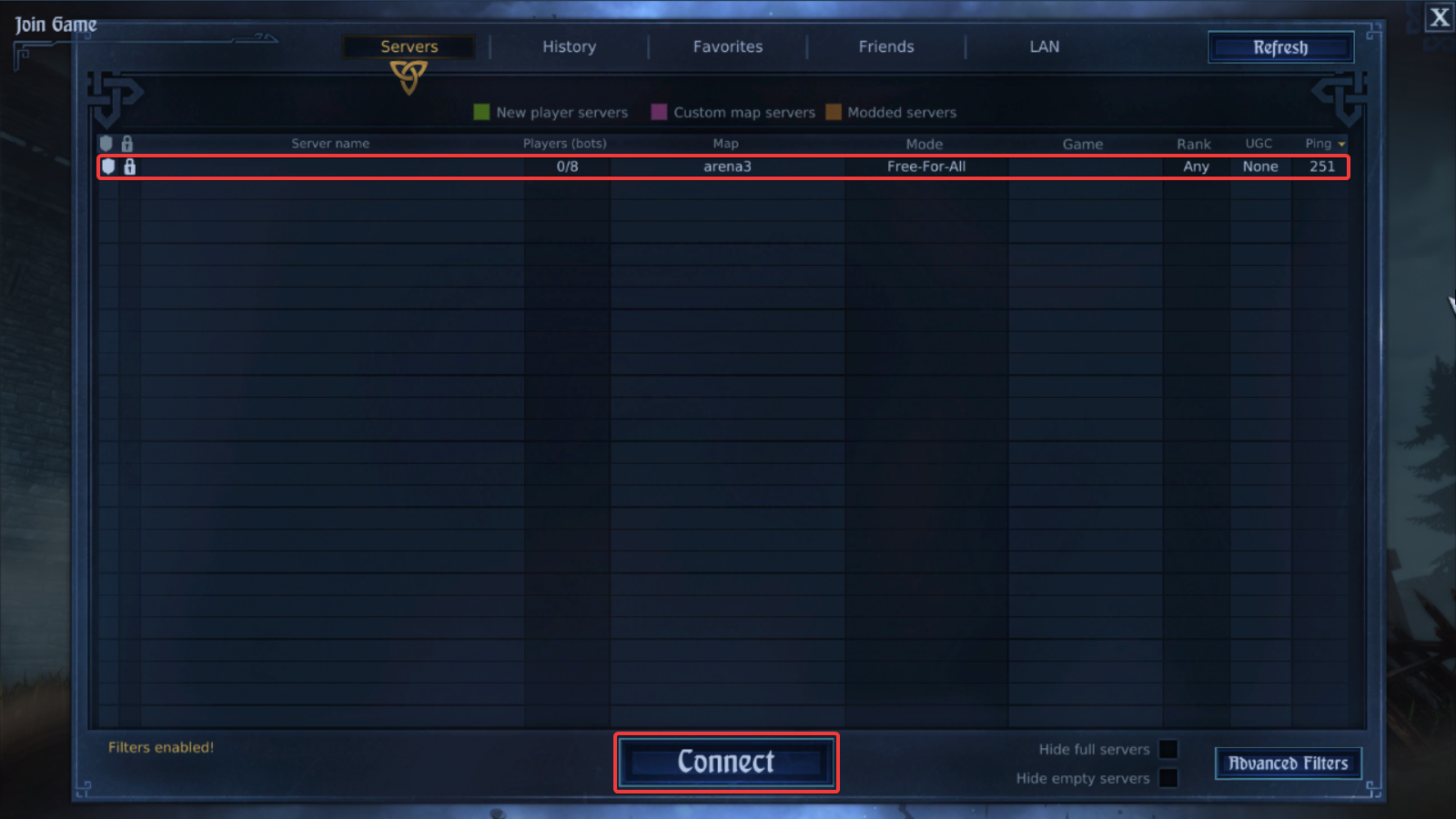
6. Once the server name appears in the Join Game lobby, click on it to highlight your selection, then press Connect to join the server and begin playing.
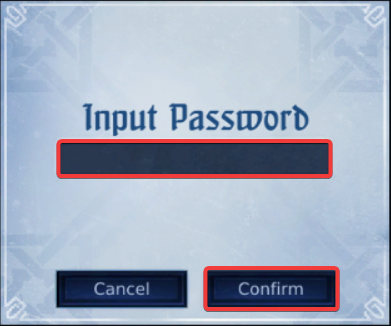
7. If a password prompt appears, type in the server password provided by the host, then click Confirm to proceed and join the server.
Option 2: Joining the server via Direct Connect
1. From the Game Menu, press the (`) key (located just below the Escape key on most keyboards) to open the Game Console. This allows you to enter advanced commands and settings directly.
2. In the Game Console, type the command open "IP:host" to connect directly to a server. If the server requires a password, use the format open "IP:host"?Password="password" instead. After entering the command, press Enter on your keyboard to initiate the connection.
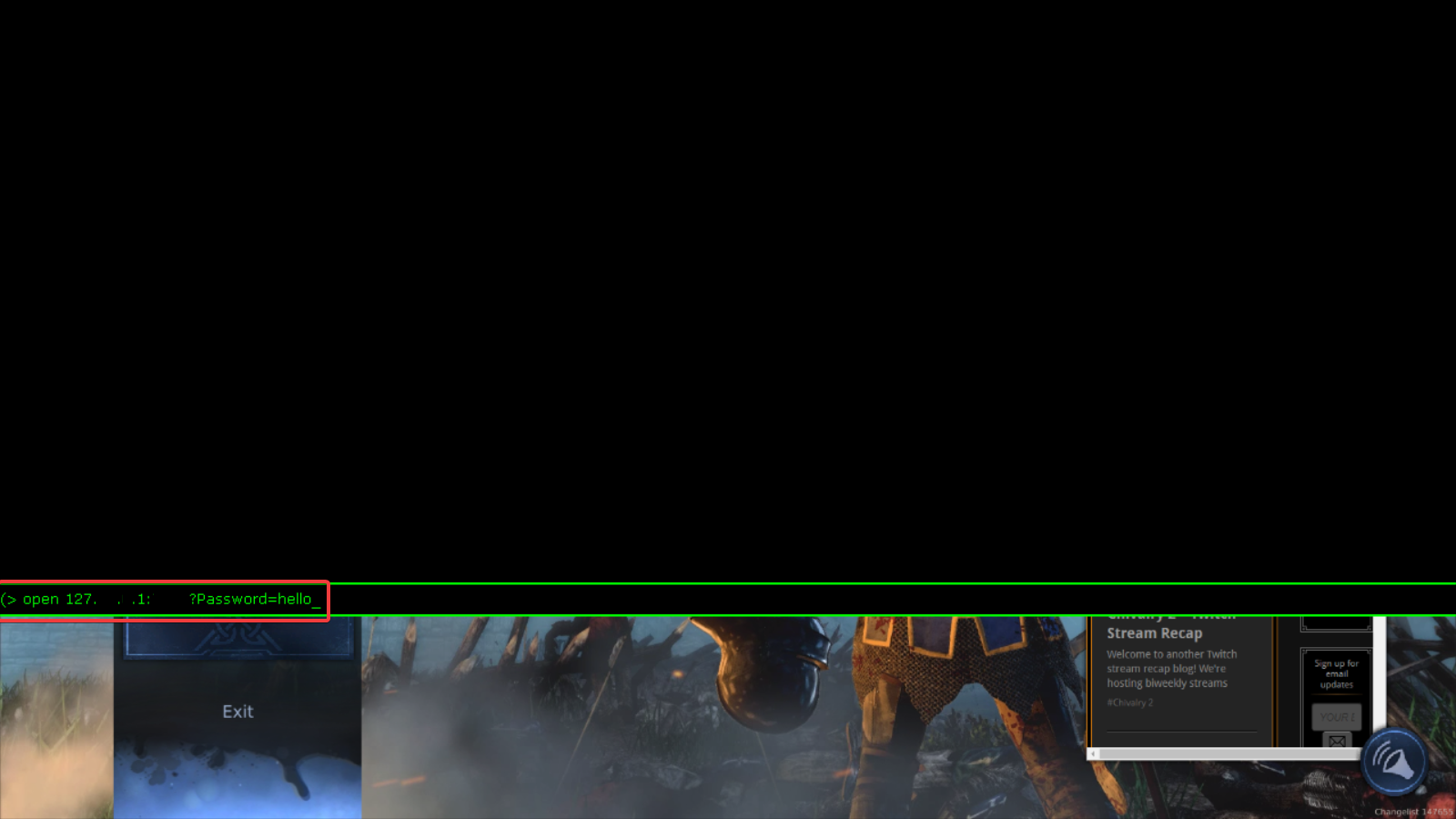
3. To exit the Game Console, simply press the (`) key again on your keyboard. This will close the console overlay, allowing you to return to the game and begin playing.
Did the above information not work for you?
Please click here to contact our support via a ticket.
