

This guide will show you how to Allow Gamma Usage on your ARK: Survival Evolved Server
Enabling gamma usage on your ARK: Survival Evolved server gives players the ability to adjust their screen brightness in‑game, making nighttime exploration far more manageable. Whether you’re running a PvE community, a private co‑op world, or a progression‑focused cluster, allowing gamma helps reduce frustration and improves overall visibility without altering core gameplay balance. This guide walks you through the exact server settings required to enable gamma commands, explains how they work, and ensures your players can safely use Gamma and Gamma2 whenever needed.
Enabling Gamma Controls on Your ARK Server
Gamma settings aren’t enabled by default, which can be frustrating for server owners, especially when nighttime visibility doesn’t match the experience you want your players to have. Since these options are controlled through Config Files > GameUserSettings.ini, they sit alongside the rest of your core server settings. Allowing gamma gives you flexibility in shaping your server’s atmosphere: you can keep the world dark and eerie for a Halloween event or a horror‑themed playthrough, or brighten the environment to highlight visual clarity and showcase ARK’s graphics.
1. Log in to your Game Panel.
2. Before making changes, make sure the server is stopped.

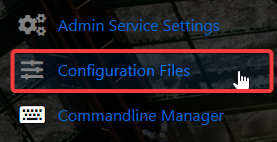
3. Navigate to the Configuration Files Tab.
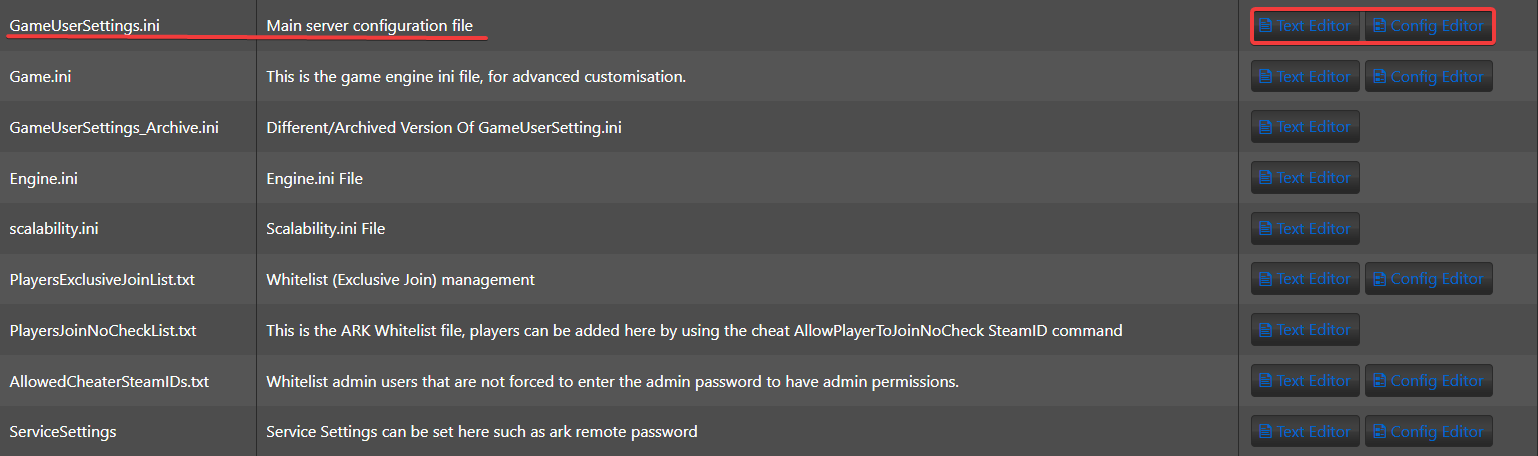
4. Open the GameUserSettings.ini file to make the necessary edits.
5. Copy and paste the following settings under the [ServerSettings] section in your GameUserSettings.ini file:
EnablePvPGamma=True
DisablePvEGamma=False
6. Click the Save button to apply it.

Once your gamma settings are saved, you’ll need to adjust the actual brightness values in‑game by using the gamma command manually.
1. Launch ARK from your game launcher and join your server.
2. Once the game finishes loading, press TAB to open the in‑game console.
3. Type gamma [value] into the console and press Enter to apply the brightness level.
4. After applying the value, you should immediately notice a clear change in your screen’s brightness.
For reference, the gamma command accepts values between 0 and 10, including decimals for finer control. If you ever want to revert your brightness to ARK’s default level, set your gamma back to 2.2 in‑game.
Order an ARK: Survival Evolved game server with AA today!